GPT Image 2 Photoreal Image Editing and Text Rendering Guide
GPT Image 2 brings photoreal image generation, sharp in-image text, and natural language editing to one workflow. Here's how to use it on Veevid.

OpenAI's GPT Image 2 gives creators a cleaner answer to a common problem: you no longer need one model for photoreal output, another for text rendering, and a third tool for image editing. In one workflow, you can generate new images from scratch, rewrite existing visuals with natural language, and produce layouts that hold up even when the image includes signage, packaging, headlines, or multilingual copy.
That combination is why GPT Image 2 matters for real production work. Most coverage stops at the launch news. This guide takes the more useful angle: what GPT Image 2 is actually good at, how it compares to older OpenAI image workflows, and how to use it on Veevid's GPT Image 2 page or directly inside Text to Image and Image to Image.
What Is GPT Image 2?
GPT Image 2 is OpenAI's latest GPT Image model for image generation and editing. In OpenAI's official launch materials, you'll also see it framed under the broader "ChatGPT Images 2.0" release. According to OpenAI's image generation guide, it supports both the Image API and the Responses API, which means developers can use it for one-shot image creation or multi-turn editing workflows inside broader conversations and creative tools.
In practical terms, GPT Image 2 is built for three jobs:
- Generate a new image from a text prompt
- Edit an existing image with natural language instructions
- Render sharper in-image text than earlier general-purpose image generators
For creators, that makes it especially useful for marketing assets, posters, product mockups, social creatives, editorial-style visuals, and fast revision loops where you want to keep the original composition but change details.
Why GPT Image 2 Feels Different From Older OpenAI Image Workflows
The most important shift is workflow consolidation.
Earlier OpenAI image tools were often discussed as either generation-first or chat-first. GPT Image 2 closes that gap. OpenAI positions it as an image model that works in both direct image generation flows and conversational multi-turn editing flows. That matters because many real creative tasks are not one prompt and done.
A typical workflow looks more like this:
- Generate a first draft from text
- Ask for sharper lighting, different styling, or stronger composition
- Replace one object or change the background
- Tighten the in-image text
- Export a usable asset
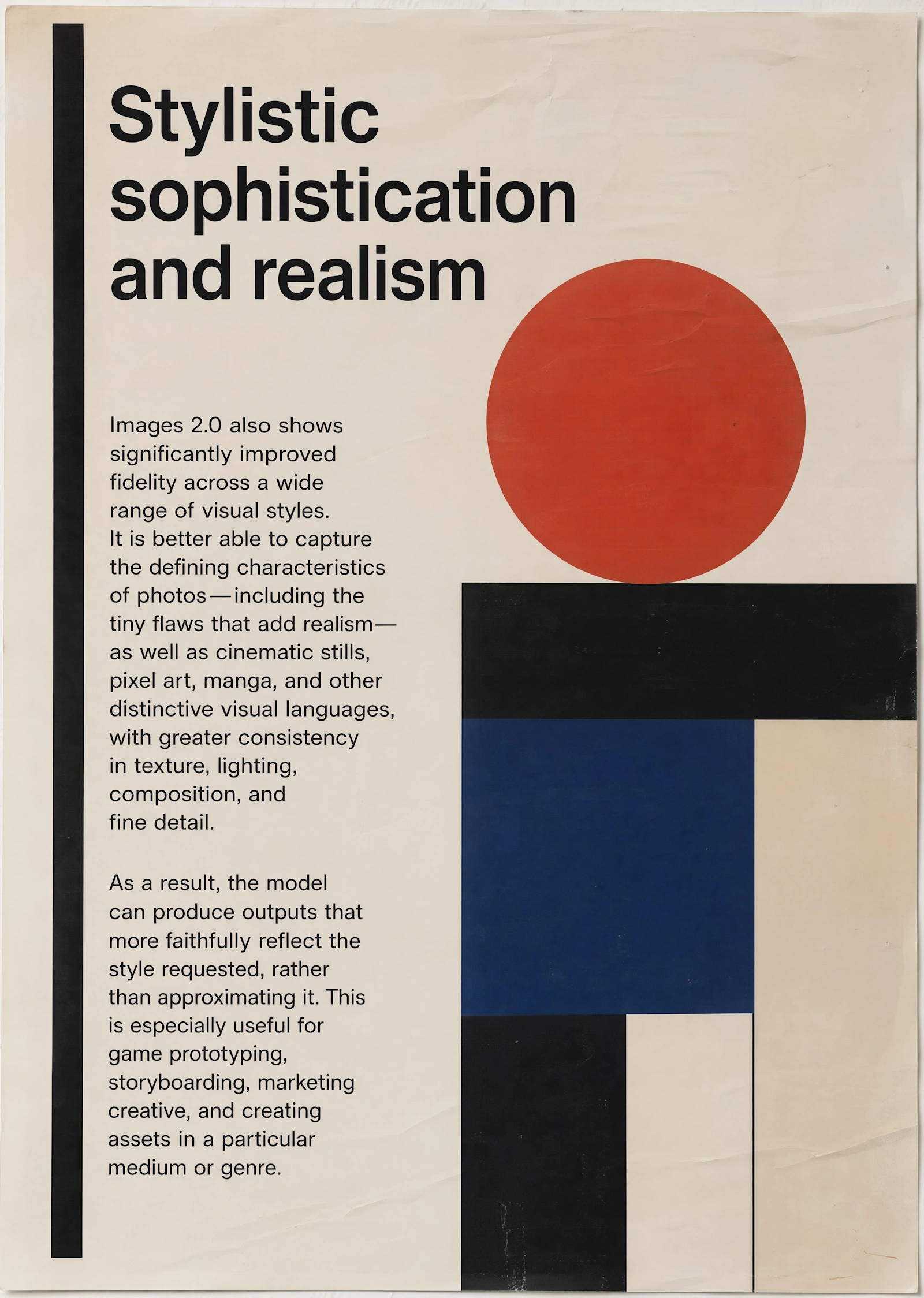
GPT Image 2 is a better fit for this loop than older image workflows because the model is designed to accept both text and image inputs, and because OpenAI explicitly supports iterative editing in the Responses API.
Source: OpenAI - Introducing ChatGPT Images 2.0
Key GPT Image 2 Features That Matter in Real Work
1. Photoreal image generation
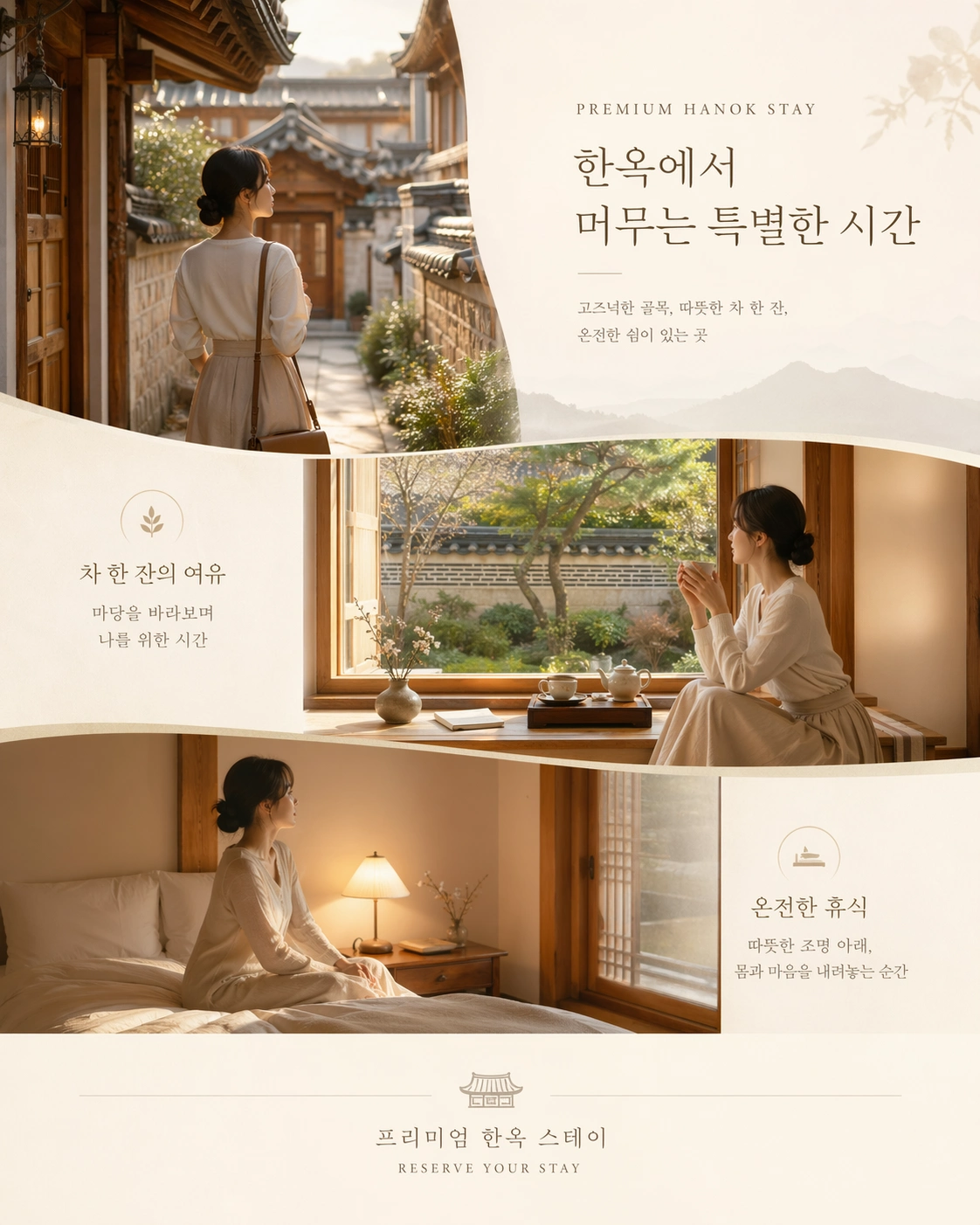
Veevid positions GPT Image 2 around photoreal output, and that's the right hook. This model is a better fit for product-style visuals, portraits, lifestyle scenes, brand mockups, and polished commercial imagery than for purely abstract or stylized art prompts.
If your goal is to create:
- Product hero images
- Social ads
- Poster-style key visuals
- Realistic portraits
- Editorial fashion scenes
GPT Image 2 is a strong candidate because it balances realism with prompt control.
Source: OpenAI - Introducing ChatGPT Images 2.0
2. Sharp in-image text
This is one of the clearest reasons to care about GPT Image 2.
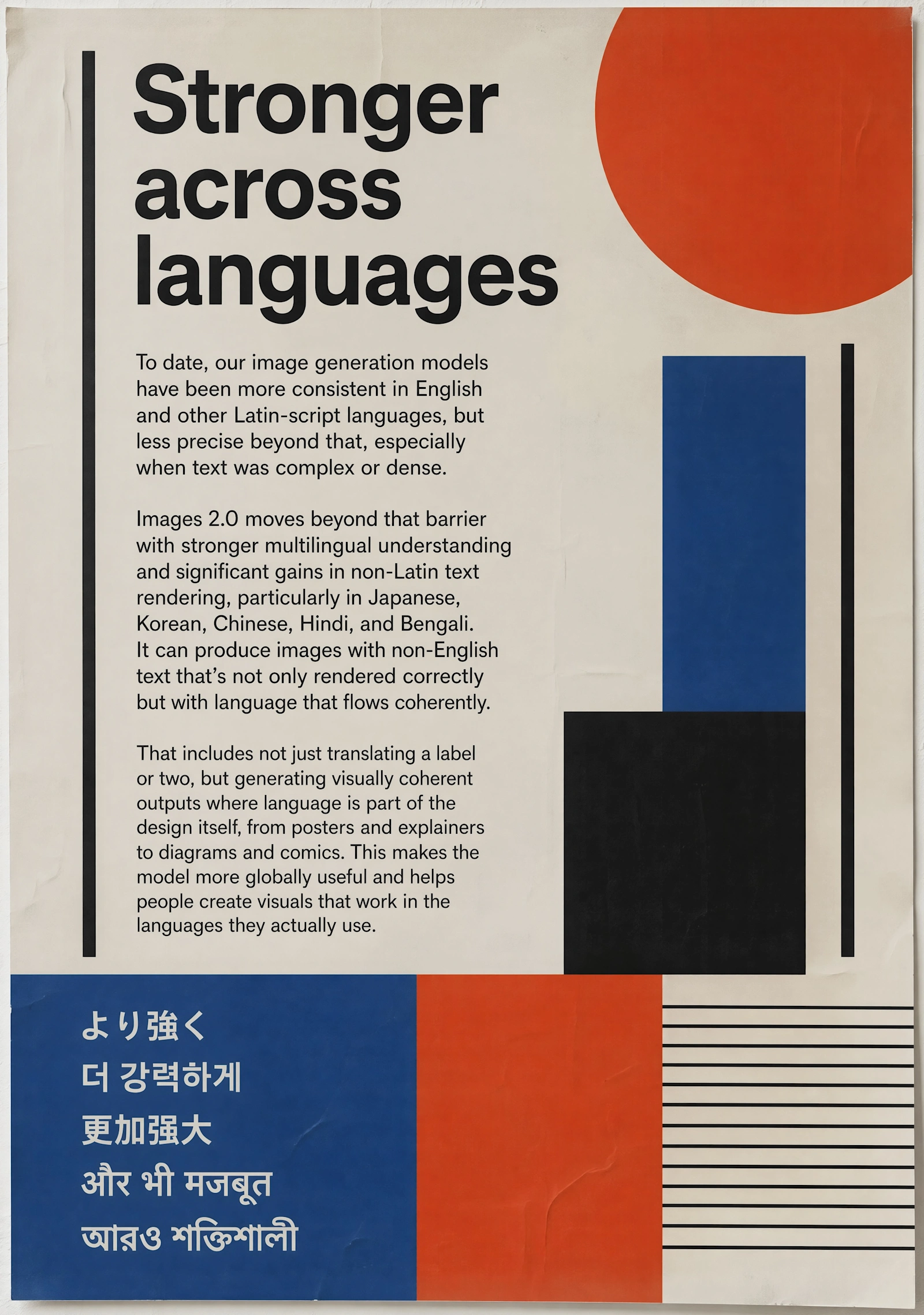
OpenAI highlights accurate text rendering as a core capability of GPT Image models, and Veevid's own GPT Image 2 positioning leans on the same strength. That makes the model more practical for assets where the words inside the image actually matter, such as:
- Storefront posters
- Sale banners
- Packaging mockups
- Event flyers
- Menu concepts
- Social creatives with short headlines
A lot of image generators still break down when you ask for dense layouts or clean typography. GPT Image 2 doesn't magically replace a design tool for every case, but it's much closer to production-ready when you need the image and the copy to work together.
Source: OpenAI - Introducing ChatGPT Images 2.0
3. Natural language image editing
GPT Image 2 is not just a text-to-image model. It is also meant for image-to-image editing.
OpenAI's API guide describes support for editing existing images, using image references, and even masked edits. On Veevid, that translates into a simpler user workflow: upload an image, describe the change, and generate a revised version.
That makes GPT Image 2 useful for tasks like:
- Swapping a background
- Replacing an object
- Changing wardrobe or styling details
- Adjusting color palette
- Reframing an image's mood
- Turning a plain source image into campaign-ready creative
This is a better blog angle than a generic launch recap because it speaks to the actual job users want done.
4. Multi-turn iteration potential
One underrated point from OpenAI's docs is that GPT Image workflows can be multi-turn. In the Responses API, the model can revise prompts, generate new images, or edit an image already in context across follow-up turns.
That matters for product teams and builders. GPT Image 2 is not just a model you call once. It can support a full iteration loop inside apps, internal tools, assistants, or creative copilots.
For Veevid readers, the takeaway is simple: even if you start with a basic prompt, you can use GPT Image 2 as part of a broader image refinement workflow rather than treating every output as a dead end.
GPT Image 2 vs Older OpenAI Image Models
The safest way to position GPT Image 2 is not with exaggerated claims, but with workflow advantages.
Compared with older OpenAI image workflows, GPT Image 2 is a better fit when you need:
- Better photoreal commercial output
- Stronger text rendering inside the image
- Cleaner natural language editing
- A more conversational revision loop
That doesn't mean every use case belongs here. If you only want loose concept art or highly stylized experimental imagery, other models may still be a better fit. But for brand assets, marketing graphics, and image editing with specific instructions, GPT Image 2 is easier to justify.
GPT Image 2 vs Nano Banana 2 vs Seedream 5.0 on Veevid
Veevid now supports multiple image models, so users will naturally ask which one to choose.
| Model | Best For | Strength | Workflow Fit |
|---|---|---|---|
| GPT Image 2 | Photoreal marketing visuals, text-heavy assets, editing | Sharp in-image text, instruction following, image editing | Best when you need realistic output and revisions |
| Nano Banana 2 | Fast, high-quality image generation with strong consistency | Speed, consistency, general creative versatility | Best for rapid ideation and repeatable visual identity |
| Seedream 5.0 | High-fidelity editorial and multi-reference compositions | 4K output, composition control, polished visual style | Best for premium visual design and reference-heavy prompts |
The key point is that GPT Image 2 is not just "another image generator" in the lineup. On Veevid, it fills a specific gap: realistic image generation plus practical editing plus usable text inside the image.
Best Use Cases for GPT Image 2
Marketing creatives
If you need an ad-style image with a headline, a CTA phrase, or branded packaging text, GPT Image 2 is one of the most practical options in the Veevid stack.
Product mockups
The combination of photoreal rendering and sharper text makes it useful for label concepts, packaging visuals, storefront art, and ecommerce hero imagery.
Social content
Short-form social visuals often need both realism and quick edits. GPT Image 2 works well when you want to keep one concept but rapidly revise styling, copy, or composition.
Editorial visuals
For magazine-style portraits, campaign moodboards, and polished promotional imagery, GPT Image 2 gives a more commercial aesthetic than many fast image models.
Image cleanup and transformation
If you already have a source image and want to restyle it, change the setting, or update part of the composition with plain-English instructions, GPT Image 2 is a strong fit.
How to Use GPT Image 2 on Veevid
Veevid already ships GPT Image 2 as a live model, so you don't need to wire up the OpenAI API yourself.
Option 1: Start from text
Go to Text to Image, select GPT Image 2, and describe the image you want.
A good prompt structure is:
- Subject
- Setting
- Lighting
- Camera or framing style
- Visual mood
- Exact short text to appear in the image, if needed
Example:
A premium skincare product on a stone pedestal in a bright studio, soft daylight, editorial beauty photography, minimal luxury aesthetic, packaging text reads "Hydrate Daily"
Option 2: Edit an existing image
Go to Image to Image, upload your source image, then describe the change in natural language.
Example edits:
- Replace the gray background with a warm beige studio wall
- Change the product cap from silver to matte black
- Turn this casual portrait into a fashion editorial with dramatic lighting
- Keep the composition but add a clean sale poster behind the subject
Option 3: Use the dedicated landing page
If you want to understand the model before generating, start on the GPT Image 2 landing page. It gives you a faster overview of the model's positioning, example outputs, and workflow entry points.
Prompt Tips for Better GPT Image 2 Results
Be explicit about the text inside the image
If the asset needs typography, tell the model exactly what text should appear and where it should appear.
Instead of:
Create a sale poster
Try:
Create a modern storefront sale poster with the headline "Summer Sale" in large serif type at the top and a small subheading "Up to 40% Off" beneath it
Describe the commercial intent
GPT Image 2 performs better when you frame the asset around the job it needs to do.
For example:
- "ecommerce hero image"
- "editorial fashion campaign"
- "beauty ad creative"
- "restaurant window poster"
That tends to produce more usable composition and styling.
Use editing prompts as direct instructions
For image-to-image tasks, don't overcomplicate the prompt. Direct, concrete instructions usually work better than long narrative descriptions.
Good example:
Keep the subject pose and framing, replace the background with a minimalist luxury hotel lobby, and change the outfit to an all-black tailored suit
Iterate in small steps
If the first result is close, refine one thing at a time:
- Change the background
- Sharpen the lighting
- Simplify the composition
- Rewrite the in-image text
This matches the way OpenAI frames multi-turn image workflows and usually gives you more controllable results.
Final Thoughts
GPT Image 2 matters because it combines three things creators often have to split across multiple tools: photoreal output, strong in-image text, and natural language editing.
That makes it especially valuable for marketers, ecommerce teams, designers, founders, and creators who need images that are not just visually impressive, but actually usable in production.
If you want to try it now, start with GPT Image 2 on Veevid, or jump straight into Text to Image and Image to Image.
Related reading:
- Nano Banana 2: The Complete Guide to Google's Fastest AI Image Generator
- Best AI Video Generators 2026: Kling 3.0 vs Sora 2 vs Veo vs LTX