Gemini Omni Flash 1.2
Gemini Omni Flash 1.2 Video Generator
Make 3 to 15 second videos with native audio from a prompt, from a first and end frame, or edit a clip you already have. Pick 360p for quick drafts or go up to 4K. You pay per second, and the price is shown on the Generate button.
Made with Gemini Omni Flash 1.2
Four real 5-second clips at 720p, generated on Veevid with the exact prompts shown. Turn on the sound: the audio comes from the model.
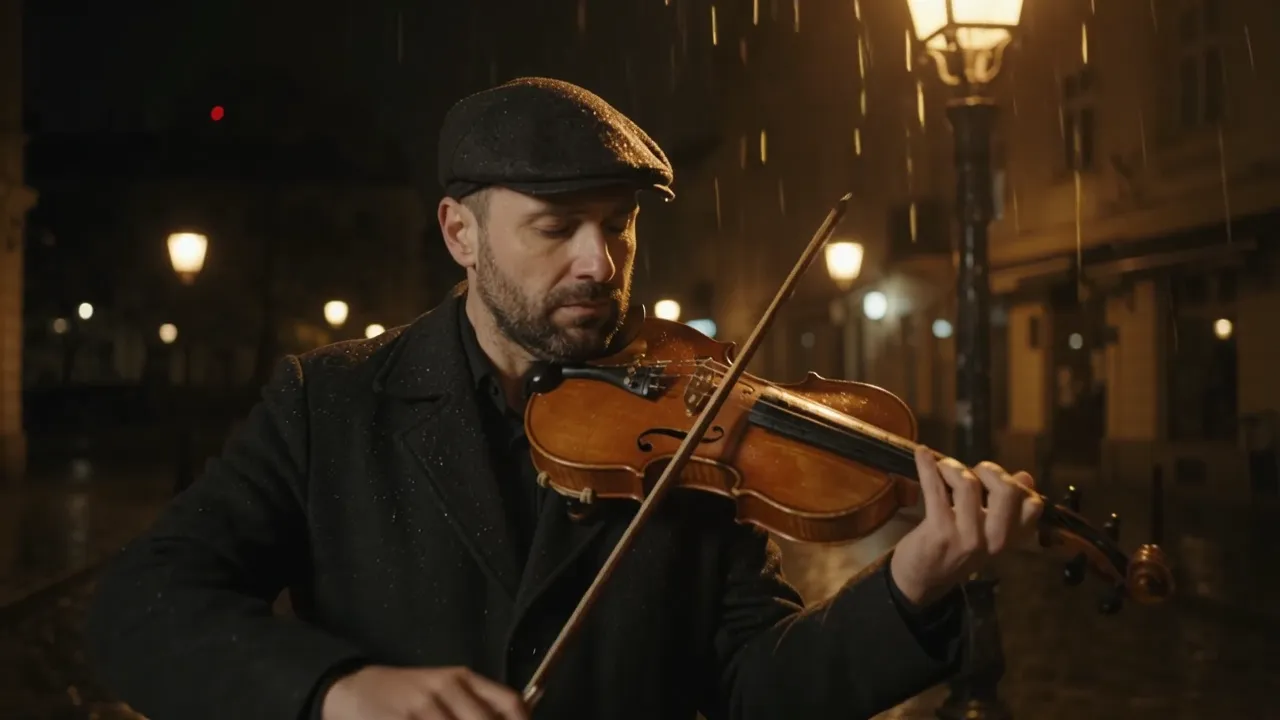
Violinist in the rain
A night street scene with rain, warm light and a violin melody, all from one prompt.
Prompt: A street violinist plays a slow melody under a lamppost in light rain at night, raindrops glitter in the warm light, the music echoes off wet cobblestones, the camera slowly pushes in

Winter to spring
A winter photo as the first frame and a spring photo as the end frame; the model fills in the change between them.
Input


Prompt: Time-lapse from winter to spring: the snow melts away, the grass turns green and the cherry tree bursts into pink blossom, birds begin to sing
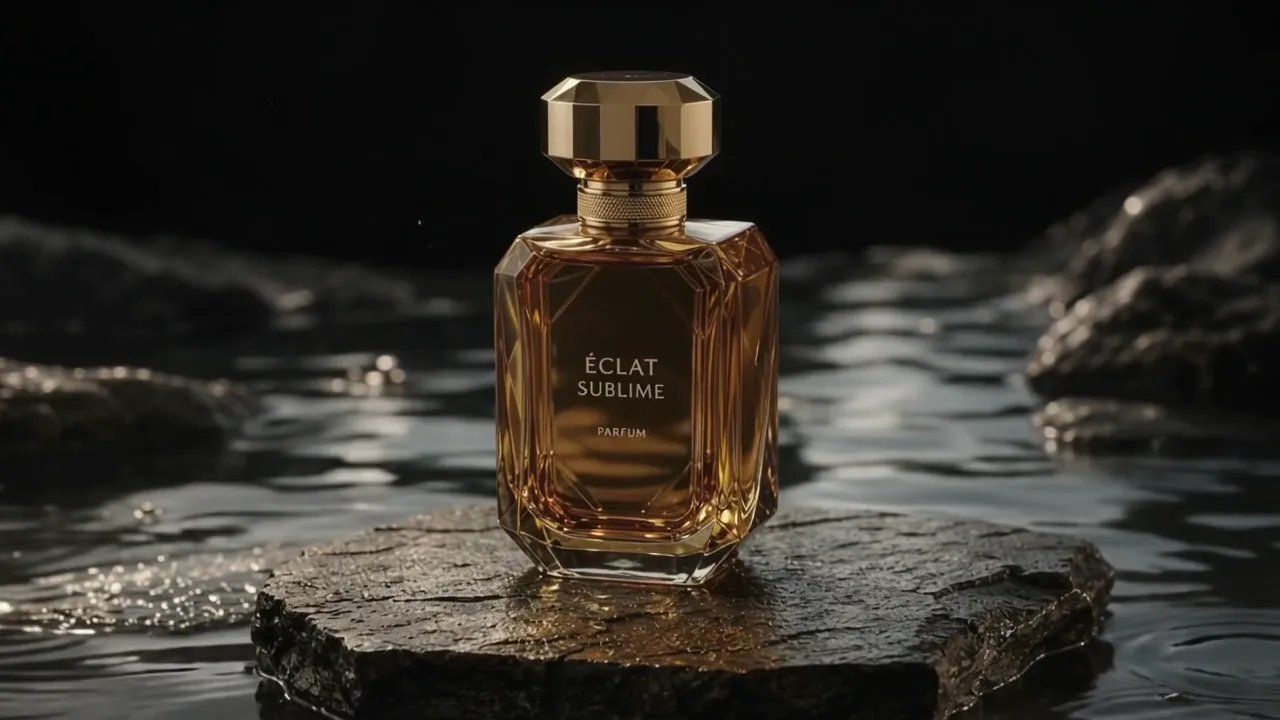
Perfume on stone
One product photo as the reference keeps the bottle's shape and label while the scene moves around it.
Input

Prompt: The perfume bottle from the reference image stands on a wet black stone as a golden light sweeps across the glass, slow orbiting camera, soft water sounds
Try it in Reference to Video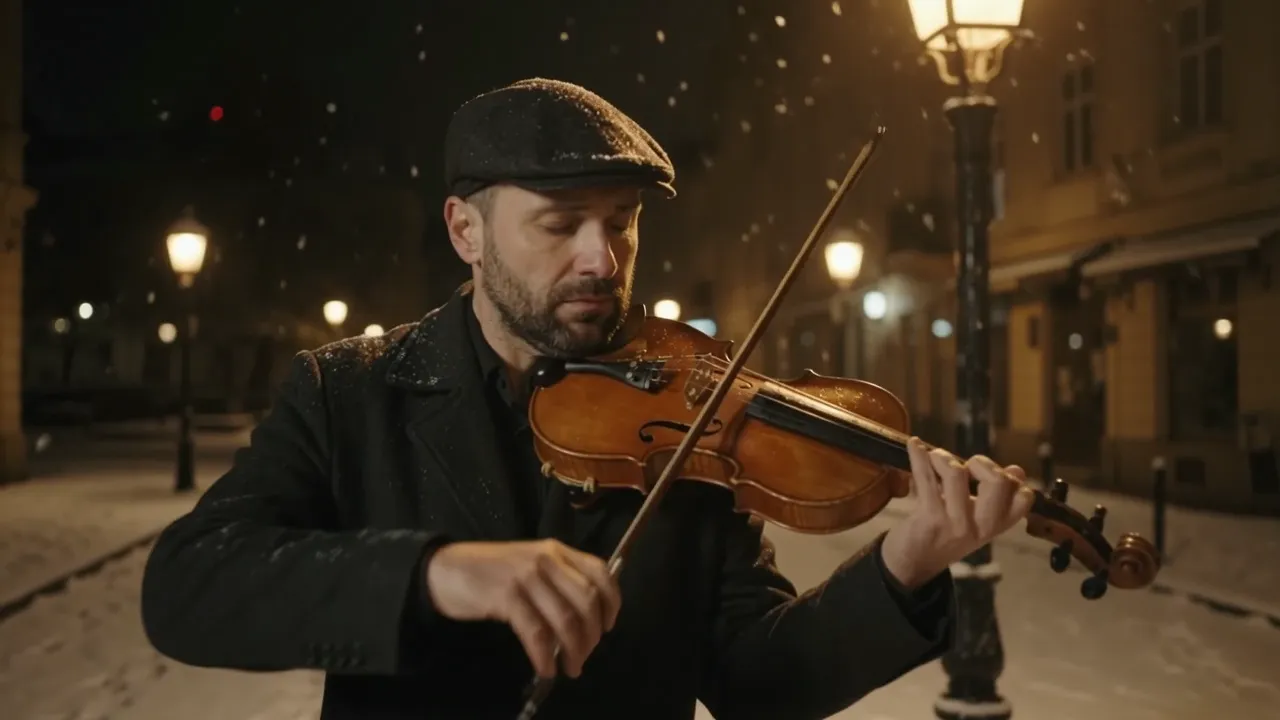
Rain turned to snow
The violin clip above, edited with one instruction. The result keeps the original length and camera move.
Input
Prompt: Turn the rain into gently falling snow and cover the street in fresh snow, keep the violinist, the music and the camera move
Four ways to use Gemini Omni Flash 1.2
Every mode renders 360p to 4K with native audio.
Text to video
Describe the scene, the camera and the sound. Pick 3 to 15 seconds and 16:9 or 9:16.
First and end frame
Upload one image to animate it, or add a second image as the end frame and the model moves from one to the other. Clips with an end frame run up to 10 seconds.
Reference images and videos
In Reference to Video, add up to 10 images and up to 3 videos of 15 seconds or less to keep a character, product or style. References do not add to the price.
Video editing
In Text to Video, add a clip of up to 15 seconds and write what to change. The edited clip keeps your video's length, and you pay for its seconds.
Gemini Omni Flash 1.2 vs Gemini Omni 1.0
Both are in the same generator: pick either one from the Model menu.
| Gemini Omni Flash 1.2 | Gemini Omni 1.0 | |
|---|---|---|
| Length | 3 to 15 seconds, any whole second (up to 10 with an end frame) | 4, 6, 8 or 10 seconds |
| Resolution | 360p, 720p, 1080p, 4K | 720p, 1080p, 4K |
| Aspect ratio | 16:9, 9:16 | 16:9, 9:16 |
| Image to video | First frame plus an optional end frame | Up to 7 images used together |
| References | Up to 10 images and 3 videos (15s each) | Up to 7 images, or 5 images and 1 video |
| Video editing | Yes, clips up to 15 seconds | No |
| Pricing | Per second, by resolution (360p is the cheapest) | Fixed price per clip length; 720p and 1080p cost the same |
Both columns show what runs on Veevid today. Audio is generated by the model in both versions and does not change the price.
How to Use Gemini Omni Flash 1.2
Three steps from idea to video.
Write a prompt and add inputs
Gemini Omni Flash 1.2 is already selected. For text to video, just write the prompt; to edit, add a video in the same tab. For image to video, upload a first frame and, if you like, an end frame.
Pick length, ratio and resolution
Choose 3 to 15 seconds, 16:9 or 9:16, and 360p to 4K. Edits keep the length of your video. The Generate button shows the price before you start.
Generate and download
Click Generate. Your video appears on the right and in My Creations when it is ready. If a generation fails, the credits are refunded.
Gemini Omni Flash 1.2 FAQ
Common questions about the model and how it works on Veevid.
Try Gemini Omni Flash 1.2
Write a prompt, pick a length and resolution, and get a video with sound in a few minutes.
Start generating