AI Video Inserter - Insert a New Scene into Any Video
Pick a moment in your clip, describe what should happen, and AI adds a new 5-13 second scene that cuts back to your original footage.
 Vídeo de exemplo
See How AI Inserts a New Scene
Each example is the original clip next to the finished video. The new scene is generated between two moments, then the original footage picks up again.
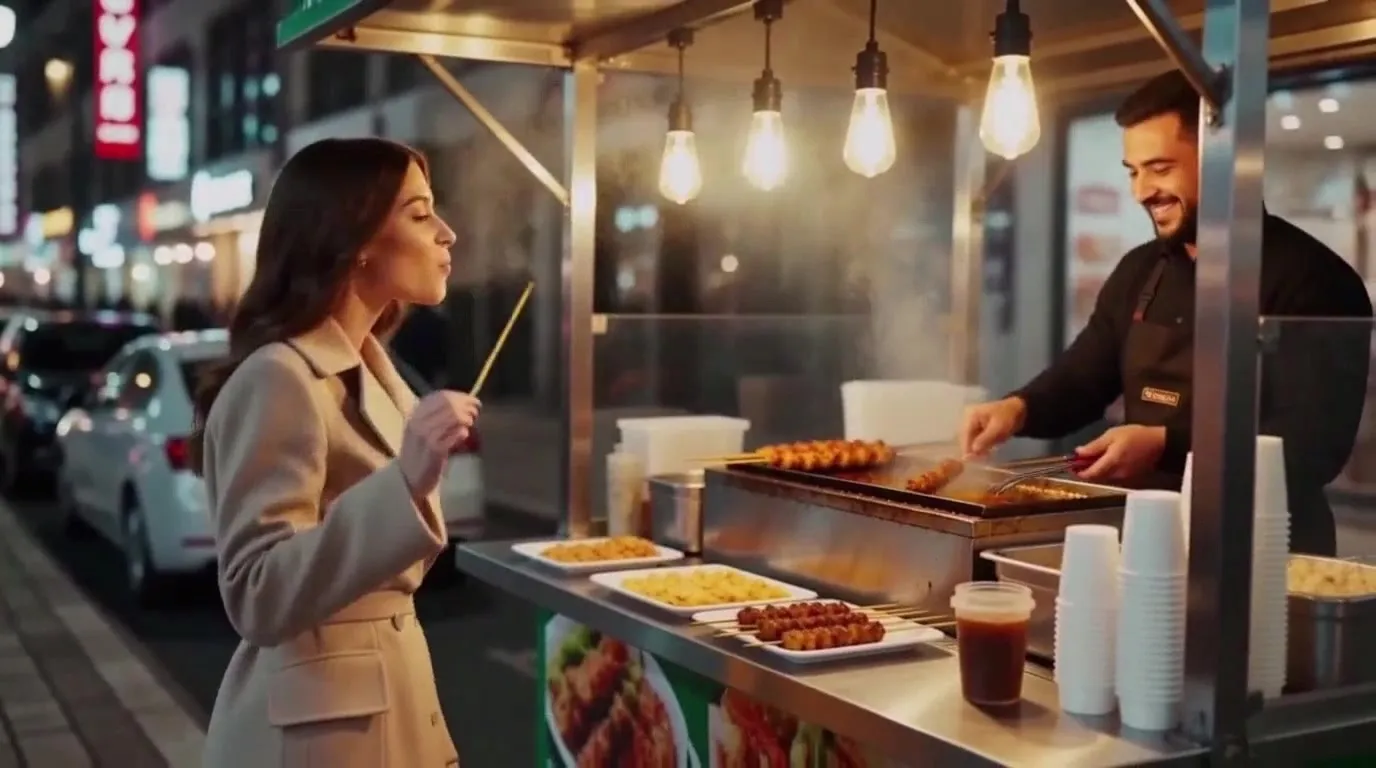
Add a moment to a walking shot
She stops at a glowing street food stall, buys a steaming skewer from a smiling vendor and takes a bite, then turns back toward the crowded street.
Insert a product close-up from a photo
Cut to a close-up of her hands: she lifts the crystal perfume bottle from the reference image, sprays it on her wrist, and the mist sparkles in the neon light.
Replace a beat with an action scene
A spectral blue wolf made of lightning bursts out of the ruined archway and lunges; the knight raises his sword and the wolf shatters into glowing sparks.
Drop a surprise into a drone shot
A large polar bear lumbers onto the snowy track in front of the blue sports car; the car swerves around it, kicking up powder snow.
How to Insert a Scene into a Video
Three steps, no timeline editing or reshoots.
Step 1: Upload your video
Add an MP4, MOV, WebM or M4V clip up to 60 seconds long. Your original footage stays untouched outside the insert point.
Step 2: Mark where the new scene goes
Drag the marker to set where the new scene starts. A preview shows the exact frame. Keep all footage to add the scene, or set a resume point to replace a section.
Step 3: Describe the scene and generate
Write what happens, add reference images or videos if you like, choose a length of 5 to 13 seconds, and generate one finished video.
Why Use an AI Video Inserter
Add the shot you missed without going back to the set or rebuilding your edit.
Add a scene or replace a section
Keep every second of your clip and slip a new scene in, or swap out the part between two points for something new. Either way you get one continuous video.
Pick the exact moment
Drag the markers and see the exact frame where the new scene starts and where your video picks up again. The timeline only lets you choose points that will work, so you do not waste credits on a failed run.
Show it, not just describe it
Add up to 9 reference images and 3 reference videos to put a specific product, character or motion into the new scene. A prompt is optional when you use references.
Looks and sounds like it belongs
Color match keeps the new scene in the same light and grade as your footage, and the new scene comes with its own matching sound while your original audio stays in place.
Frequently Asked Questions
Everything you need to know about adding a scene to a video with AI.
Upload your video, move the marker to the moment where the new scene should start, describe the scene and click Generate. You get one video: your footage up to that point, the new scene, then the rest of your clip.
Yes, as guidance. Add up to 3 reference videos (at least 2 seconds each, 15 seconds combined) and the AI generates a new scene that follows their motion or look and fits into your clip. It creates new footage rather than pasting the reference clip in unchanged.
Yes. Upload up to 9 reference images of the product, character or object and mention it in your prompt. The new scene is built around it, like the perfume close-up in the examples above.
The new scene can be 5 to 13 seconds. Your video can be up to 60 seconds and 50MB. Leave at least about 1.6 seconds of your footage before the new scene and after the point where your video resumes.
Yes. Turn off Keep all original footage and set a resume point. Everything between the cut point and the resume point is replaced by the new scene, and your video continues from the resume point.
The new scene costs 10 credits per second at 480p or 12 credits per second at 768p. The length of your original video does not change the price. Reference videos are billed by length and can cost more than the new scene itself, especially at 768p, and the full price is shown on the Generate button before you start.
Add the Scene Your Video Is Missing
Upload a clip, mark the moment and describe what happens. Your new scene is ready in a few minutes.
Start Inserting