MiniMax H3 Max AI Video Generator

MiniMax H3 Max is a post-trained build of MiniMax H3, tuned for prompt adherence and speed. Render 5 to 15 seconds at 480P, 768P or 1080P, with sound generated in the same pass as the picture.

サンプル動画

Try These MiniMax H3 Max Examples

Three clips rendered with MiniMax H3 Max at 768P, 5 seconds each, with the sound made in the same pass. Read the prompt, then load the same prompt, plus the first frame for image to video, into the generator above with one click.

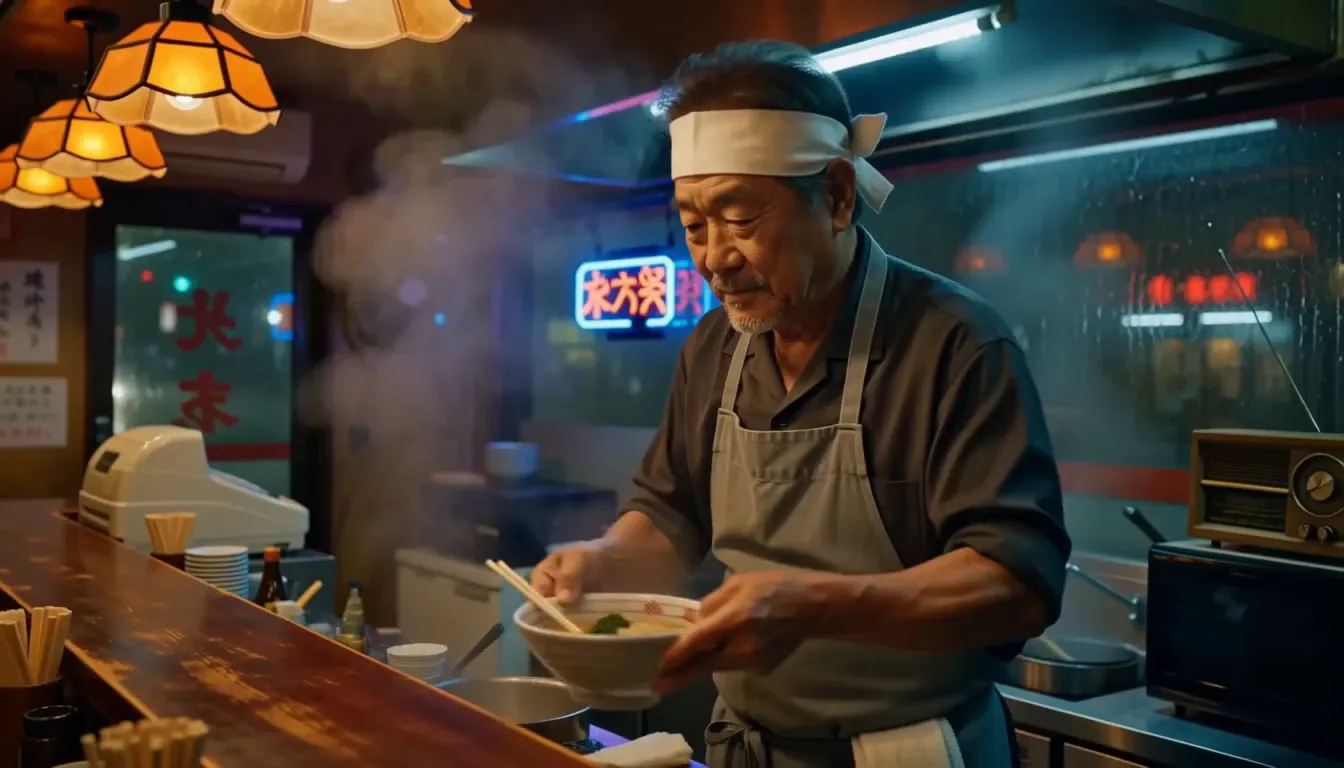
Text to video: a line of dialogue

One prompt sets the scene, the camera and the line the chef speaks. His voice, the rain and the simmering broth come back in the same render.

MiniMax H3 Max output
Show the prompt

Handheld medium close-up inside a tiny neon-lit ramen bar at night, rain streaking the window behind. An old ramen chef with a white headband sets a steaming bowl on the wooden counter, looks up at the camera and says in a warm, gravelly voice: "Eat it while it's hot, kid." He wipes his hands on his apron and smiles. Warm amber light, soft steam drifting through the frame. Sound: rain tapping the glass, broth simmering, quiet jazz from an old radio.
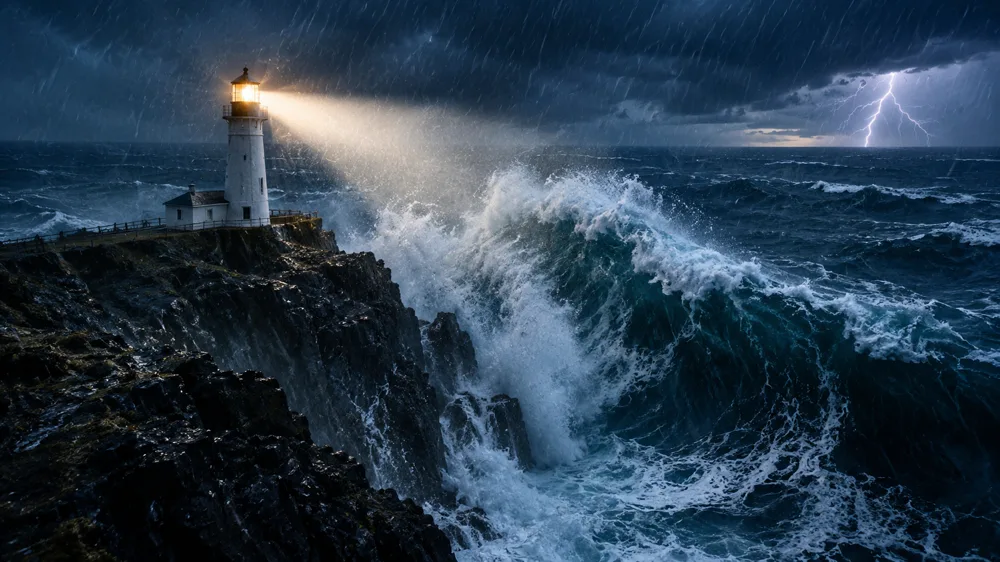
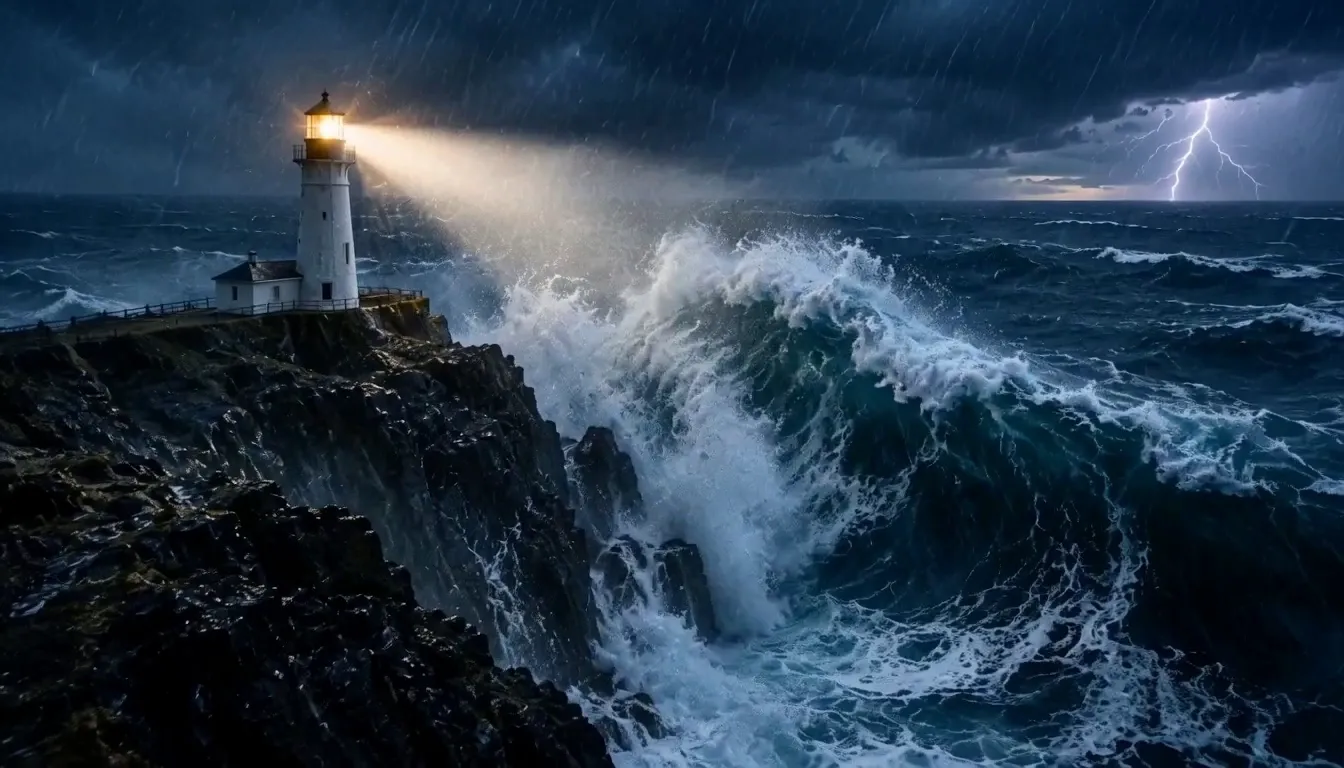
Image to video: a storm at the lighthouse

A still becomes the first frame, and the prompt adds the push in, the breaking wave and the thunder.

Lighthouse on a cliff as a storm wave rises, used as the first frame
First frame (made with GPT Image 2.5)
MiniMax H3 Max output
Show the prompt

Slow aerial push-in toward the lighthouse as the giant wave slams into the cliff and explodes into white spray that rises past the lamp room. The lighthouse beam sweeps across the frame, rain lashes sideways, and a fork of lightning flashes on the horizon. Sound: roaring surf, howling wind, a deep rolling thunder crack.

Image to video: a vertical character shot

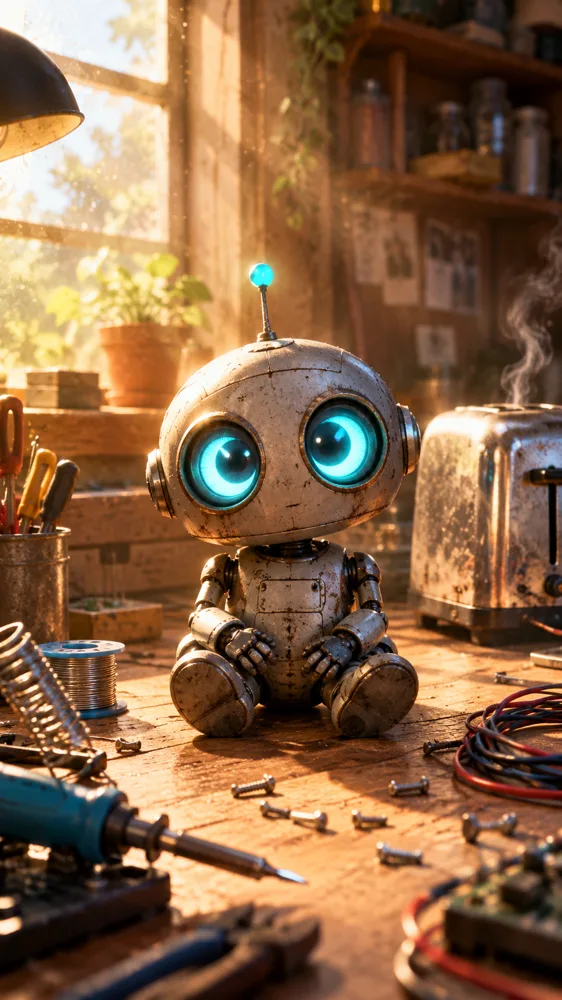
Image to video follows the shape of the first frame, so a 9:16 still gives a 9:16 clip. The robot says its line and the toaster goes off behind it.

Small tin robot sitting on a workbench next to a toaster, used as the first frame
First frame (made with GPT Image 2.5)
MiniMax H3 Max output
Show the prompt

The little robot blinks its glowing eyes, tilts its head, looks up at the camera and says in a tiny, cheerful voice: "Good morning! I fixed the toaster." Right behind it the toaster pops with a bang and a puff of black smoke, and the robot flinches and slowly turns to look. Dust motes drift in the sunbeam. Sound: a mechanical whir, the robot's voice, a loud toaster pop, a small electric fizz.

Made with MiniMax H3 Max

Four single-pass renders, no editing and no post-production. Turn the sound on: every clip came back with its audio already in place.

Dialogue that lands on the mouth

5s

Speech, room tone and foley arrive with the picture rather than after it, so there is nothing left to sync.

Instruments you can hear play

5s

A trio mid-set: the saxophone, the upright bass and the brushes each sit where the picture puts them.

One look across six shots

15s

A single 15 second generation that cuts between six views of Greek vase painting without breaking palette, linework or lettering.

Stylized worlds, held steady

5s

Claymation surfaces, weight and lighting stay consistent from the first frame to the last.

What MiniMax H3 Max Does Well

MiniMax H3 Max was post-trained on MiniMax H3 for stronger prompt adherence and aesthetics, then co-optimized with a custom inference stack. Here is what that buys you.

Renders faster than it plays

A 5 second 768P clip renders in under 4 seconds and is in your account within about 7 seconds. Fast enough to try three takes where you used to wait for one.

Hits the beats in order

Prompt adherence is what the post-training targeted first. Name the beats and they arrive in sequence, and on-screen text comes back legible instead of approximated.

Camera moves you can direct

Ask for a low tracking shot, a slow push or a locked-off frame and you get that move, with the background streaking at the speed the shot implies.

Reference generation, not just prompts

Feed up to 9 reference images, 3 reference clips and 3 audio files in one request, then call them out in the prompt as Image 1 or Video 1. Twelve files total.

Sound made with the picture

Every render comes back with synchronized audio: ambience, foley, music and dialogue cues cut to what is on screen.

First and last frame control

Give image to video an opening still and, when the ending matters, a closing one. The model animates the whole journey between them.

How to Generate a Video with MiniMax H3 Max

Three steps from a written shot to a finished clip with sound.

1

Write the shot

Describe the subject, the camera move and the sound in one prompt. Or upload a still and let image to video animate it instead.

2

Set length and resolution

Pick 5 to 15 seconds and 480P, 768P or 1080P. Prompt expansion can rewrite your brief before rendering, from off to quality.

3

Generate and iterate

A 5 second 768P clip comes back in seconds, so compare a few takes side by side and keep the one that works.

MiniMax H3 Max FAQ

The questions worth answering before you spend credits.

It is a post-trained variant of the open-weight MiniMax H3 model, built with extra training data aimed at prompt adherence and aesthetics and an architecture designed around a custom inference engine. It ranks first on the Design Arena image-to-video board and first with audio on the Artificial Analysis image-to-video leaderboard.
Fast. A 5 second 768P clip is usually saved to your account within about 10 seconds of pressing Generate. Reference to video is the slower path: conditioning on images, clips or audio typically takes 20 to 45 seconds. Prompt expansion adds to either: balanced costs about a second, while quality can spend up to 30 seconds rewriting your brief before rendering starts.
Any whole number from 5 to 15 seconds, at 480P, 768P or 1080P. Note that 1080P is a latent refinement of a native 768P render rather than a native 1080P one, so treat it as a cleaner finish rather than a jump in detail.
Three generation modes. Text to video takes a prompt alone. Image to video takes a first frame and optionally a last frame. Reference to video takes up to 9 images, 3 video clips and 3 audio files, 12 files in total, which you refer to in the prompt as Image 1, Video 1 and so on. Reference audio cannot be used on its own and needs at least one image or clip alongside it. H3 Max also powers four separate tools: Camera Controls turns one image into an orbit, dolly or crane shot, Lip Sync makes a portrait photo speak along with your audio, the Video Extender continues a clip you already have, and the AI Video Inserter adds a new scene between two moments of a clip.
Yes, in the same pass as the picture. Describe the sound in the same prompt as the shot and it arrives already in sync, so there is no separate step and nothing to line up afterwards.
H3 Max is built on MiniMax H3, so the prompt guide MiniMax published for H3 is the best reference. Write the clip as a timeline: start with the style and the opening composition, then the action in order, and only cut to a new shot when it adds something new. For a small change in distance or angle, use a camera move instead, and give it a type, a size and a speed, for example a slow push in with small amplitude. For dialogue, say who is speaking (age, voice, delivery) and write out the exact line. Describe the ambient and action sounds separately from any background music, and put text that should appear on screen in double quotes. For image to video, begin with what is already in the first frame, then describe what happens next. Prompt expansion is set to Balanced by default and rewrites a short brief into a fuller prompt before rendering; switch it to Off to send your prompt exactly as written.
No. The open-weight release is the base MiniMax H3 model, which MiniMax published on Hugging Face and which you can run on your own GPU. H3 Max is a post-trained version of H3 with its own inference stack, and its weights have not been released, so it runs as a hosted model only. On Veevid you use it in the browser, with nothing to download and no GPU of your own. Base MiniMax H3 is also available here if you want to compare the two; our MiniMax H3 vs MiniMax H3 Max comparison covers where each one wins.
Use H3 Max when speed matters, when you want 1080P output, or when you are iterating on a shot. Use MiniMax H3 when cost matters or you need 2K: at 768P it costs 8 credits per second against 16 for H3 Max, and it generates at 2K, which H3 Max only offers for lip sync and video extension. Both generate native audio and both take reference images, clips and audio. For the full side-by-side, including reference generation on both models, see our MiniMax H3 vs MiniMax H3 Max comparison.
Use H3 Max for speed and cost: a 5 second 768P clip usually comes back within seconds rather than minutes, and output costs 10, 16 or 32 credits per second at 480P, 768P or 1080P. Use Seedance 2.5 for longer takes and heavier references: one continuous shot of 4 to 30 seconds against 15 at most for H3 Max, up to 50 references (30 images, 10 clips and 10 audio files) against 12, and prompt-based editing of a clip you already have in the AI Video Editor, which H3 Max does not offer. Seedance 2.5 output costs 28, 63 or 158 credits per second at 480P, 720P or 1080P when no reference clip is attached. Both generate audio in the same pass, and both handle text to video, image to video, reference generation and video extension.
Output is charged per second: 10 credits at 480P, 16 at 768P and 32 at 1080P, so a 5 second 768P clip is 80 credits. Reference images, clips and audio share an included allowance, and anything beyond it is added on top. The generator shows the exact total before you spend anything.

Render your first MiniMax H3 Max video

Write a shot, pick a length and a resolution, and get a clip back with its audio already in place.

Try MiniMax H3 Max