Kling 4.0 Guide: How to Use It, Write Prompts and Make 30s Videos
A practical Kling 4.0 guide: how to use text, image and reference to video, write prompts in timed beats, direct dialogue and sound, and plan clips up to 30 seconds.

Kling 4.0 can make a single clip anywhere from 3 to 30 seconds long, with sound and lip sync generated together with the picture. That extra length changes how you work with it. A 5-second clip needs one idea. A 20-second clip needs a plan: what happens first, when the camera moves, who speaks and when.
This guide covers how to use Kling 4.0 on Veevid in all three modes (text, image and reference to video), and how to write prompts that hold up over longer clips. Every video below was made with Kling 4.0 at 720p, and the prompt under each one is the exact prompt we used. If you want to see how it compares with another model first, read our Kling 4.0 vs Seedance 2.5 side-by-side test.
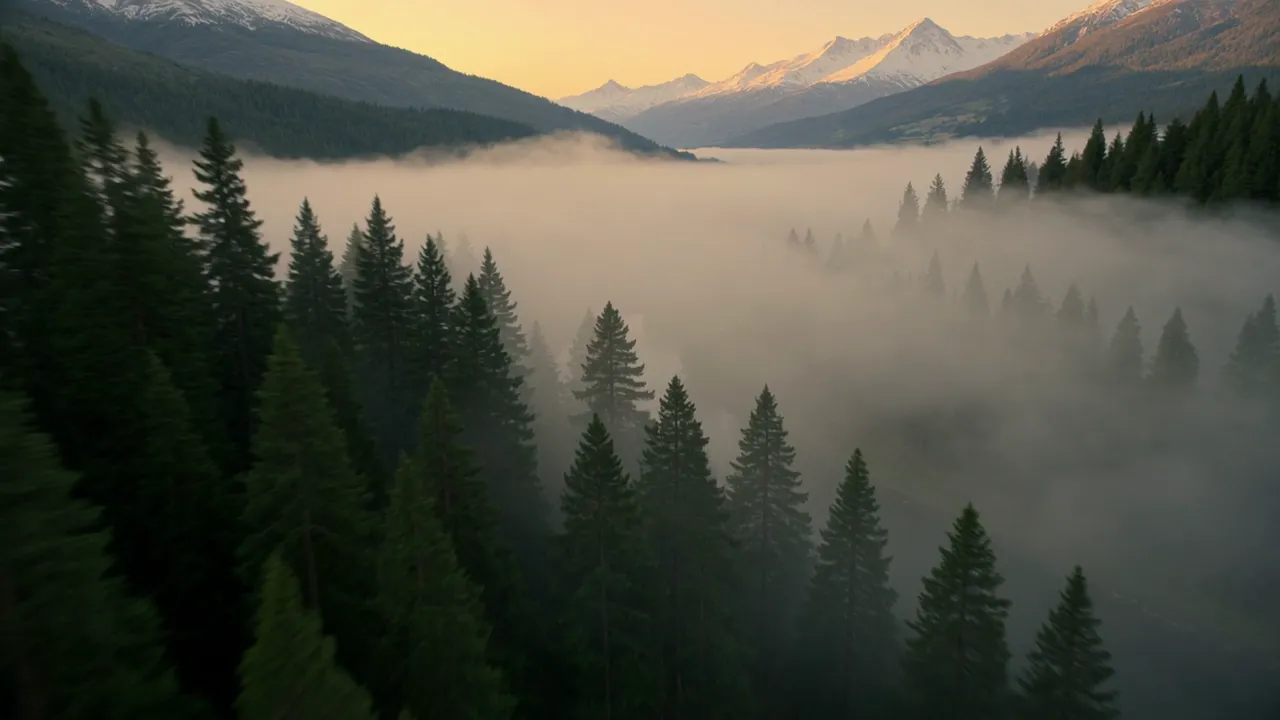
Prompt: One continuous 15-second drone shot with no cuts. The camera starts high above a misty pine forest at sunrise, glides down over a river, follows a small wooden boat drifting toward a stone village, then flies low through the narrow village street past a bakery with steam rising from its door, and ends rising above the rooftops to reveal snowy mountains. Birdsong, rushing water and morning village sounds.
What Is Kling 4.0?
Kling 4.0 is the latest video model from Kuaishou's Kling AI team. Kling describes it as a native multimodal model: it takes text, images, video clips and voice samples as input and returns one video with matching audio.
What's New Compared With Kling 3.0
Here's how the two versions compare on Veevid today:
| Kling 4.0 | Kling 3.0 | |
|---|---|---|
| Length per generation | 3 to 30 seconds, in 1-second steps | 3 to 15 seconds |
| Audio | Always on: dialogue, lip sync, sound effects, ambience | Optional toggle |
| First and last frame | Yes | Yes |
| Reference images, videos and voices | Yes, up to 15 files | No |
| Multiple shots | Written into one prompt | Separate prompt box per shot |
| Text to video aspect ratios | 16:9, 9:16, 1:1, 21:9 | 16:9, 9:16, 1:1 |
According to Kling's official Kling 4.0 user guide, the model also brings steadier large-scale motion and camera moves, two-channel stereo audio with more accurate lip sync, better reading of long prompts, and dialogue in more languages: Chinese, English, Japanese, Korean, Spanish, Portuguese, German, French and Hindi.
Two practical differences stand out. First, you no longer split a story into separate shot boxes. Kling 4.0 reads one prompt and decides where to cut, or holds one continuous shot if you ask for it. Second, Reference to Video lets you hand it a product photo, a dance clip or a voice sample and tell it exactly what to do with each one.
Three Ways to Use Kling 4.0 on Veevid
| Mode | Where | What you give it | Best for |
|---|---|---|---|
| Text to Video | Kling 4.0 page or Text to Video | A prompt | New scenes, dialogue, long takes |
| Image to Video | Kling 4.0 page or Image to Video | A first frame, plus an optional last frame | Animating a still, transitions, before and after |
| Reference to Video | Reference to Video | Up to 10 images, 5 videos and 3 voices | Keeping a face, product or voice, copying a move |
All three share the same basic settings: duration from 3 to 30 seconds, 720p or 1080p, and audio that's always generated with the video. The exact cost for your settings shows on the Generate button before you render.
How to Use Kling 4.0 Text to Video
- Open the Kling 4.0 page (it opens on text to video) or Text to Video with Kling 4.0 selected.
- Write your prompt. Describe the subject, what happens, the setting, the camera and the sound. For anything longer than a few seconds, break it into timed beats (see How to Write Kling 4.0 Prompts below).
- Drag the duration slider anywhere from 3 to 30 seconds.
- Pick 720p or 1080p. 720p costs less, so it's a good place to test a prompt.
- Pick an aspect ratio: 16:9, 9:16, 1:1 or 21:9.
- Click Generate.
On the Kling 4.0 page, the Try an example buttons above the prompt box load our sample prompts with the same duration and aspect ratio we used, so you can start from a prompt that's known to work.
Here's a text to video clip with two lines of dialogue, 10 seconds at 16:9:
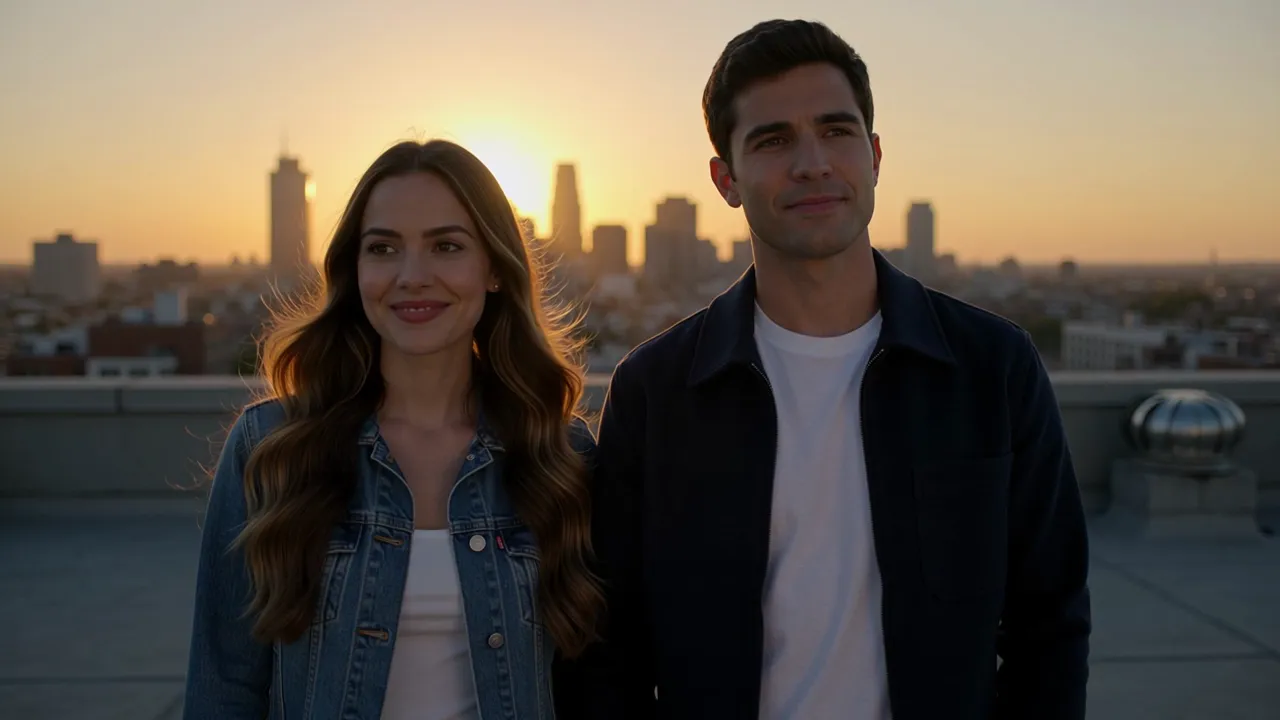
Prompt: On a city rooftop at sunset, a young woman in a denim jacket turns to her friend and says: "We actually made it up here before the sun went down." He laughs and replies: "Told you we would." Wind brushes their hair, distant traffic hums below. Medium two-shot, warm golden light, natural lip movement.
And a vertical 9:16 clip, made by picking 9:16 and describing phone footage in the prompt:
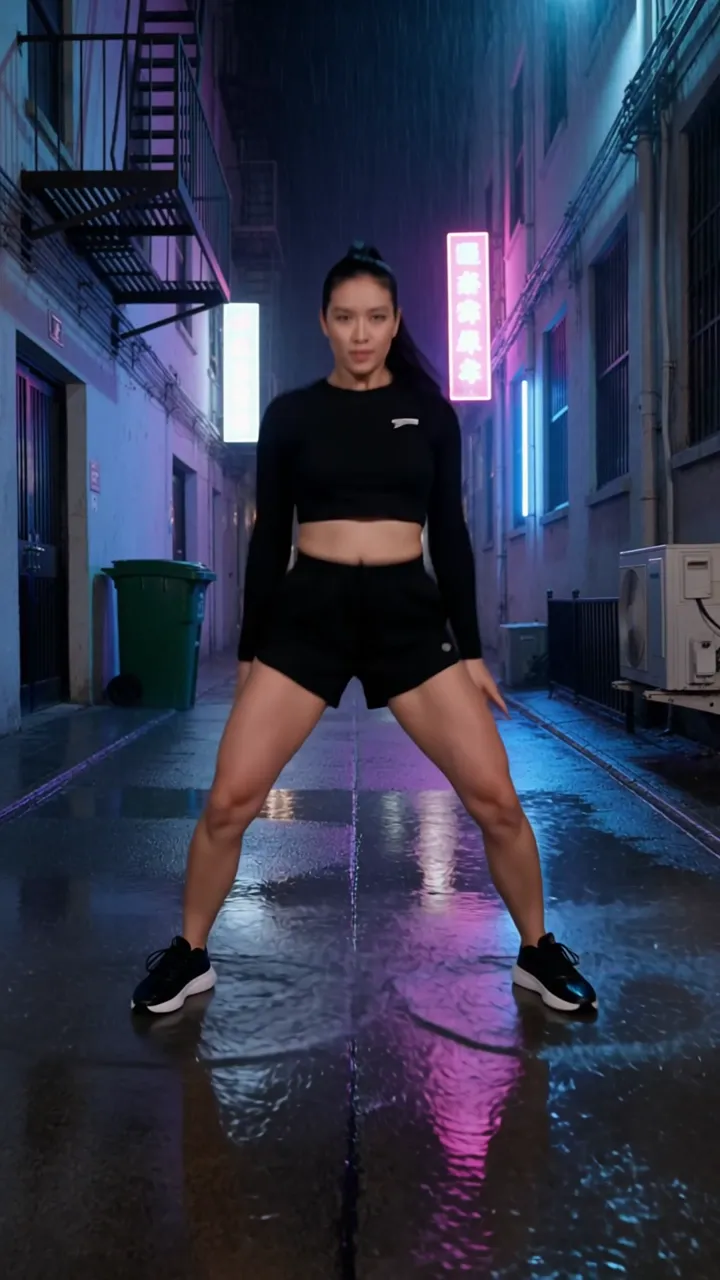
Prompt: A street dancer spins and pops to an upbeat electronic beat in a rainy neon-lit alley at night, puddles splash under her sneakers, pink and blue reflections on wet ground. Vertical handheld phone footage, energetic, slight camera shake.
How to Use Kling 4.0 Image to Video
Image to video starts the clip from your picture, so the look, the character and the composition are already decided. Your prompt only needs to say what happens next.
- Open the Kling 4.0 page and switch to the Image to Video tab, or go to Image to Video.
- Upload your first frame as a JPG or PNG. WebP isn't accepted.
- Optional: turn on Add end frame and upload a last frame. The video then moves from your first image to your last.
- Describe the motion, the camera move and the sound.
- Set the duration and resolution. There's no aspect ratio setting here: the video keeps the shape of your first frame.
- Click Generate.
First frame only. We started from this still of a fisherman:
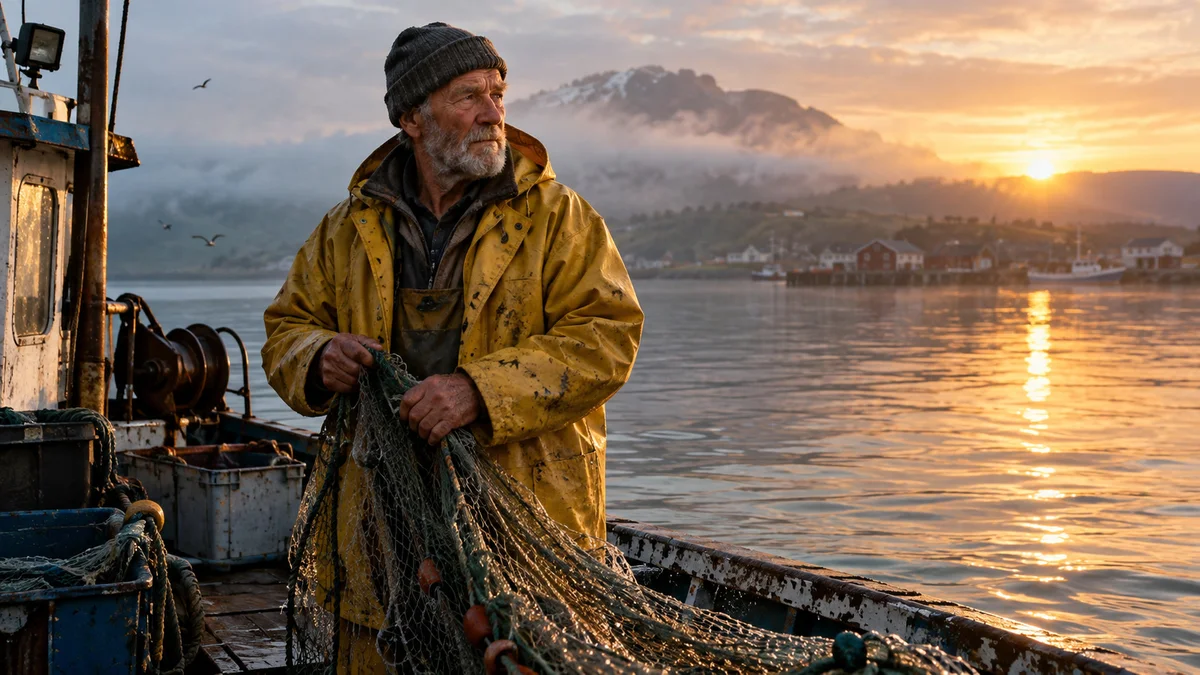
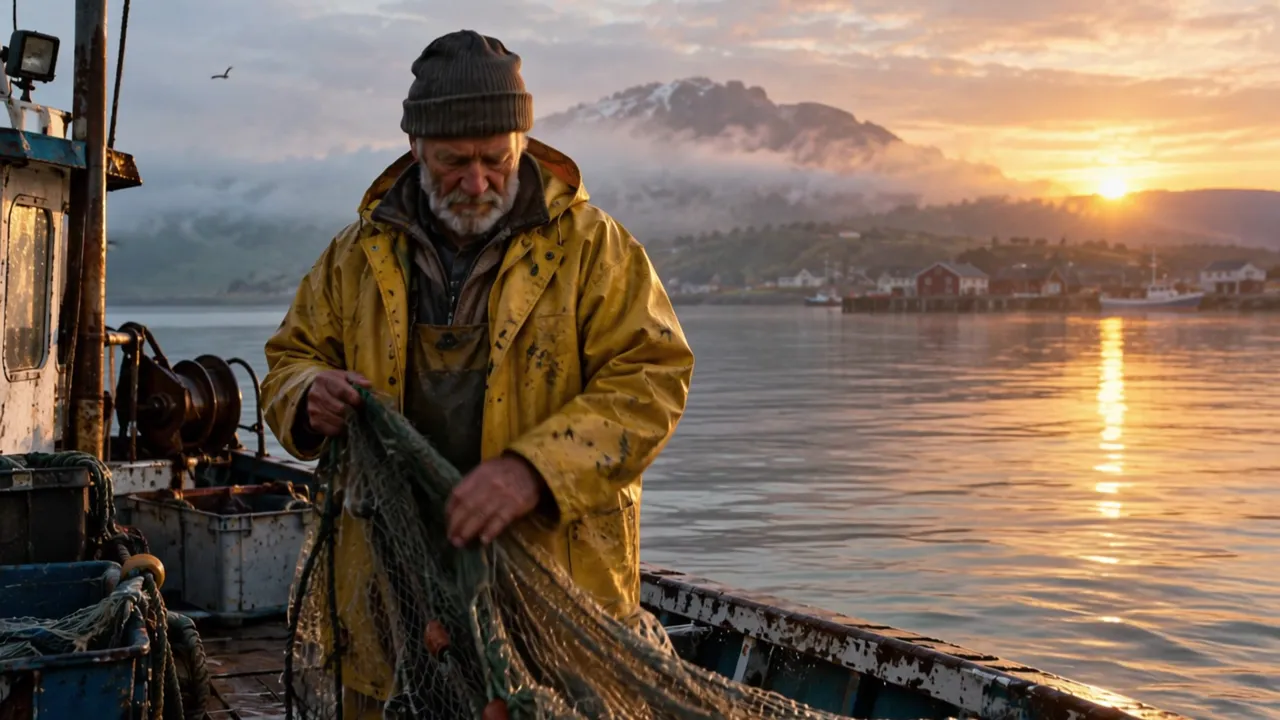
Prompt: The old fisherman hauls the wet net over the side of the boat, water drips from the mesh, he glances out at the sunrise and smiles. Seagulls cry overhead, gentle waves slap against the hull. Slow push in.
Notice the prompt doesn't describe the man, the boat or the light again. They're already in the image. It spends every word on motion, camera and sound.
First and last frame. With Add end frame on, we gave it a winter scene and the same hill in spring:
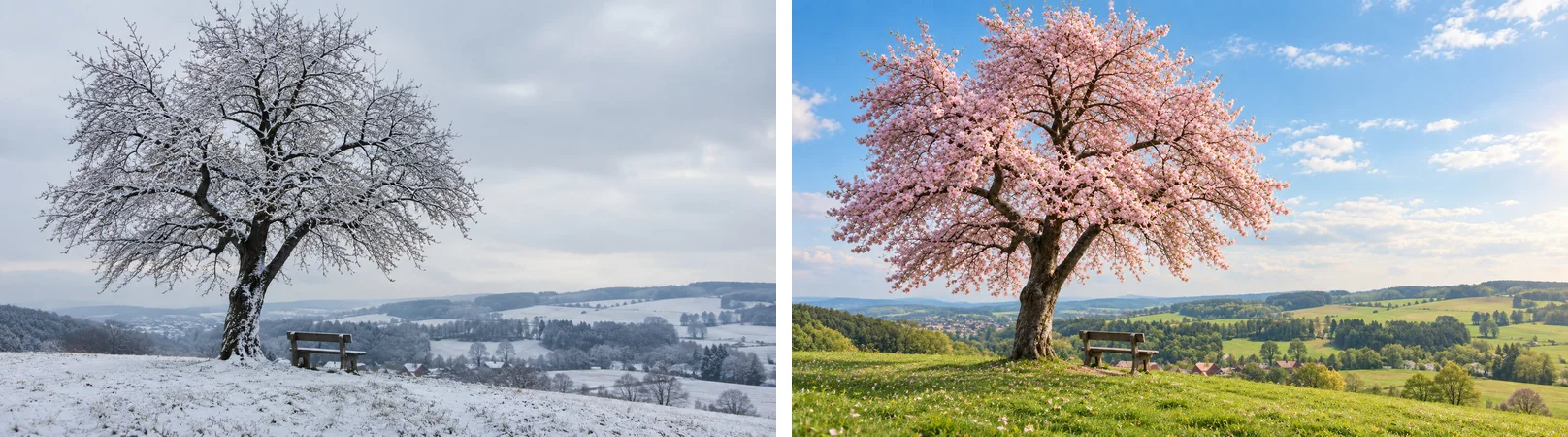
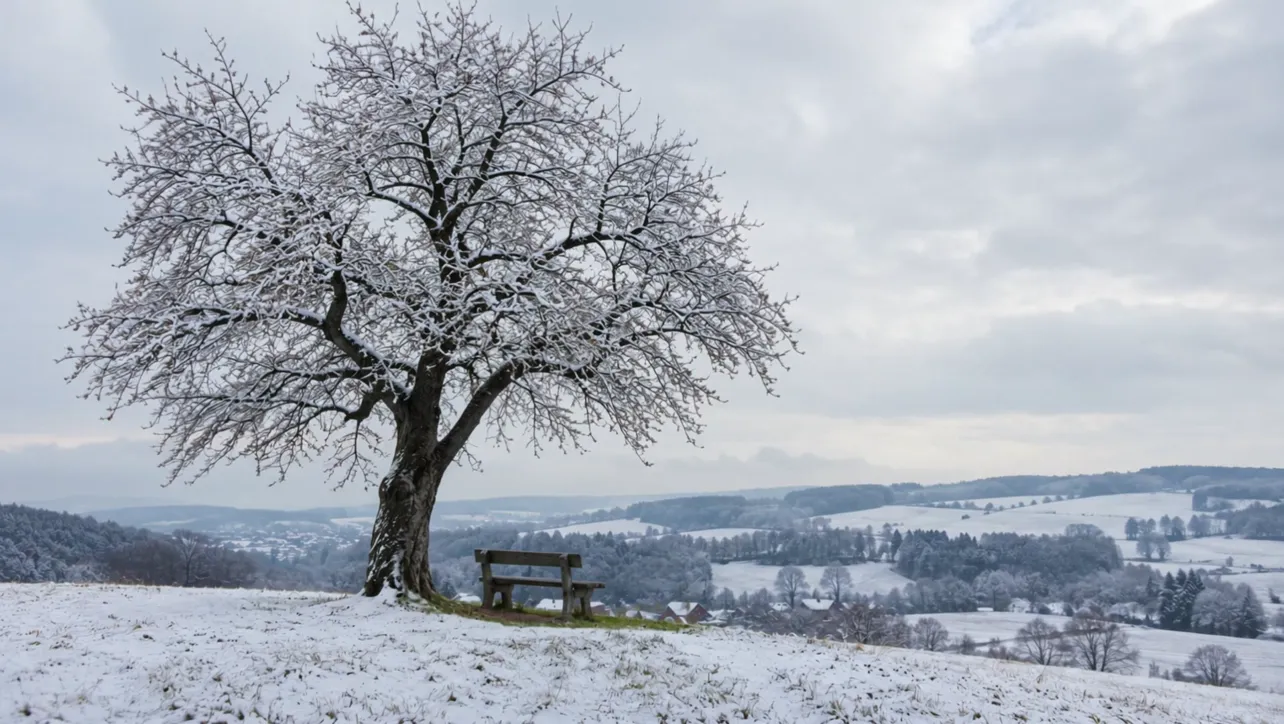
Prompt: Static camera time-lapse. The snow on the hill melts away, the grass turns green, and the bare cherry tree slowly bursts into full pink bloom as the grey winter sky clears to a sunny spring day. Birds begin to sing.
Our two frames share the same camera position, and the change between them is something that could happen on screen. That's the kind of pair to aim for: a season, a product being assembled, a room being lit. Kling's own guide suggests similar uses: transformations, craftsmanship and before and after.
How to Use Kling 4.0 Reference to Video
Reference to Video is where Kling 4.0 is most different from earlier versions. Instead of fixing the first frame, you hand the model material to draw from: a character, a product, a location, a movement to copy or a voice to speak in.
On Veevid you can add:
- Up to 10 reference images (JPG or PNG) for characters, products, style or scenes
- Up to 5 reference videos (MP4 or MOV), each at least 2 seconds long and no more than 30 seconds in total, for motion, camera moves or a scene to follow
- Up to 3 reference voices (MP3 or WAV) with a clear voice for a character to speak in
- No more than 15 files in total
Each file gets a name in upload order: @Image1, @Image2, @Video1, @Audio1 and so on. You use those names in the prompt to say what each file is for.
- Open Reference to Video and make sure Kling 4.0 is the selected model.
- Upload your reference images, videos and voices.
- Write the prompt and refer to every file by name, saying what it's for.
- Set the duration, resolution and aspect ratio. Reference mode adds an Auto option next to the fixed ratios.
- Click Generate.
With Kling 4.0 selected, the Kling 4.0 examples buttons above the upload boxes load three ready-made reference setups, files and prompt included, including the two below.
Two images in one scene. Here we used the fisherman as @Image1 and the spring hill as @Image2:
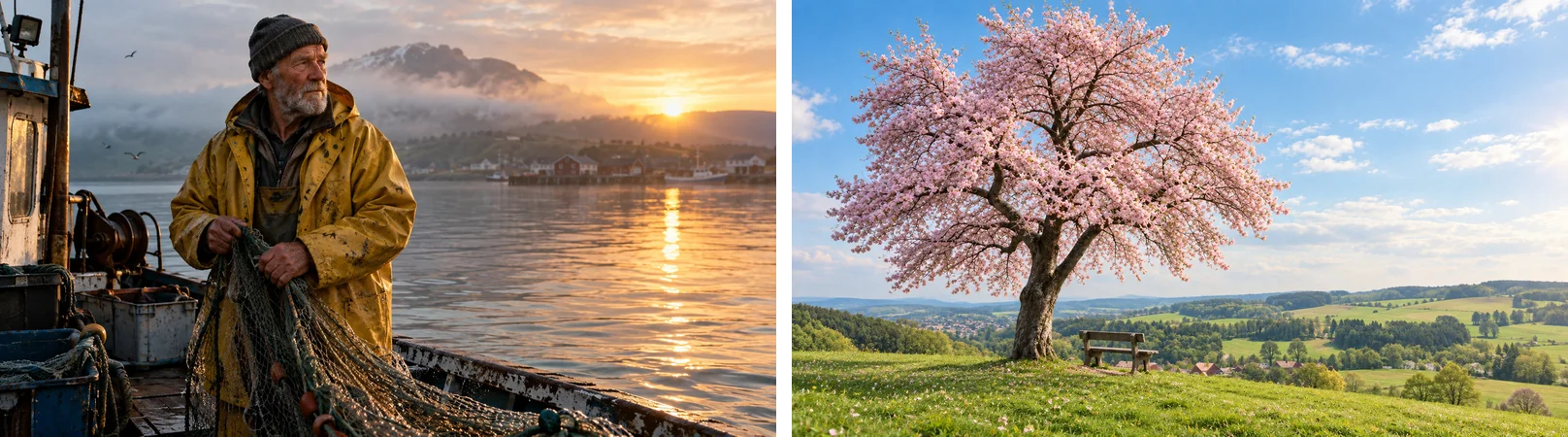
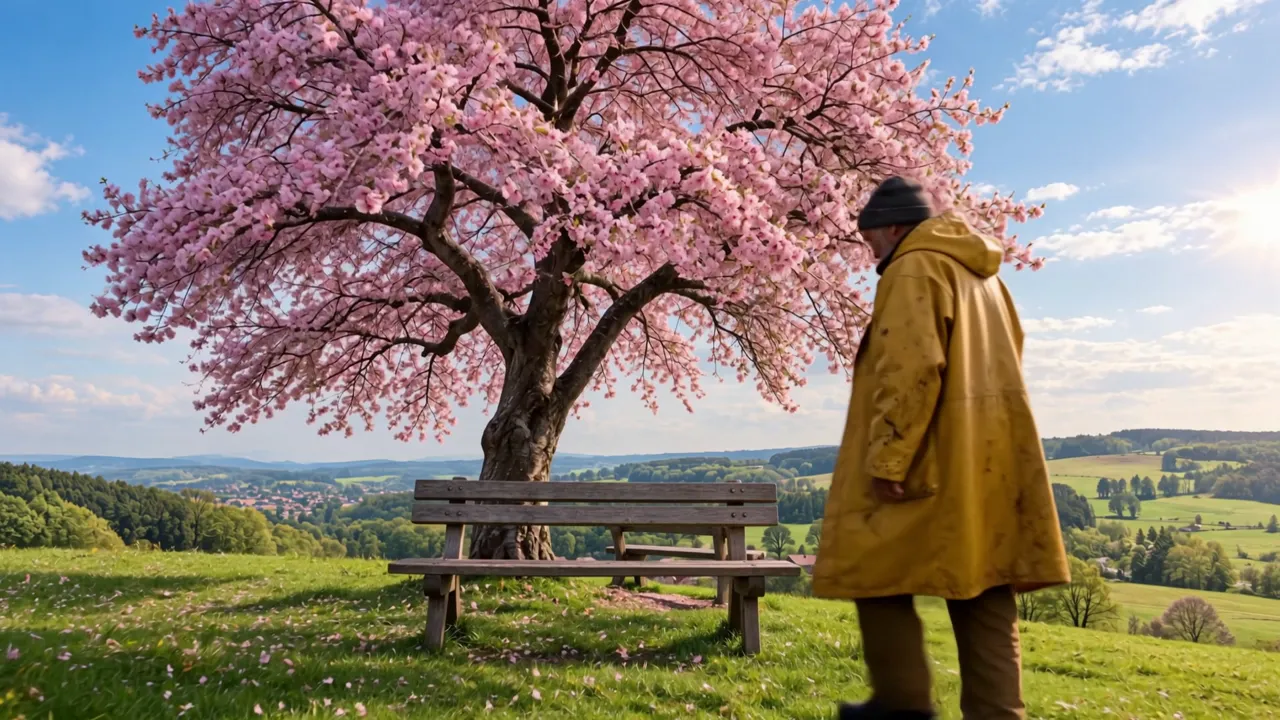
Prompt: The old fisherman from @Image1, in his yellow raincoat and knit cap, on the green hill with the blooming cherry tree from @Image2. A wooden bench stands on the grass in front of the cherry tree, facing the camera, with the tree trunk behind it. 0-2s: the fisherman walks slowly across the grass from the right toward the bench. 2-4s: he stops in front of the bench, turns around with his back to the backrest and sits down on the seat, facing the camera. 4-5s: he rests his hands on his knees and smiles as pink petals drift down around him. Warm spring afternoon, gentle breeze, birdsong. Wide shot with a very slow push in, the whole bench stays in frame.
An image plus a video to copy. The same fisherman as @Image1, and a 4-second clip of a street dancer as @Video1:
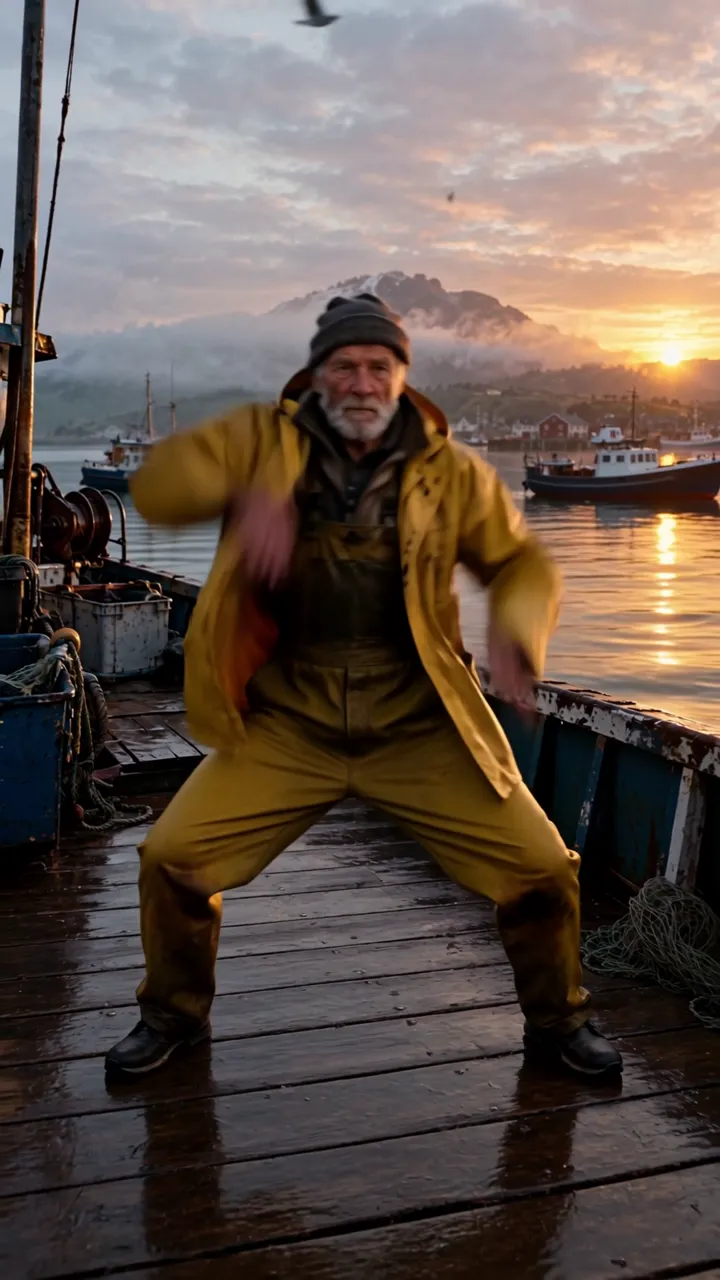
Prompt: The old fisherman from @Image1 dances on a wooden harbor pier at sunrise, copying the exact moves, rhythm and camera framing of the dancer in @Video1. His yellow raincoat swings as he moves and fishing boats bob in the background. Upbeat electronic beat, seagulls calling.
The prompt tells the model what to take from each file: the person from the image, and the moves, rhythm and framing from the video. That's the single most useful habit in reference mode, and we'll come back to it in the prompt section.
Voices. A reference voice sets how a character sounds, not what they say. Write the line in the prompt and point it at the voice, for example: The woman from @Image1 says in the voice from @Audio1: "Welcome back." Kling's guide asks for 5 to 30 seconds of audio for a voice sample, and we'd keep it to clear speech with no music behind it. Reference audio is meant for voices only, so describe music and sound effects in the prompt instead.
How to Write Kling 4.0 Prompts
Kling 4.0 is good at expanding a short idea on its own. Kling's guide notes that a simple prompt gets filled in with a storyline, blocking and camera moves, while a clear, detailed prompt is followed as written. So the more you care about the result, the more you should spell out.
Start With the Building Blocks
A reliable prompt covers these, roughly in this order:
- Subject: who or what, with the details that matter (age, clothing, materials)
- Action: what they do, in the order they do it
- Scene: where and when
- Camera: shot size and one clear move (push in, tracking shot, orbit, static)
- Lighting: the light source and its quality
- Pacing: slow and calm, or fast and handheld, plus whether you want cuts or one continuous shot
- Sound: dialogue, ambience and effects
You don't need every item every time. A product shot can skip dialogue, and an image to video prompt can skip the subject because the image already shows it.
Describe What You Want to See, Not Adjectives
A common reason a Kling 4.0 result looks generic is abstract wording. Kling's guide makes this its main principle: replace labels like "premium look" or "vintage feel" with things the camera can actually see.
| Instead of | Write |
|---|---|
| "Premium look" | Side backlight outlines the bottle's edges, blurred background, fine matte grain on the glass |
| "Vintage feel" | Yellowed walls, worn furniture edges, warm incandescent light |
| "Don't show her face" | She's seen in profile while she talks on the phone |
The same goes for negatives. Describe what should be there instead of listing what shouldn't. Kling's guide calls out only two negatives worth writing, because the model may add these on its own: no subtitles and no background music.
Write Longer Clips in Timed Beats
For anything over about 10 seconds, we recommend writing the clip as a short timeline instead of one long paragraph. It's the same way Kling's own guide structures its long examples:
- One or two lines for the overall look: scene, style, camera feel
- Then one line per time range:
0-5s,5-10s,10-15sand so on, each with what we see and how the camera moves - Then a line for audio
We wrote this 15-second clip in three beats, at 720p and 16:9:
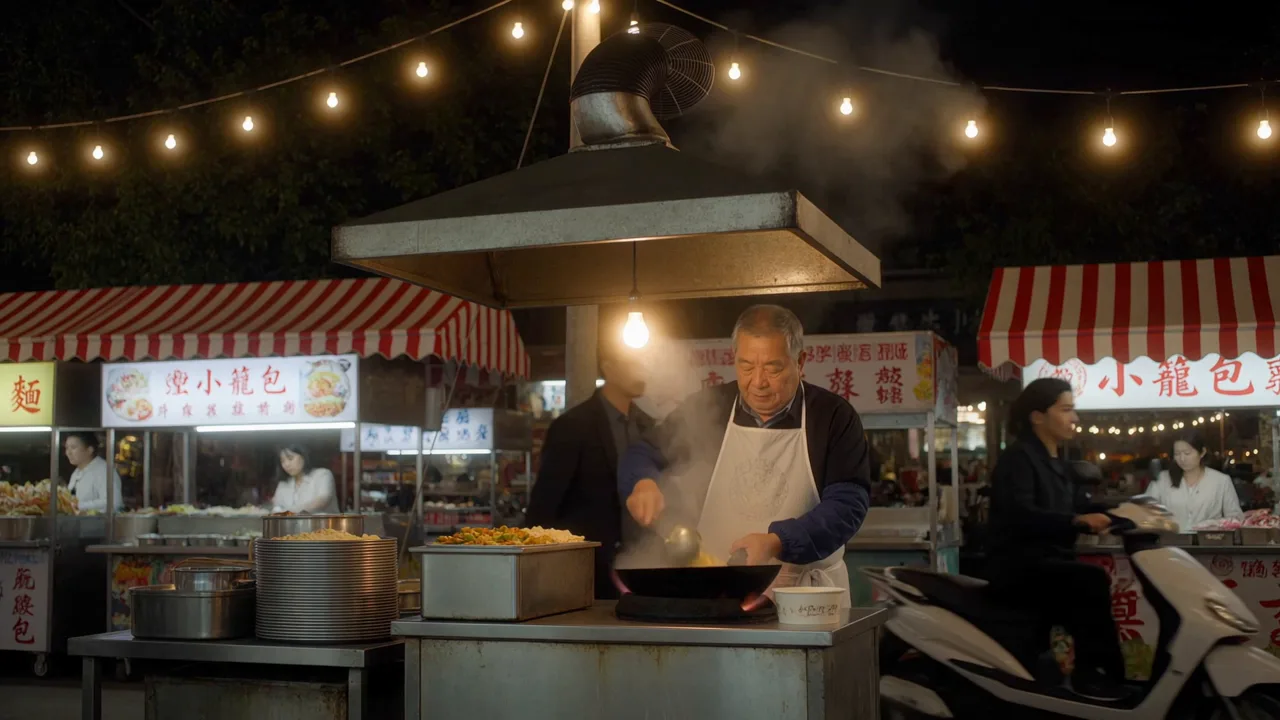
Prompt:
A busy night market noodle stall, realistic cinematic look, warm tungsten bulbs and rising steam, handheld camera with a gentle sway.
0-5s: Wide shot. Crowds stroll past the glowing stall while an elderly cook in a white apron stands behind a large wok, steam drifting up into the string lights.
5-10s: Close-up of his hands tossing noodles in the wok. A burst of flame lights up his face and the oil sizzles.
10-15s: Medium shot. He slides the noodles into a paper bowl and hands it across the counter to a young woman, who breathes in the steam and smiles. The camera slowly pulls back to reveal the busy street.
Audio: wok sizzle, crackling flames, crowd chatter and distant scooters. No background music, no subtitles.
What we saw: Kling 4.0 kept the three beats in order and turned each one into its own shot: the wide stall, the close-up of the flaming wok, then the hand-off. The cuts landed at about 5 and 11 seconds, so in this run the middle beat ran about a second longer than written, and the pull back at the end was small. In this run, the order and shot sizes were followed closely, while the exact second marks were treated as approximate.
A few things that help with timed beats:
- Give each beat one main action and one camera idea. Packing several actions into a few seconds leaves little room for each one.
- Decide on cuts. Kling 4.0 handles shot changes by itself, so if you want one unbroken shot, say "one continuous shot, no cuts" up front, as in the drone shot at the top of this guide. If you want cuts, name the shot size in each beat (wide shot, close-up, medium shot).
- Make the duration match the beats. If your last beat ends at 15s, set the slider to 15 seconds.
Kling 4.0 30-Second Videos
The same method scales to the full 30 seconds: more beats, not longer beats. Five or six beats of about 5 seconds each is a comfortable structure, and Kling's own 30-second example uses six shots with a time range for each. Before you commit to 30 seconds, it's worth testing the opening beats as a shorter 720p clip. You'll find out whether the look and the character are right before paying for the full length.
Dialogue and Sound
Kling 4.0 generates speech with lip sync from the prompt alone. A few rules from Kling's guide and our own runs:
- Put the exact words in quotation marks. In our tests, Kling 4.0 spoke quoted lines word for word.
- Say who speaks, and how. Age, tone, speed and emotion all change the voice: "says in a warm, slightly teasing voice" gives a different read than "says flatly".
- Write the line in the language you want it spoken in. For a Spanish line, write the Spanish inside the quotes and say it's spoken in Spanish.
- Give each speaker their own beat when there's more than one line, so the timing is clear.
- Add "no background music" when you want dialogue and natural sound only, and "no subtitles" if you don't want text on screen.
- Leave room for the line. A 3-second beat fits a short sentence, not a paragraph.
Here's a 10-second dialogue clip written in timed beats, with two speakers and no music:
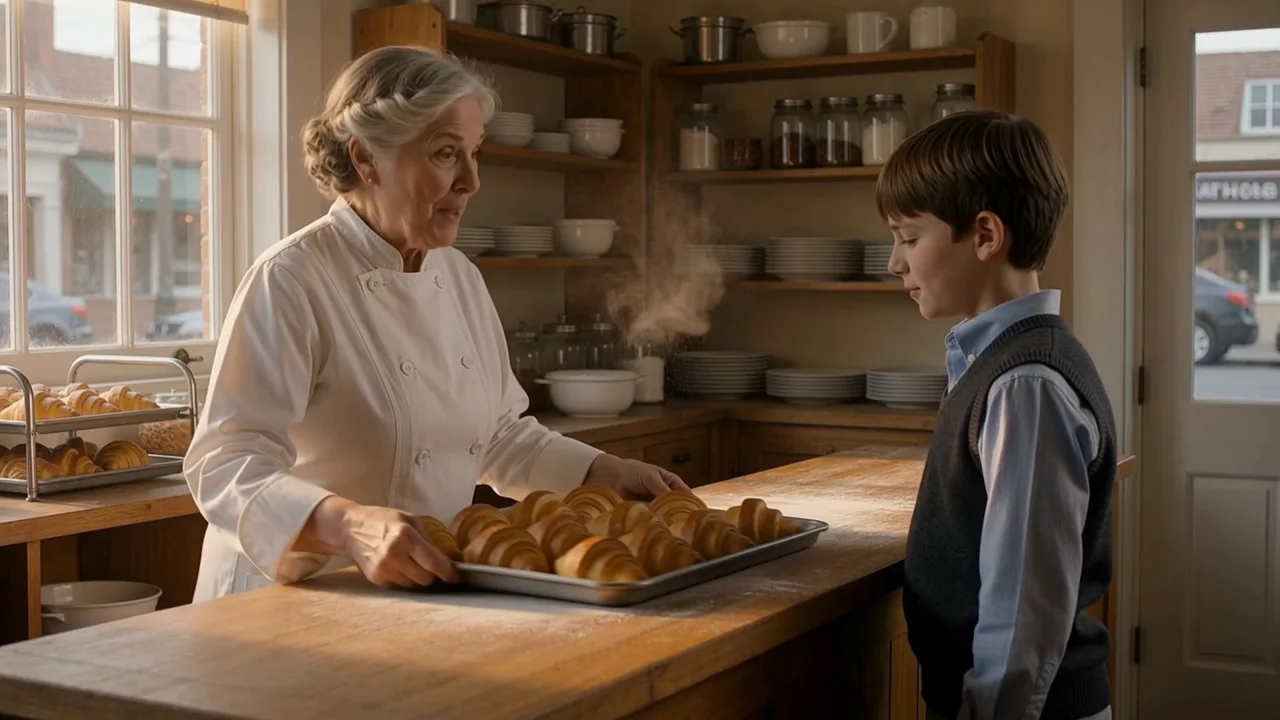
Prompt:
Inside a small neighborhood bakery at dawn, warm light through the front window, flour dust in the air. Realistic, medium two-shot, slow push in.
0-4s: A grey-haired baker in her sixties slides a tray of croissants onto the counter, looks at a boy of about ten and says in a warm, slightly teasing voice: "First batch of the day. You're early again."
4-7s: The boy grins, shrugs and answers in a quick, cheerful voice: "I set two alarms."
7-10s: She laughs softly, wraps one croissant in paper and hands it to him.
Audio: oven hum, paper rustle, quiet street sounds outside. No background music, no subtitles.
What we saw: both lines came out word for word, with mouth movement to match. The baker speaks in the first beat and the boy answers at about 4 seconds, as written, and the croissant hand-off lands in the last beat. We didn't name a shot size in any beat, and in this run Kling 4.0 kept it as one continuous two-shot instead of cutting between the two speakers.
What went wrong in our test: watch her hands at about 7 seconds. The sheet of paper she wraps the croissant in isn't anywhere in the shot before that, and in this run it just appeared. Most likely that's because the prompt asks for paper in the last beat without ever putting it in the scene. We kept the clip because the dialogue works, but the paper is the part to avoid. There's a suggested fix under Common Mistakes below.
Give Every Reference One Job
In Reference to Video, the model guesses what to do with any file you don't explain, and Kling's guide warns that this makes results less predictable. So name a role for each one:
@Image1: the character. Keep the face, hair and clothing.@Image2: the location. Keep the layout and lighting.@Video1: copy the moves and timing, not the person or the background.@Audio1: the voice for the woman's line.
If two references could both supply the same thing, say which one wins and what to ignore from the other. For example, use the outfit from @Image1 and only the pose from @Image2.
Common Mistakes and How to Fix Them
- Your first frame won't upload. The Kling 4.0 uploader doesn't take WebP. Save the image as a JPG or PNG and upload it again.
- "@Image3 does not match an uploaded image." A name in the prompt points to a file you didn't upload. Numbers follow upload order, so check the count after removing or reordering files. The generator stops before anything is charged.
- A reference video is refused. Each reference video needs to be at least 2 seconds long, and all of them together can't run past 30 seconds. Trim long clips to the part you need.
- Steps from your prompt are missing. Often too much is packed into too little time. Split it into beats, or make the clip longer.
- A prop appears out of nowhere. If a beat uses an object the prompt hasn't introduced, the model may invent it mid-shot. The bakery clip above asks the baker to wrap a croissant in paper at 7-10s without mentioning paper earlier, and in our test a sheet just appeared in her hands. Try putting props in the scene before anyone uses them, ideally in the first beat:
- 0-4s: A grey-haired baker in her sixties slides a tray of croissants onto the counter, next to a small stack of brown wrapping paper, ...
- 7-10s: She laughs softly, takes a sheet from the stack of wrapping paper, wraps one croissant in it and hands it to him.
- Music you didn't ask for, or captions on screen. Add "no background music" or "no subtitles" to the prompt.
- Unwanted cuts in what should be one shot. Ask for "one continuous shot, no cuts".
- It takes a while. In our tests, 720p clips took roughly 5 to 14 minutes each, whether they were 5 or 15 seconds long. You can leave the page while it renders and find the finished video in My Creations.
- Long clips use credits fast. Cost goes up with length, 1080p costs more than 720p, and reference videos add to it too. Get the prompt right at 720p and a shorter length, then make the final version. The Generate button always shows the exact cost first.
What Kling 4.0 Can Do That Veevid Doesn't Support Yet
Kling's guide lists a few features that aren't on Veevid today:
- 4K output. Veevid offers 720p and 1080p.
- Middle keyframes. Kling 4.0 can take up to 10 keyframes along the timeline. Veevid supports a first frame and an optional last frame.
- Elements and video editing. Saved characters (elements) and editing an existing clip with "Edit @Video1" aren't available on Veevid yet.
We'll update this guide as more of these arrive.
FAQ
How do I use Kling 4.0?
On Veevid, open the Kling 4.0 page for text or image to video, or Reference to Video to work from images, videos and voices. Write a prompt, pick a duration from 3 to 30 seconds and 720p or 1080p, and click Generate.
How long can a Kling 4.0 video be?
From 3 to 30 seconds in a single generation, in 1-second steps. For anything over about 10 seconds, write the prompt in timed beats so each part of the clip has clear instructions.
Does Kling 4.0 generate audio?
Yes. Every Kling 4.0 video comes with audio: dialogue with lip sync, sound effects and ambience, all generated from your prompt. On Veevid it's always on.
What languages can Kling 4.0 speak?
Kling's guide lists Chinese, English, Japanese, Korean, Spanish, Portuguese, German, French and Hindi, plus several English accents and Chinese dialects. Write the line in that language inside quotation marks.
How do I reference images, videos and voices in a Kling 4.0 prompt?
Upload them in Reference to Video and use their names in the prompt: @Image1, @Video1, @Audio1, numbered in upload order. Say what each one is for, such as "the character from @Image1" or "copy the moves in @Video1".
Can I use a first frame and a last frame?
Yes. In Image to Video, upload a first frame and turn on Add end frame to add a last one. The video keeps the aspect ratio of the first frame.
Is Kling 4.0 better than Kling 3.0?
For most work, yes. It makes clips twice as long, takes reference images, videos and voices, and handles multiple shots from a single prompt. Kling 3.0 is still a good option for shorter clips and when you want to lay out each shot in its own prompt box. Our Kling 3.0 guide covers that workflow.
Why does my Kling 4.0 video ignore part of the prompt?
Often because too much is packed into too little time, or the wording is abstract. Split the action into timed beats, give each beat one main action, and replace adjectives like "cinematic" with concrete details about light, materials and framing.
Related reading: