Gemini Omni AI Video Generator
Google's any-to-any video model. Describe a scene, hand it up to 7 reference images, or point it at a clip you already have. Every result comes back with native audio.
Text to Video
What Gemini Omni Does
Three things this model handles that most video generators cannot. Every clip below is a real Gemini Omni render.

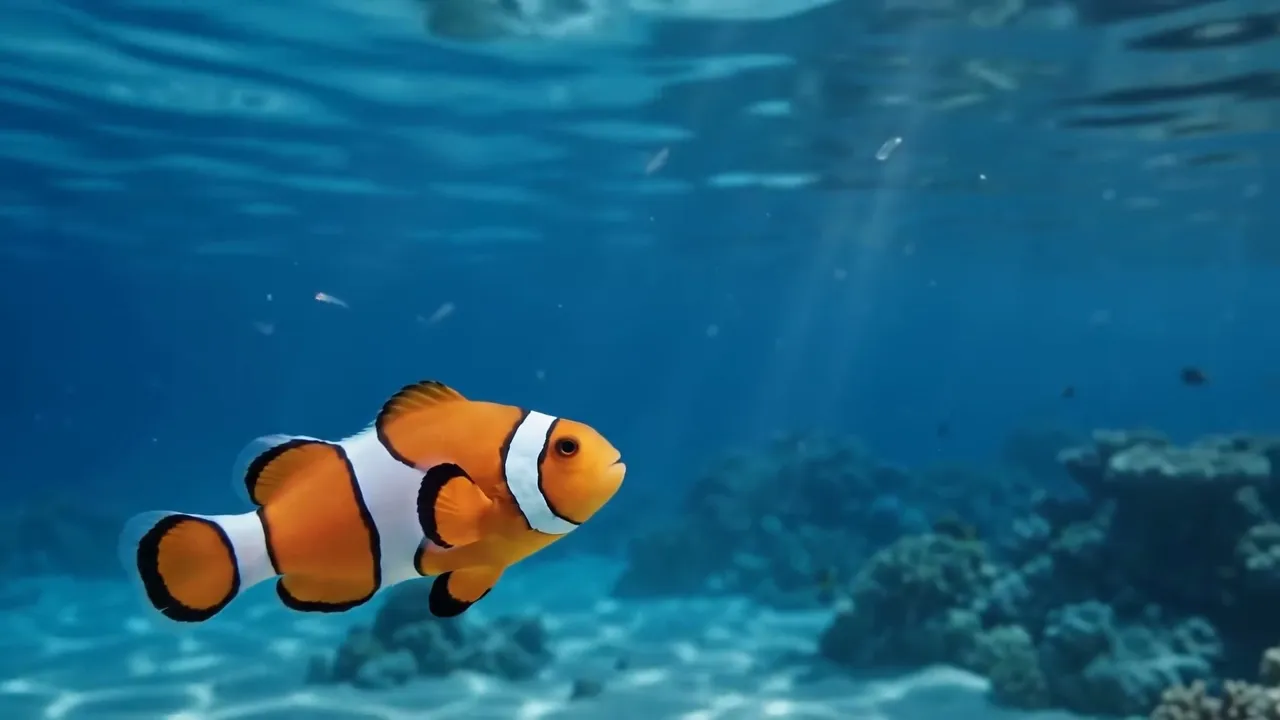
Sketch the motion, get the footage
Hand it a photo plus a scribbled path and it reads the drawing as direction, not as content. The line never shows up in the render.
turn this into realistic footage, using the drawing only as a guide for movement, do not show the drawing in the final video
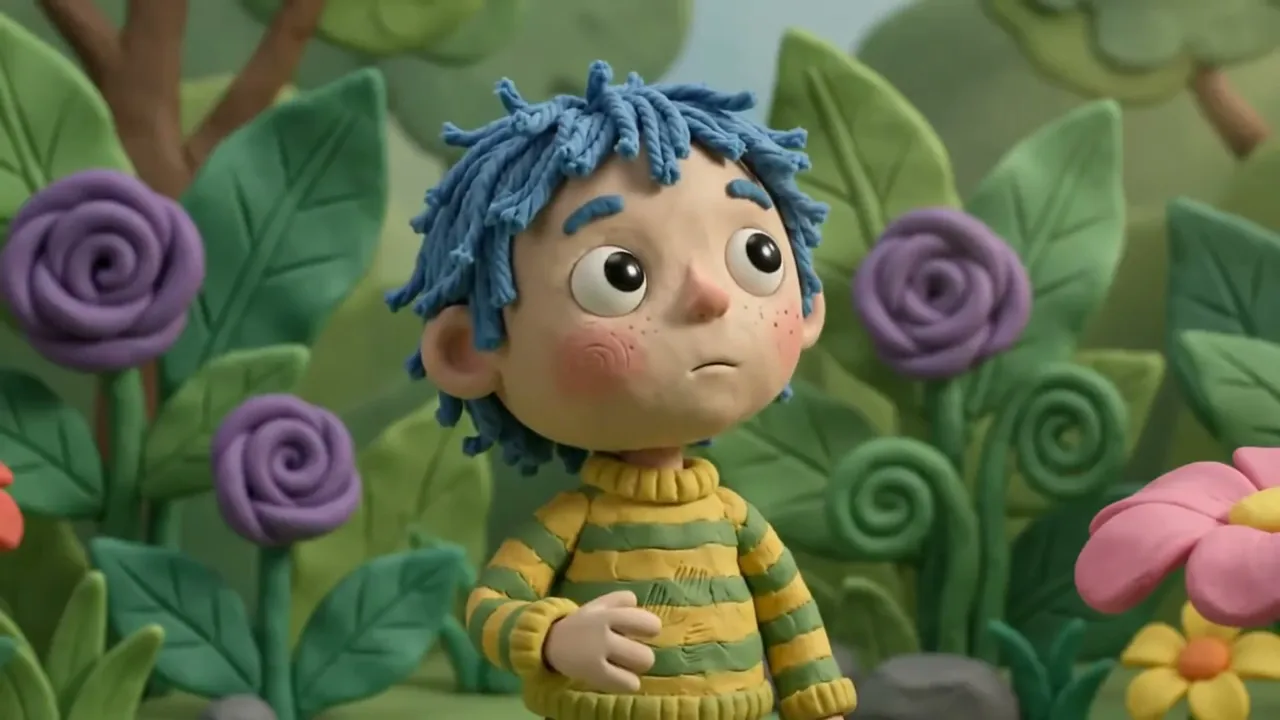
Swap what is in the shot
Point it at an existing clip and name the change. Lighting, style and camera move stay put while the object itself is replaced.
Change the butterfly to a bee.
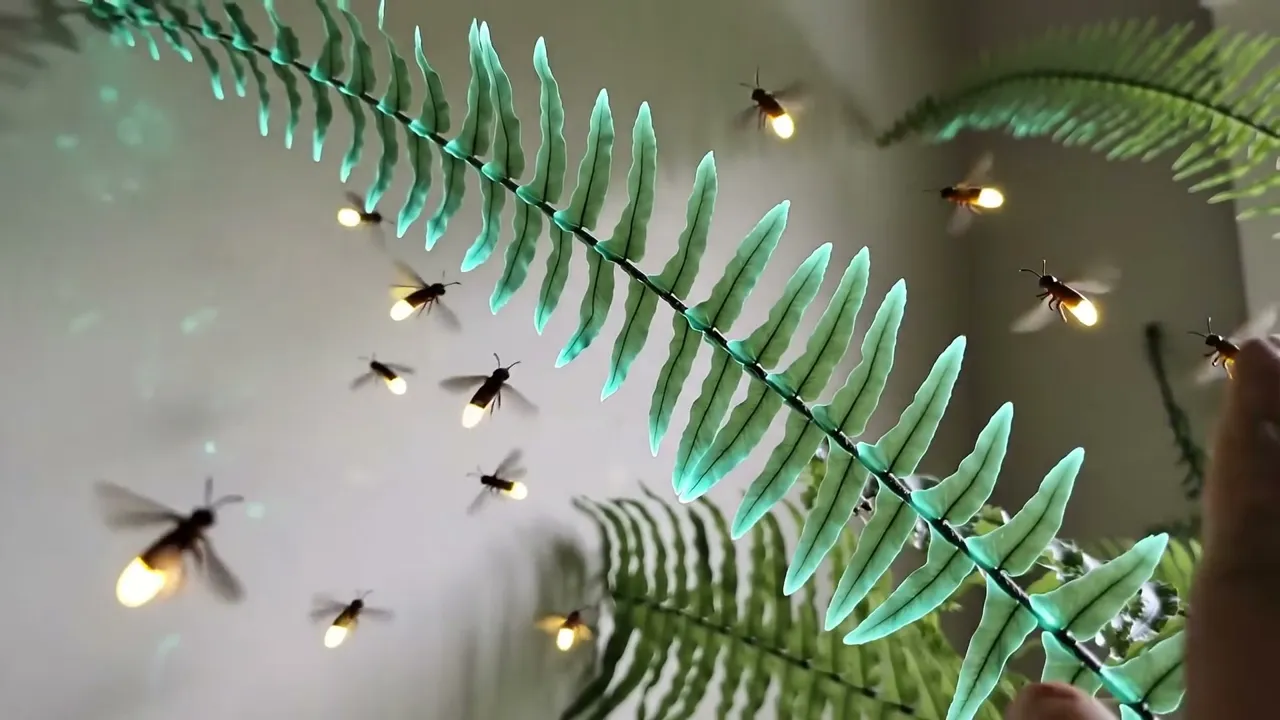
Sound that lands on the action
Audio is generated with the picture, not stitched on after, so a note can land on the exact frame a hand touches a leaf.
Add harp sounds synchronized to when I touch each fern leaf. Change the leaves to semi translucent bioluminescent plant life with fireflies reacting to the sound.
Built Around Mixed Input
Gemini Omni reads text, images and video in the same prompt and decides how they combine.
Up to 7 reference images
Give it a character, a location and a style reference at once. It reads them together instead of treating one as a first frame.
Audio on every render
There is no audio toggle because audio is not an add-on. Ambience, effects and sync come out of the same pass as the picture.
Start from a clip you have
Feed it a video up to 30s and it works from the first 10 seconds, keeping the motion while you change what is in frame.
Text, image or video in
The same model handles text to video, image to video and reference generation. No switching models when the idea changes.
720p, 1080p and 4K
Pick 4, 6, 8 or 10 seconds in landscape or portrait. 720p and 1080p cost the same, so 1080p is the default.
Room for a real brief
Prompts run to 20,000 characters. Describe the camera move, the lighting and the sound instead of compressing it to one line.
How to Use Gemini Omni
Three steps from idea to finished clip.
Add your material
Start from text alone, drop in up to 7 images, or upload one clip to work from. You can combine images and a video in the same prompt.
Describe the result
Write what should happen, how the camera moves and what it should sound like. Reference a specific image with @Image1, @Image2 and so on.
Pick length and quality
Choose 4 to 10 seconds, landscape or portrait, and 720p, 1080p or 4K. With a reference video the length follows the clip instead.
Gemini Omni FAQ
What people ask before their first render.
More Ways to Create
Other tools on Veevid worth a look.
Make Your First Gemini Omni Clip
Text, images or an existing video in. A finished clip with audio out.
Start Creating