
MAI Image 2.7
MAI Image 2.7 AI Image Generator & Editor
Create detailed, photorealistic images and posters with readable text, make precise, targeted edits, and keep products consistent across scenes with up to 5 reference images and transparent PNG output.
A photorealistic portrait of a woman potter in her sunlit studio, clay dust on her forearms, holding a freshly thrown bowl, shelves of glazed ceramics behind her, soft window light, shallow depth of field, 85mm lens
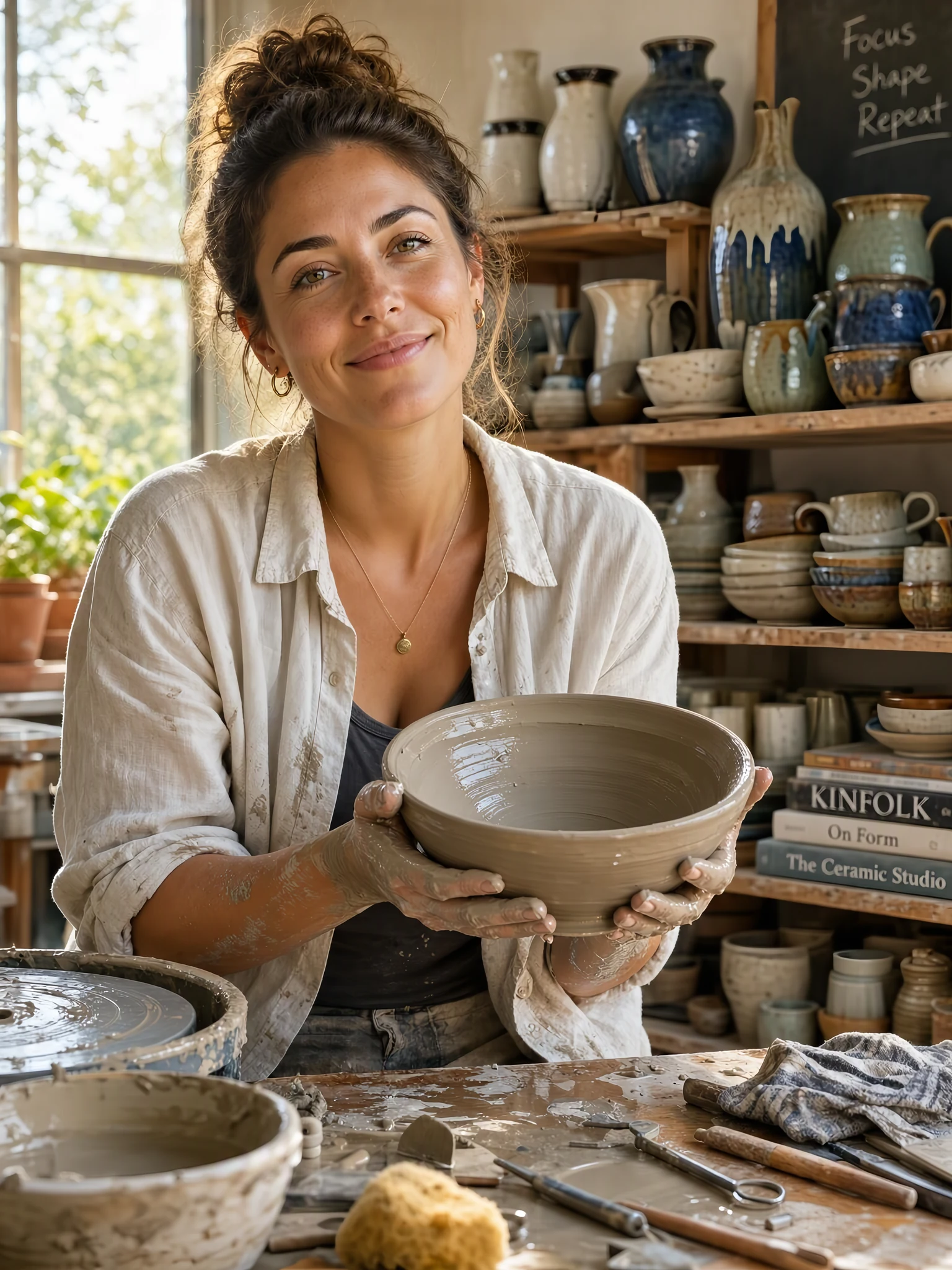
 Sample Image
0/4000
Output: 1024 × 1024 PNG
Cut-out subject on a transparent PNG, ready for product pages and design files.
Generation time varies. You can leave this page; results are saved to My Creations.
Made with MAI Image 2.7
Every image below is a real MAI Image 2.7 output with the exact prompt shown. Nothing was retouched; images were only converted to WebP for this page.
Lifelike detail and clean, readable text
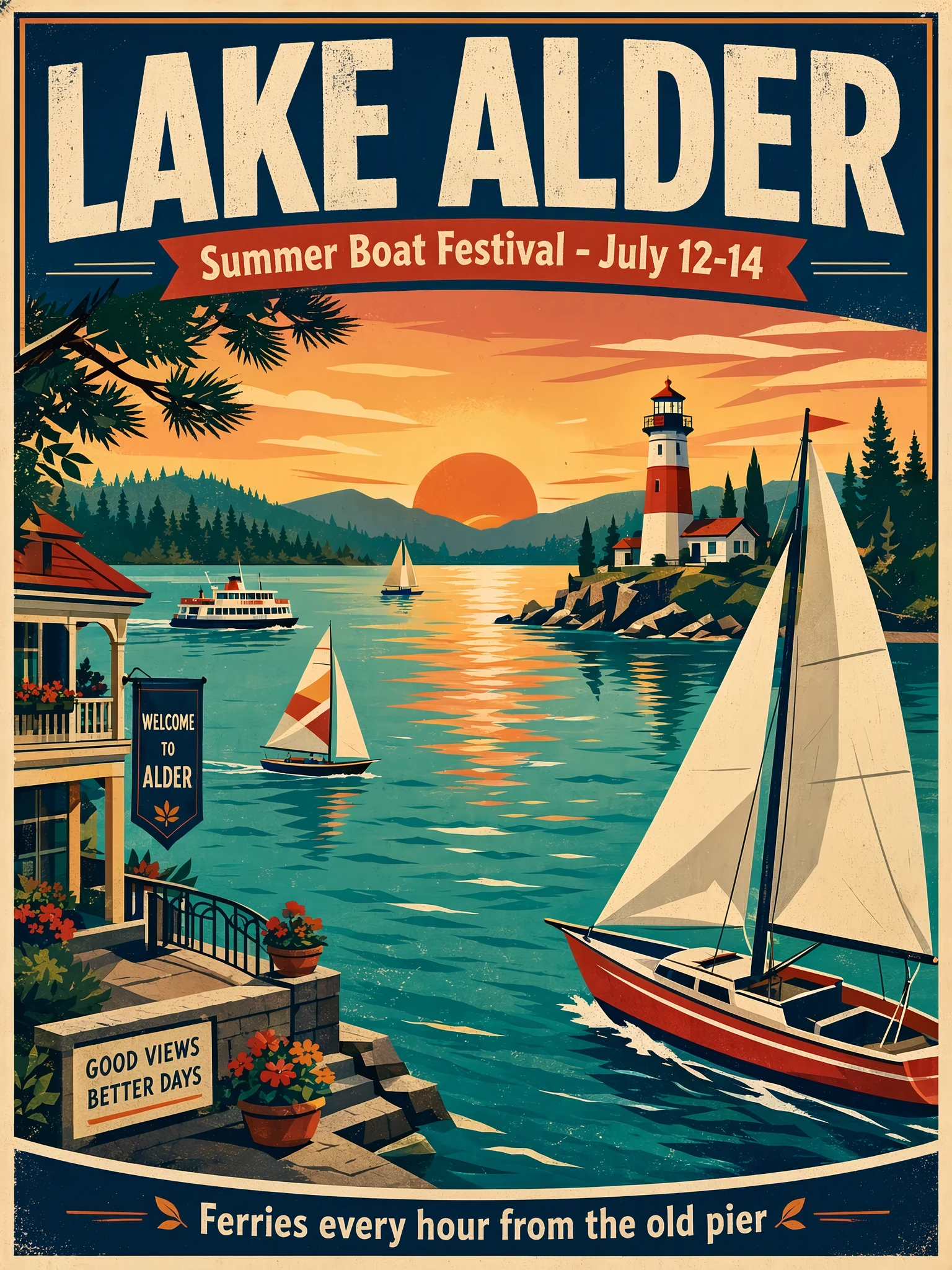
Two outputs from this page: a portrait with natural light, skin and material texture, and a poster where, in this run, the headline, date line and footer matched the quoted text. Both are 2K (1536 × 2048).
2KPhotorealistic portrait
Prompt: A photorealistic portrait of a woman potter in her sunlit studio, clay dust on her forearms, holding a freshly thrown bowl, shelves of glazed ceramics behind her, soft window light, shallow depth of field, 85mm lens
 2K
Poster with quoted text
Prompt: A vintage-style travel poster for a lakeside town. Large headline "LAKE ALDER" at the top, subtitle "Summer Boat Festival - July 12-14" below it, and a small footer line "Ferries every hour from the old pier". Flat illustration of sailboats on a turquoise lake with pine-covered hills and a red lighthouse, warm sunset palette, bold clean typography.
Precise edits: change one thing, keep the rest
Ask for a single change and say what should stay. In this example the original portrait went back in as the reference; the face, pose, lighting and background stayed the same and only the apron changed.
Original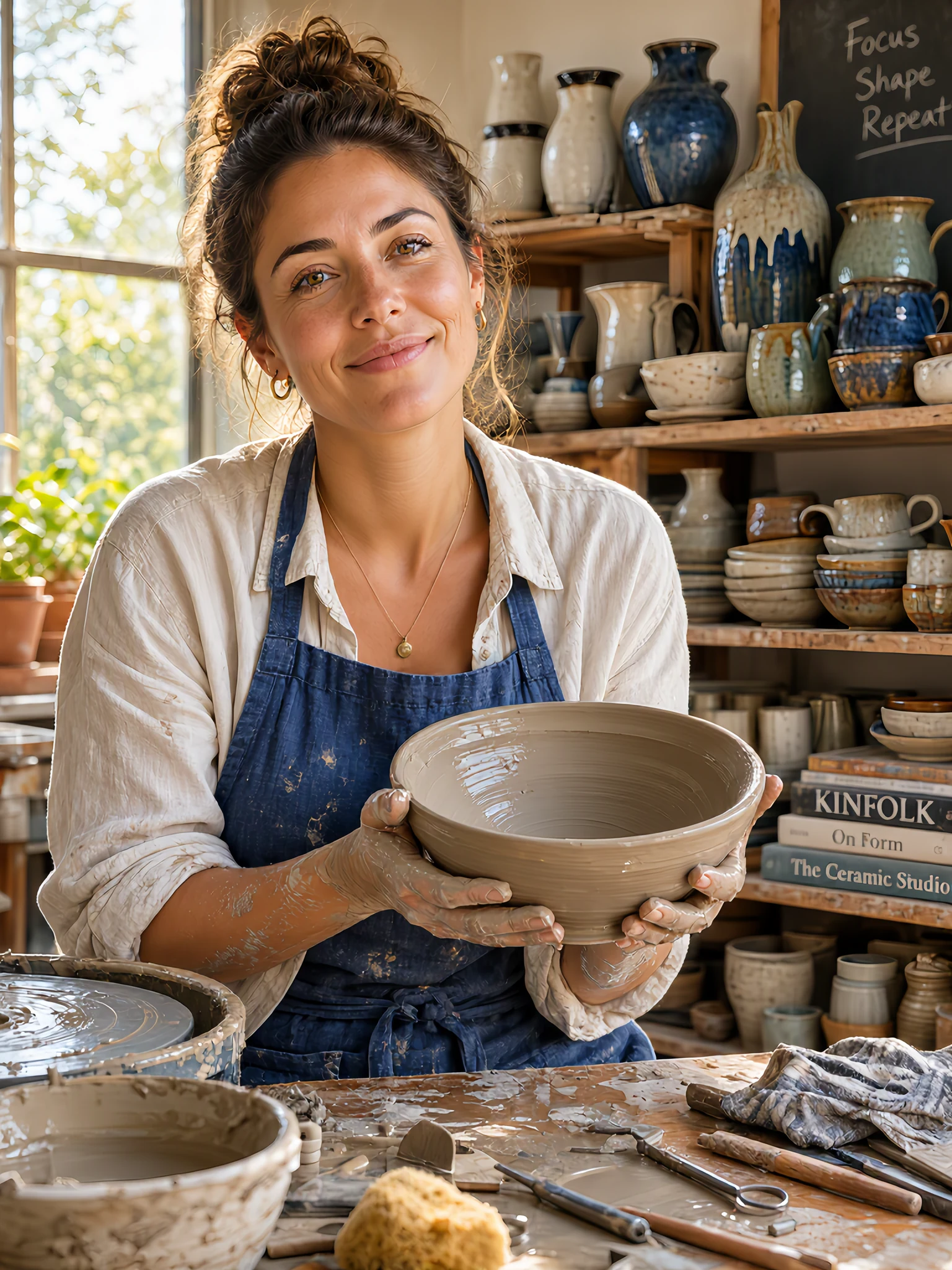 Result
Prompt: Change only her apron to a deep indigo blue linen apron. Keep her face, pose, the bowl, the lighting and the background exactly the same.
Transparent PNGs that stay on brand in every scene
Turn on Transparent background to get a cut-out product on a real alpha channel. Then use that PNG as a reference to place the same product into new scenes. In this example the headphones kept their design, which is what keeps a campaign or catalog consistent.
1. Product cut-out (1K, transparent)
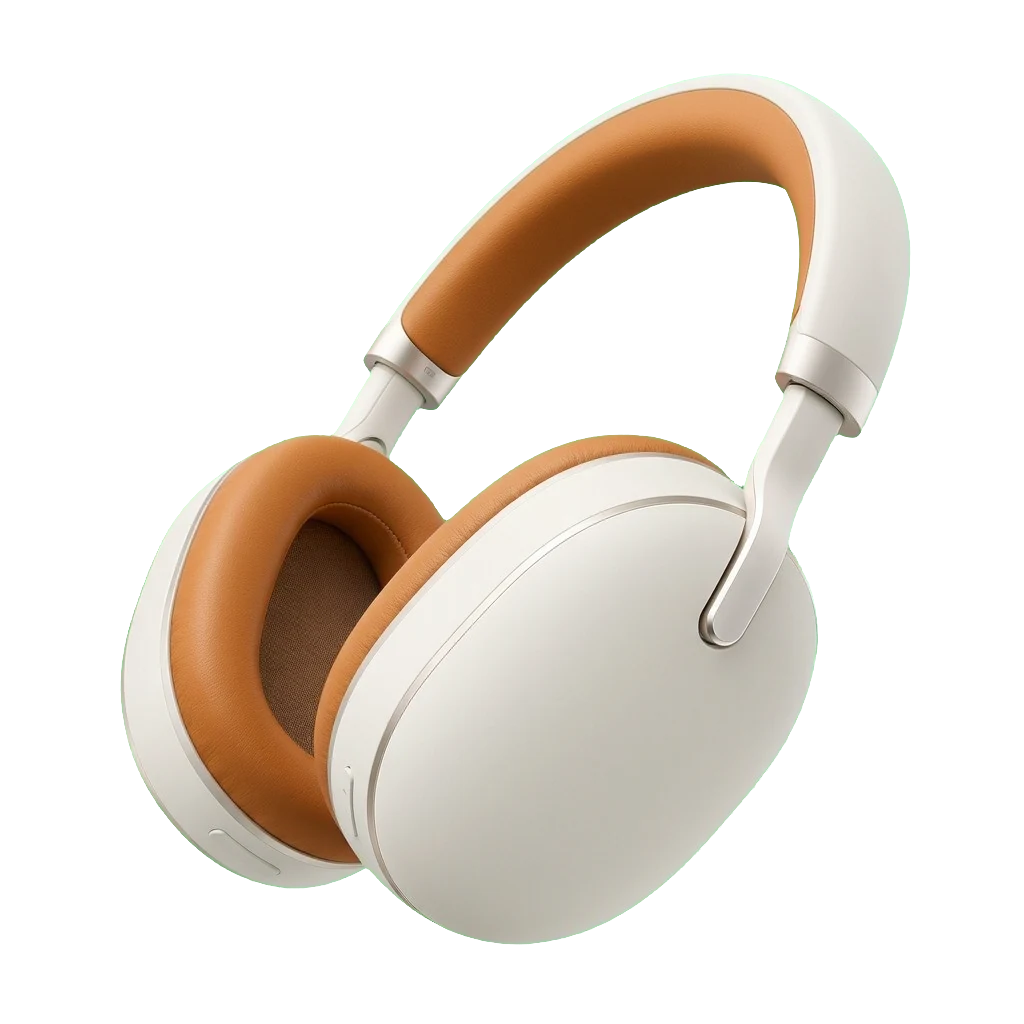 Transparent PNG
Prompt: A pair of matte white over-ear wireless headphones with tan leather ear cushions, three-quarter view, studio product shot, product only
2. Same product in a lifestyle scene
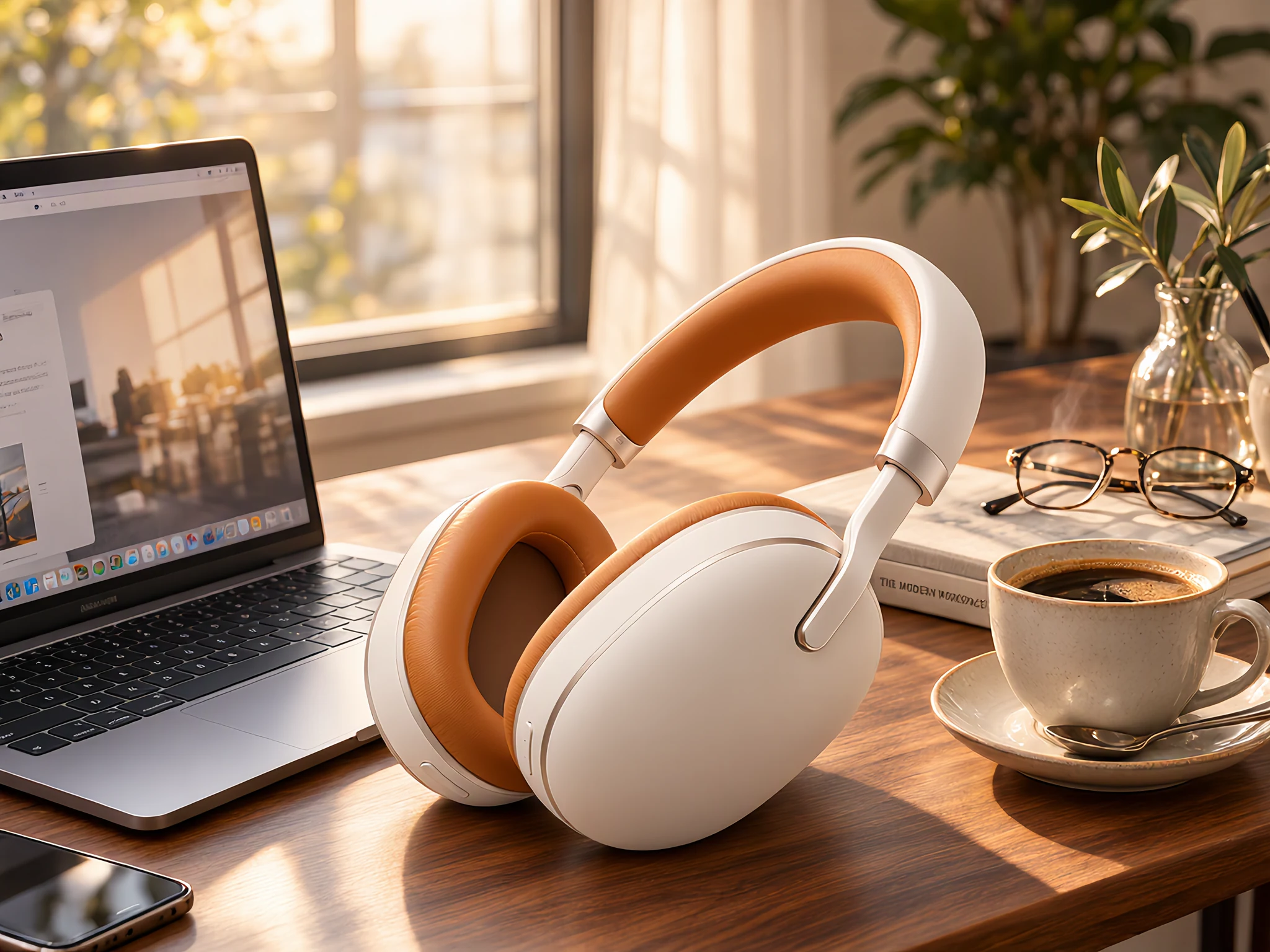 Result
Prompt: Place these headphones on a walnut desk next to an open laptop and a cup of coffee, warm morning light from a window, lifestyle product photography. Keep the headphones exactly the same.
Combine up to 5 reference images
Upload a person, an outfit and a prop and describe how they come together. The references are used in upload order: first image, second image and so on.
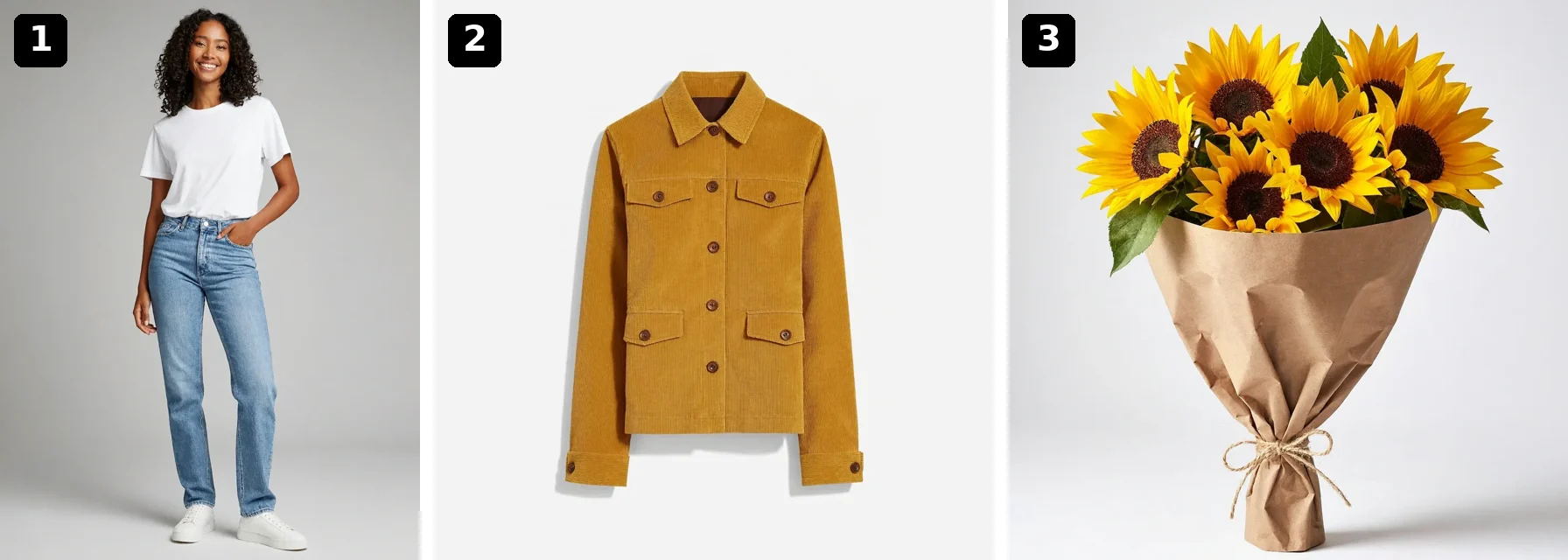
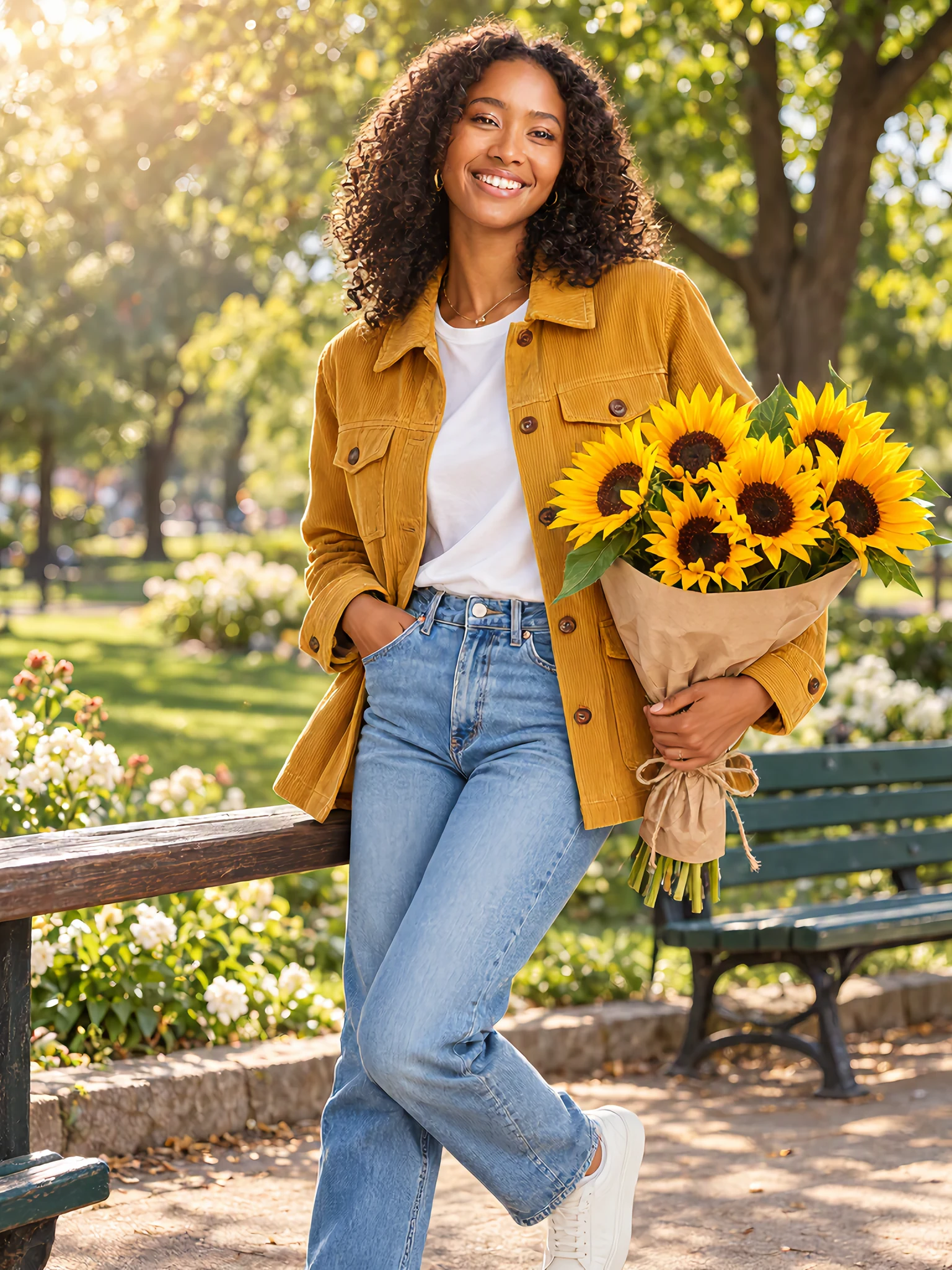 Result
Prompt: The woman from the first image wearing the jacket from the second image and holding the sunflower bouquet from the third image, standing in a sunny park, candid fashion photography.
Why Use MAI Image 2.7
Microsoft AI's image model for detailed generation and precise editing, with transparent PNG output and up to 5 reference images per edit.
Detailed, Photorealistic Images
Natural lighting, skin and fabric texture and believable materials for portraits, product shots and editorial scenes, at 1K or 2K.
Precise Image Editing
Describe the change and what to keep, and the edit stays focused on that part of the image. Microsoft reports that MAI Image 2.7 ranked first for image editing on the Artificial Analysis leaderboard at launch.
Consistent Brand and Series Visuals
Reuse the same product, packaging or character as a reference and generate it across scenes, formats and campaigns while keeping the design recognizable.
Readable Text in Images
Put headlines, dates and labels in quotes and the model sets them in the layout: posters, menus, packaging mockups and social graphics. Check spelling in the result before you publish.
Transparent Background Output
Switch on Transparent background for a cut-out PNG with a real alpha channel, ready for product pages, slides and design files.
Up to 5 Reference Images
Edit one photo or combine up to five: a person, an outfit, a product, a logo or a setting. Large photos are resized automatically before upload.
How to Use MAI Image 2.7 Online
From a prompt or a few photos to a finished image in three steps.
Choose Text or Image Input
Use the generator at the top of this page. Stay on Text to Image to start from a prompt, or switch to Image to Image and upload 1 to 5 reference images.
Describe the Image or the Edit
Write the scene and put any text that should appear in quotes. For edits, say exactly what should change and what must stay the same.
Pick Size and Background, Then Generate
Choose one of 7 aspect ratios, 1K or 2K, and whether the background should be transparent. The cost shows before you submit, and results are saved to My Creations.
Frequently Asked Questions
What to know before you create with MAI Image 2.7 on Veevid.
MAI Image 2.7 is an image generation and editing model from Microsoft AI, released in public preview in November 2026. It creates images from text and edits existing images with reference photos. On Veevid you can use it in your browser with no setup or API key.
Both take the same inputs and settings. MAI Image 2.7 is the higher-quality model for final images and demanding edits. MAI Image 2.7 Flash is faster and costs less per image, which suits drafts and high-volume work. You can switch between them in the model menu without losing your prompt.
Switch to Image to Image, upload the photo and describe only the change, then add what must stay the same, for example: "Change only her apron to deep indigo. Keep her face, pose, lighting and background exactly the same."
1 to 5 per edit. They are used in upload order, so you can refer to them as the first image, the second image and so on. Photos larger than about 4 megapixels are resized in your browser before upload.
Yes. Turn on Transparent background in the generator and the result is a PNG with an alpha channel, so the subject can be placed on any page or design. It works for both text-to-image and editing.
7 aspect ratios (1:1, 3:4, 4:3, 2:3, 3:2, 9:16 and 16:9) at 1K or 2K. For example, 1:1 is 1024 × 1024 at 1K and 2048 × 2048 at 2K, and 3:4 is 1536 × 2048 at 2K. Every request returns one PNG image.
It varies with the queue and the size. In our tests a 1K or 2K image took about 20 to 50 seconds. You can leave the page while it runs; finished images are saved to My Creations.
It is credit-based. The price depends on the output size, the prompt length and, for edits, the size of your reference images. The generator shows the cost before you click Generate, and that is what you are charged.
Discover More AI Image Tools
Need speed over polish? Try MAI Image 2.7 Flash, or explore other image models on Veevid.
Create and Edit with MAI Image 2.7
Generate a detailed image or make a precise edit from a few reference photos, right in your browser.
Start Creating