
How to Make Animated GIFs with GPT Image 2.6 (Prompts That Loop)
GPT Image 2.6 can turn a prompt or a photo into a looping GIF. Here's how to write a GPT Image 2.6 GIF prompt that loops cleanly, with real examples and fixes.

OpenAI released Images 2.6 on November 4, 2026, and the headline feature isn't a sharper still. It's motion: GPT Image 2.6 can return an animated GIF, either from a line of text or from a photo you upload.
That sounds like it should be easy, and mostly it is. But a GIF from an image model isn't a short video. It's a handful of frames that have to agree with each other and loop back to the start without a jump. The prompts that work are written a little differently from the ones you'd use for a still image.
Here's how to make a GIF with GPT Image 2.6, what to put in the prompt, and what to change when the loop doesn't come out right.
What You Get When You Pick GIF
On Veevid, GIF is an output option on GPT Image 2.6, next to the normal image output. The format is fixed, so it helps to know it before you write anything:
| Setting | GIF output on Veevid |
|---|---|
| Size | 512×512 (1:1, default), 768×432 (16:9), 432×768 (9:16), 576×432 (4:3) or 432×576 (3:4) |
| Frames | 9 |
| Frame time | 200 ms per frame, so one pass of the loop is about 1.8 seconds |
| Looping | Plays on repeat |
| Starting point | A text prompt, or an uploaded image |
| Model versions | Flare or Sunburst |
Aspect ratio and resolution don't apply to GIFs, and there's no transparent background option. GIFs also have one fixed price, whatever you put in the prompt, and the generator shows the cost before you run it.
The number to keep in mind is 1.8 seconds. Nine frames is enough for one small action - a wave, a blink, steam rising, a light sweeping across glass. It's not enough for a story with a beginning, a middle and an end. Most GIF prompts that fail are asking for too much to happen.
How to Make a GIF from Text
- Open GPT Image 2.6 and stay on text to image.
- Open the Advanced settings and set Output to GIF animation.
- Pick Flare or Sunburst in the Model Version card (more on that below).
- Describe one character or object and one simple motion, then generate.
The prompt doesn't have to be long. These are two of the examples on the GPT Image 2.6 page, generated on Veevid with exactly these prompts:
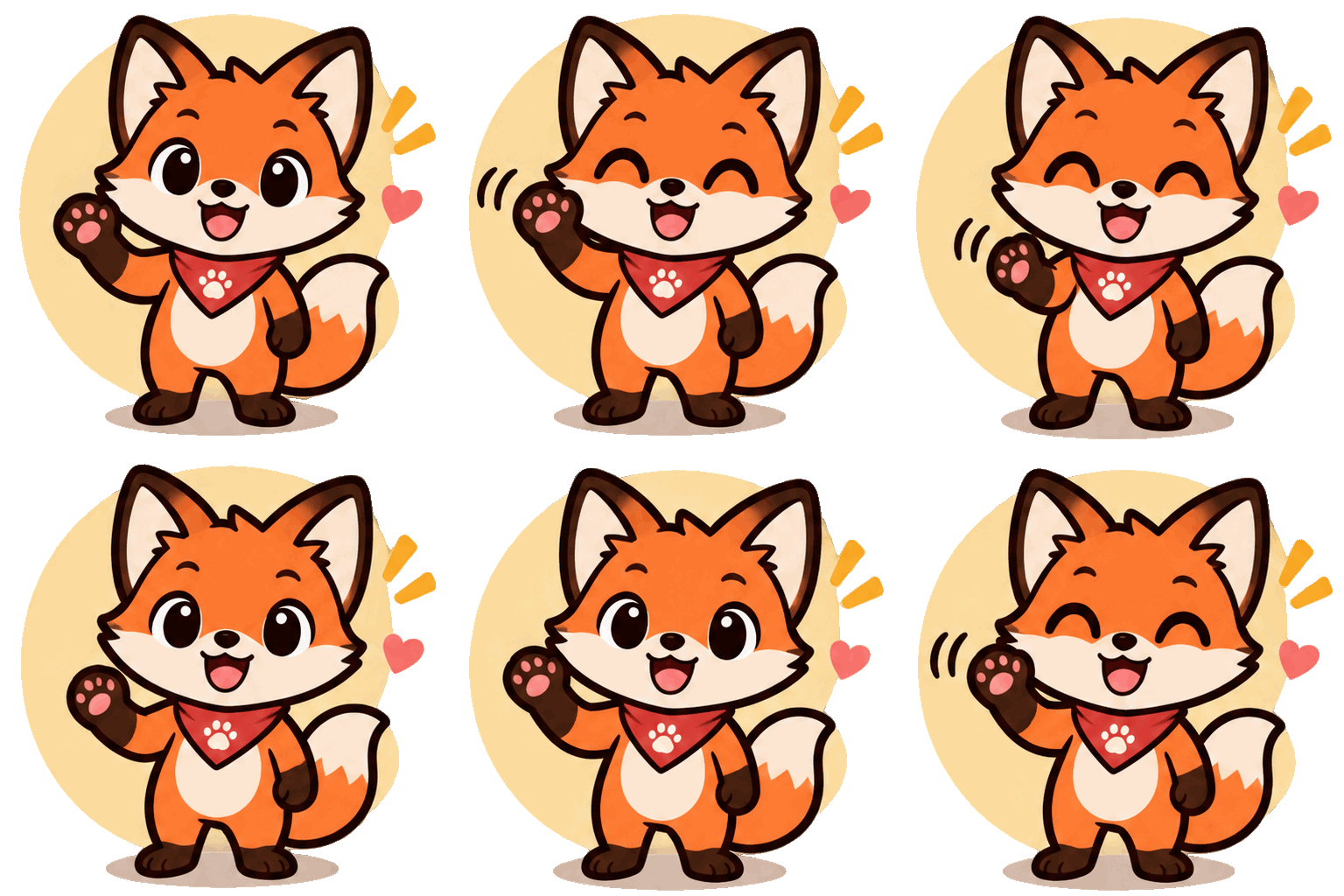
A cute orange fox brand mascot waving hello and blinking, flat vector sticker style, thick outline, pastel background, seamless loop
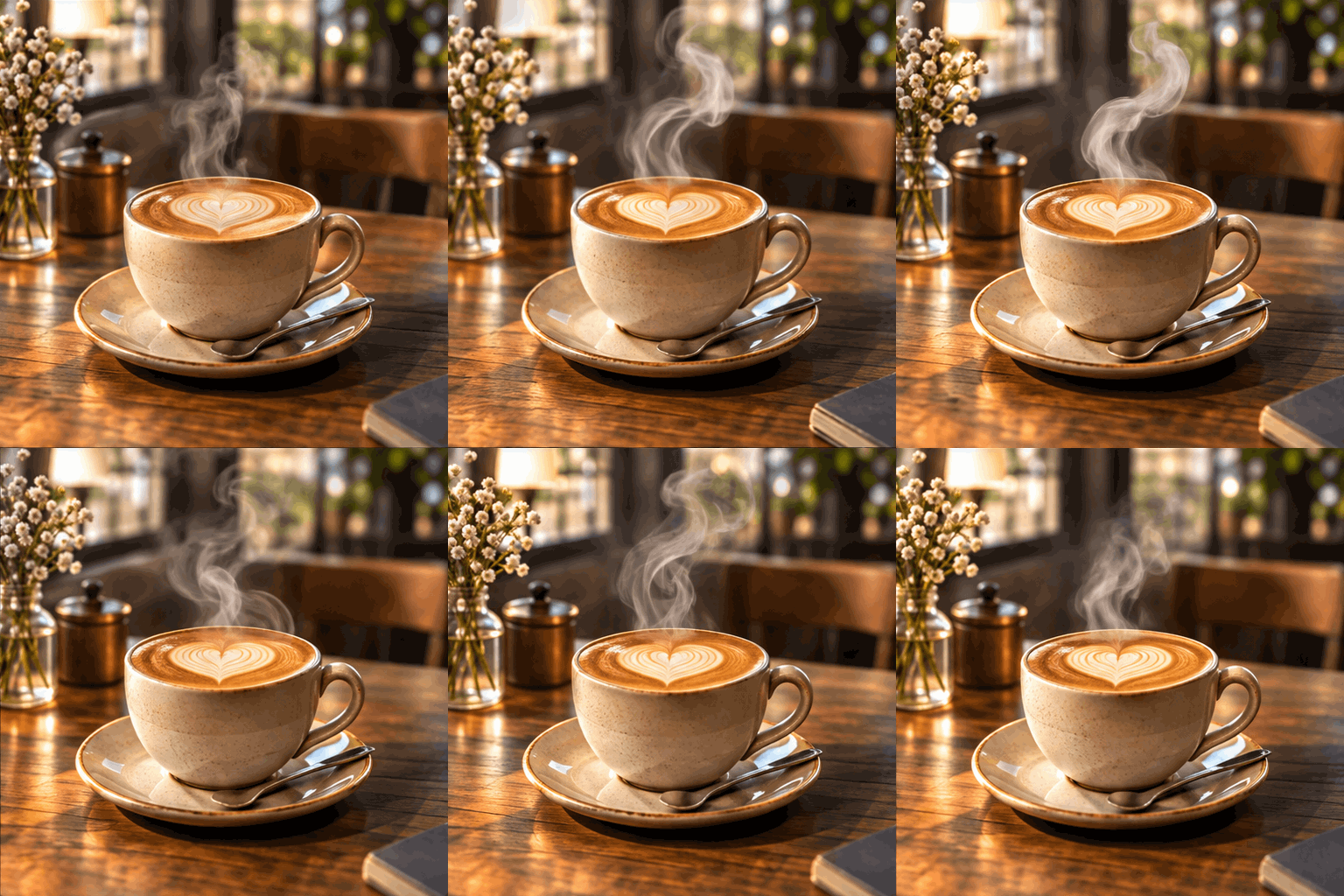
A steaming ceramic coffee cup with heart latte art on a wooden cafe table, soft steam curling upward, warm morning window light, seamless loop
Both prompts do the same three things: one subject, one motion that naturally repeats (waving, steam), and the words "seamless loop" at the end. That's the minimum, and for simple loops it's often enough.
The GPT Image 2.6 GIF Prompt Structure OpenAI Uses
When you want more control, borrow the structure from OpenAI's own launch examples. Every GIF prompt in the announcement opens the same way:
Create a single animation sprite sheet for a seamless looping GIF.
Then it spells out the motion step by step, pins down everything that should stay the same, and lists what must not appear. Broken into parts:
- Opener - "Create a single animation sprite sheet for a seamless looping GIF."
- Subject - who or what is moving, with enough visual detail to stay recognizable from frame to frame
- The sequence - the motion in order, as small steps: "leans left, raises one arm and waves, smiles and blinks, leans back to center"
- Consistency anchors - "fixed front camera, same character, same background"
- Loop closure - "the last frame transitions smoothly back to the first"
- Style - one line, such as flat vector sticker, kawaii 3D toy, product photography
- Exclusions - "no captions, no words, no logos, no borders, no gutters"
"Gutters" is the giveaway for how this works. The model draws the frames as a grid, and the gaps between grid cells can leak into the animation as lines. OpenAI's examples ban them by name, and so should you.
OpenAI's examples also specify a frame count and grid ("exactly 6 sequential frames arranged in a 3-column by 2-row grid"). On Veevid, you can leave that line out: the GIF is always 9 frames, and that's set for you. Asking for 6 frames when the output is 9 only gives the model two instructions that disagree.
Here's a prompt we wrote in that structure, run once on Flare:
Create a single animation sprite sheet for a seamless looping GIF. A cheerful cartoon cactus mascot in a small terracotta pot. The sequence: the cactus leans slightly left, raises one arm and waves, smiles and blinks, then leans back to center. Fixed front camera, same character, same pot, plain pastel peach background. Clear incremental arm and body motion; the last frame transitions smoothly back to the first. Flat vector sticker style, thick outline. No captions, no words, no logos, no borders, no gutters.
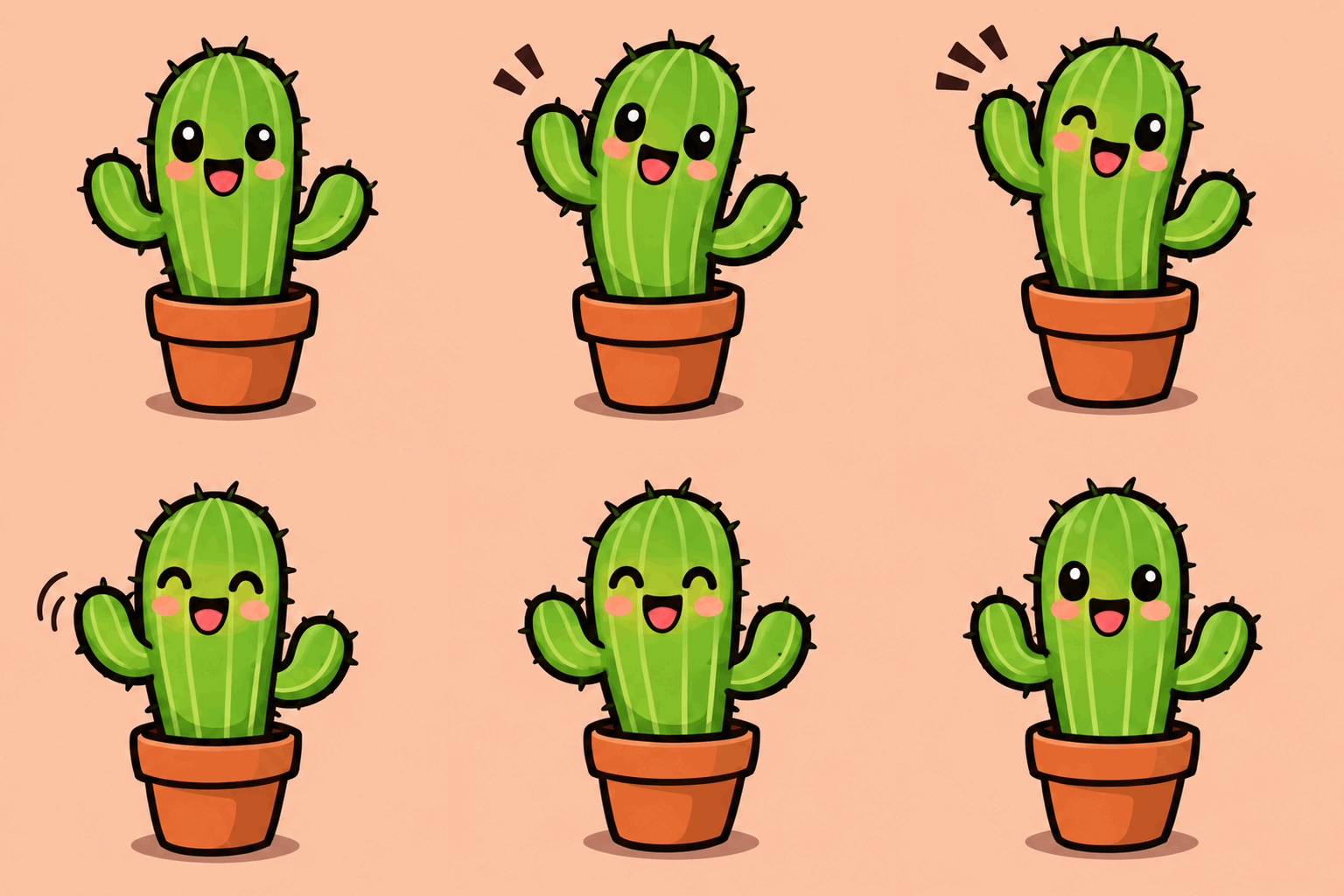
And here are its 9 frames laid out side by side:
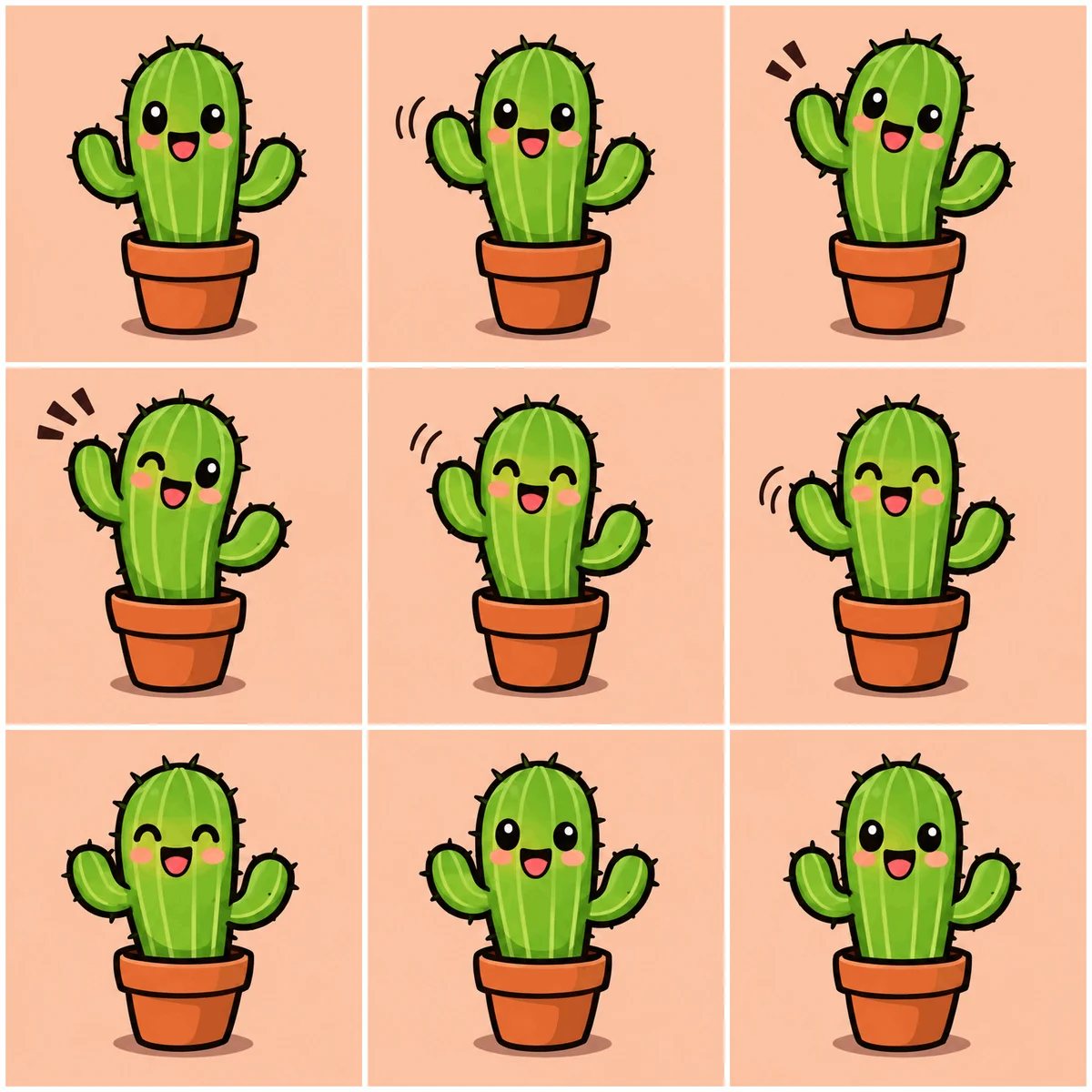
The sequence came out in the order we wrote it: rest, arm up, wave with a happy squint, arm back down, then the starting pose again, which is why the loop doesn't jump. The pastel peach background held across all 9 frames too, just as the prompt asked. It's still worth checking details like color before you ship a GIF.
How to Make a GIF from a Photo
The second way in is an image you already have. On Veevid that's the image to image side of GPT Image 2.6:
- Switch to image to image and upload your photo.
- Set Output to GIF animation.
- Start the prompt with "Animate this:" and describe one motion.
This one is also on the GPT Image 2.6 page. The source is a still of a dog, and the prompt was short:
Animate this: the dog wags its tail and blinks, gentle loop
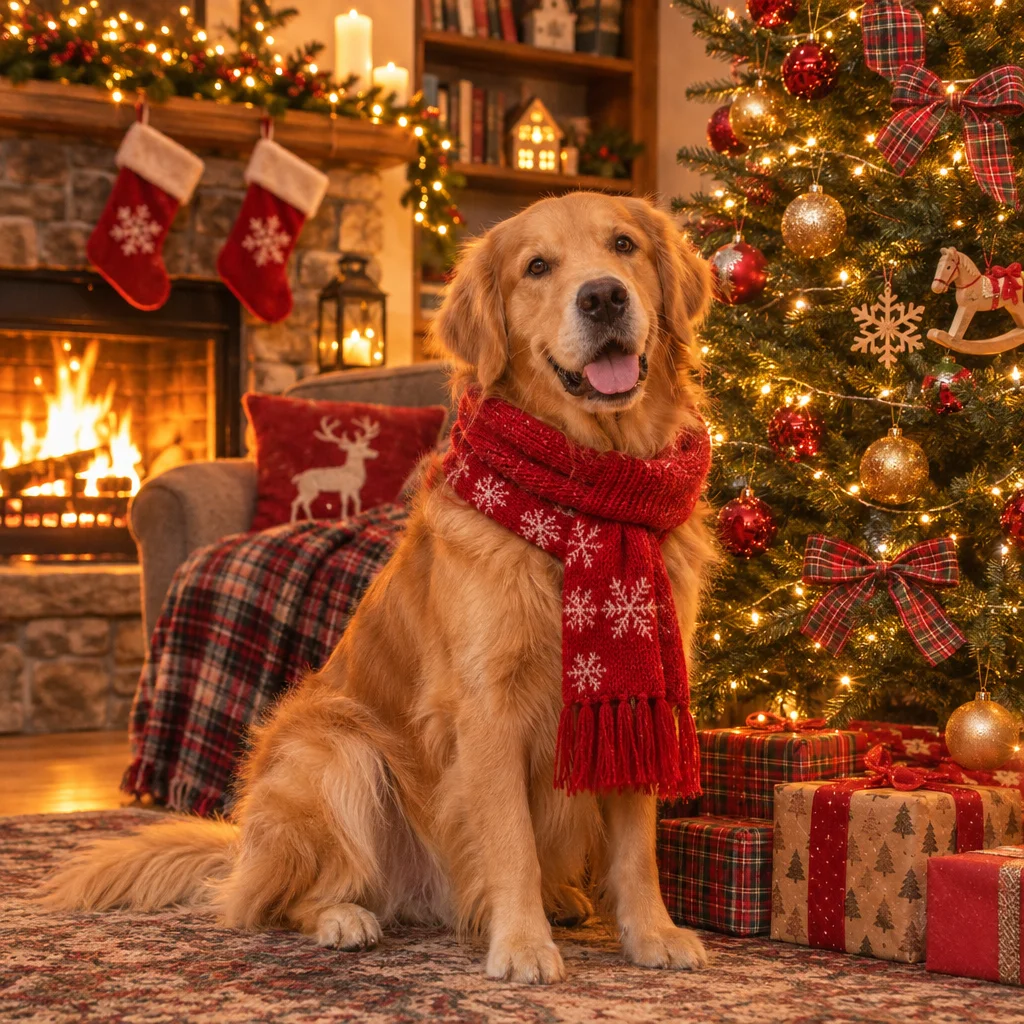
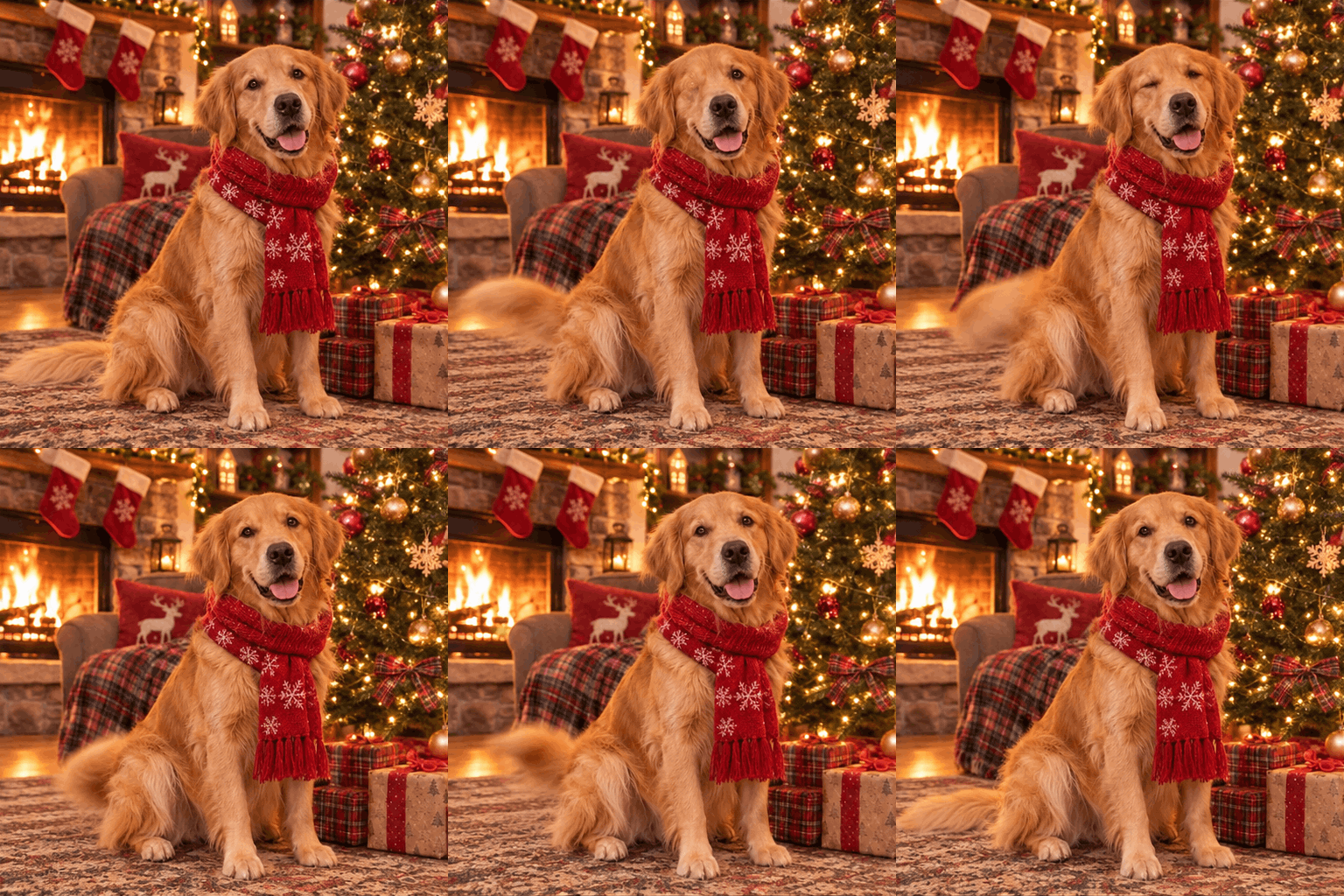
A few things make photo GIFs work better:
- Pick motion the photo can support. A tail wag, a blink, a head tilt, hair moving in wind. Asking a seated dog to run across the room means inventing most of the scene.
- Say what should stay. "Keep the room, the lighting and the scarf the same" is worth adding if the background matters.
- Pick the aspect ratio that matches your photo. GIFs come in 1:1, 16:9, 9:16, 4:3 or 3:4; a photo with the subject near the center is the safest start.
OpenAI also points out that you don't need a polished design: even a simple sketch can become an animated character. To test that, we uploaded a plain ink doodle of a robot. To be upfront, the doodle itself was generated with GPT Image 2.6 as a stand-in for a hand drawing. Then we asked for this:
Animate this sketch: the little robot waves one arm and its antenna bobs up and down. Keep the hand-drawn black ink lines and the plain white paper. Fixed camera, same character in every frame, seamless loop. No text, no borders.
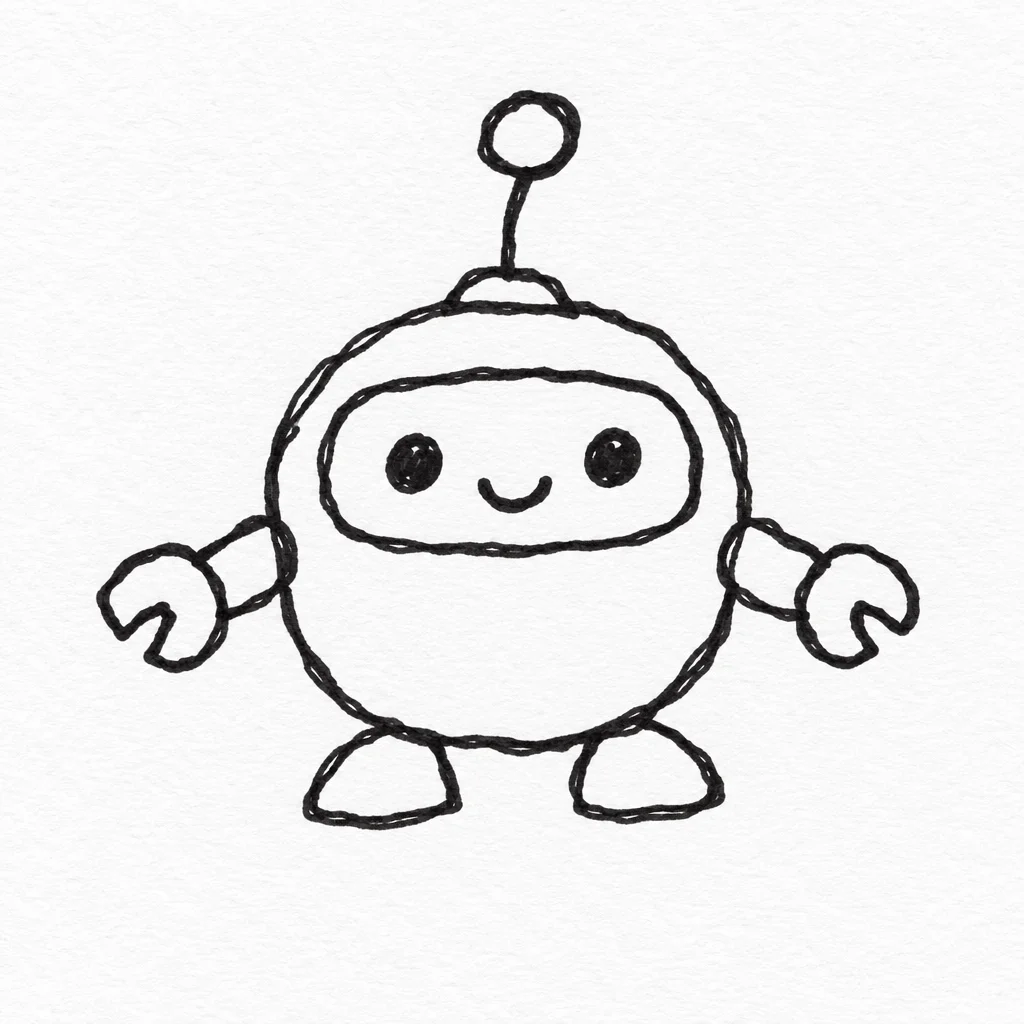
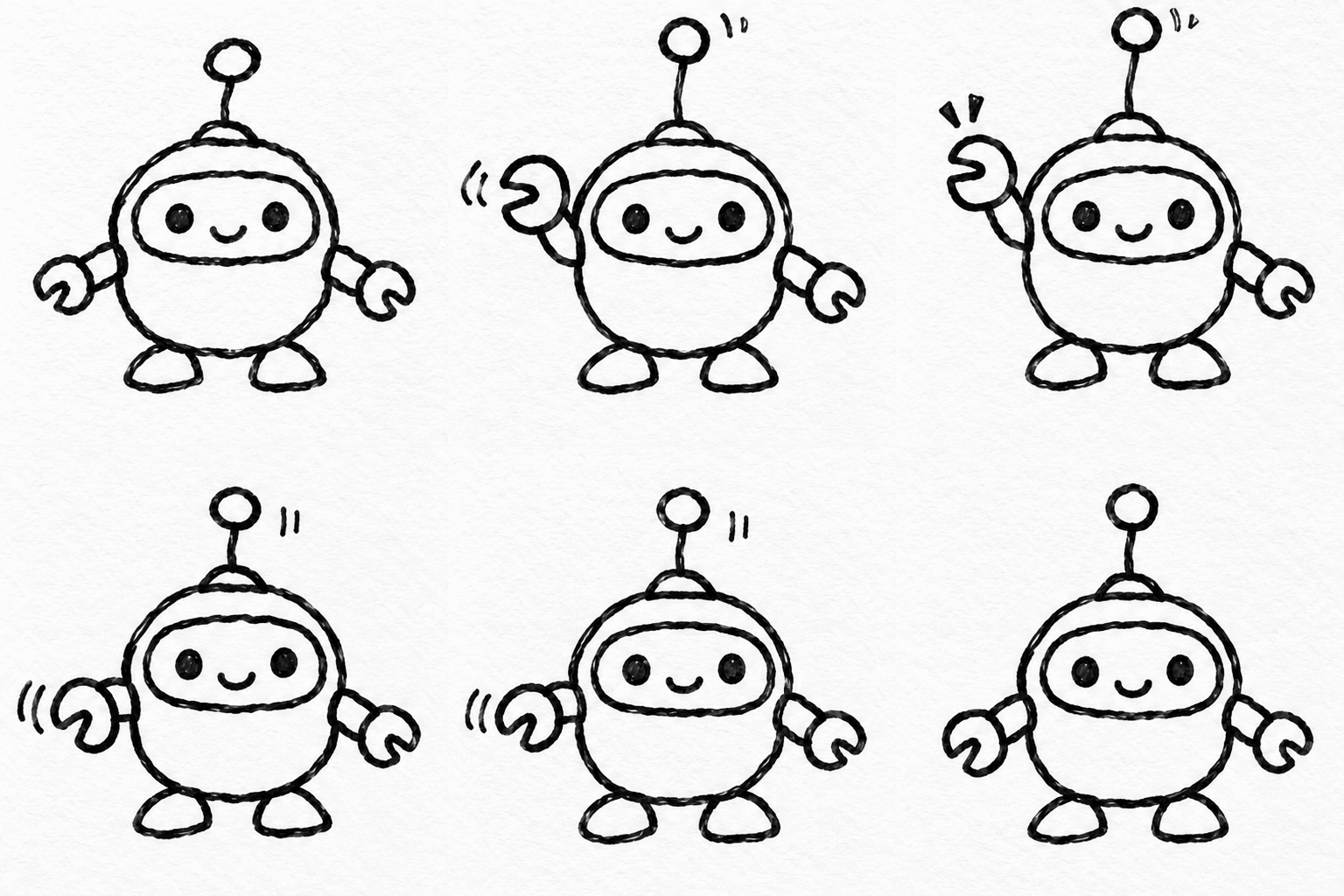
The ink style and the paper survived, and the robot stayed the same robot across all 9 frames. We added "keep the hand-drawn black ink lines" on purpose: the point of animating a sketch is that it still looks like your sketch, so say so rather than leaving the style up to the model.
Flare or Sunburst for GIFs?
Both versions can make GIFs, and on Veevid they cost the same. The difference is speed against consistency.
Flare is the fast one. OpenAI says Images 2.6 generates images 50% faster than before, and that Flare can return an image in as little as six seconds with quality set to low. Veevid runs GPT Image 2.6 at high quality, so expect a bit longer: in our tests, a 1K Flare image took about 9 seconds, and the GIFs we made for this post took around 15 seconds each to generate. That's fast enough to try three versions of a prompt in a minute, which is how GIF prompts get good.
Sunburst is the steady one. OpenAI describes it as bringing higher-quality generation and greater consistency across edits when quality is set to medium or high, which covers Veevid's setting. It's slower - a 1K image took about 55 seconds in our tests - so it makes the most sense when you're animating a photo or a character that has to stay recognizable.
A good default: draft on Flare until the motion is right, then try Sunburst for the final version if the subject drifts between frames.
What's New in 2.6 Compared to 2.5
If you've been using GPT Image 2.5, three things changed:
- GIF output. GPT Image 2.5 only makes still images.
- Speed. OpenAI puts Images 2.6 at 50% faster than before.
- Steadier edits. OpenAI built 2.6 to keep characters, products and brand details consistent as you edit, and says Flare also improves layout quality for posters and product imagery.
GPT Image 2.5 is still on Veevid, and it still has things 2.6 doesn't: transparent backgrounds and more aspect ratios. If you need a cutout-ready PNG rather than a moving image, the GPT Image 2.5 transparent background guide is the one to read.
What to Make with It
OpenAI's launch lists the use cases it had in mind, and they map well onto a 1.8-second loop:
- Brand mascots and characters - a wave, a wink, a nod for a campaign or a website
- Product loops - light moving over a bottle, steam over a cup, a slow sparkle on a label
- Reactions and memes - one exaggerated expression that repeats
- Animated storyboards - a quick test of how a character moves before you commit to video production
Here's a product loop we ran on Flare, with no motion beyond light and dust:
A frosted glass perfume bottle on a round stone pedestal. The sequence: a soft band of light sweeps slowly across the glass from left to right while tiny dust particles drift upward. Fixed camera, same bottle, same pedestal, warm beige studio background. The last frame transitions smoothly back to the first for a seamless loop. Clean product photography style. No captions, no words, no logos, no borders.
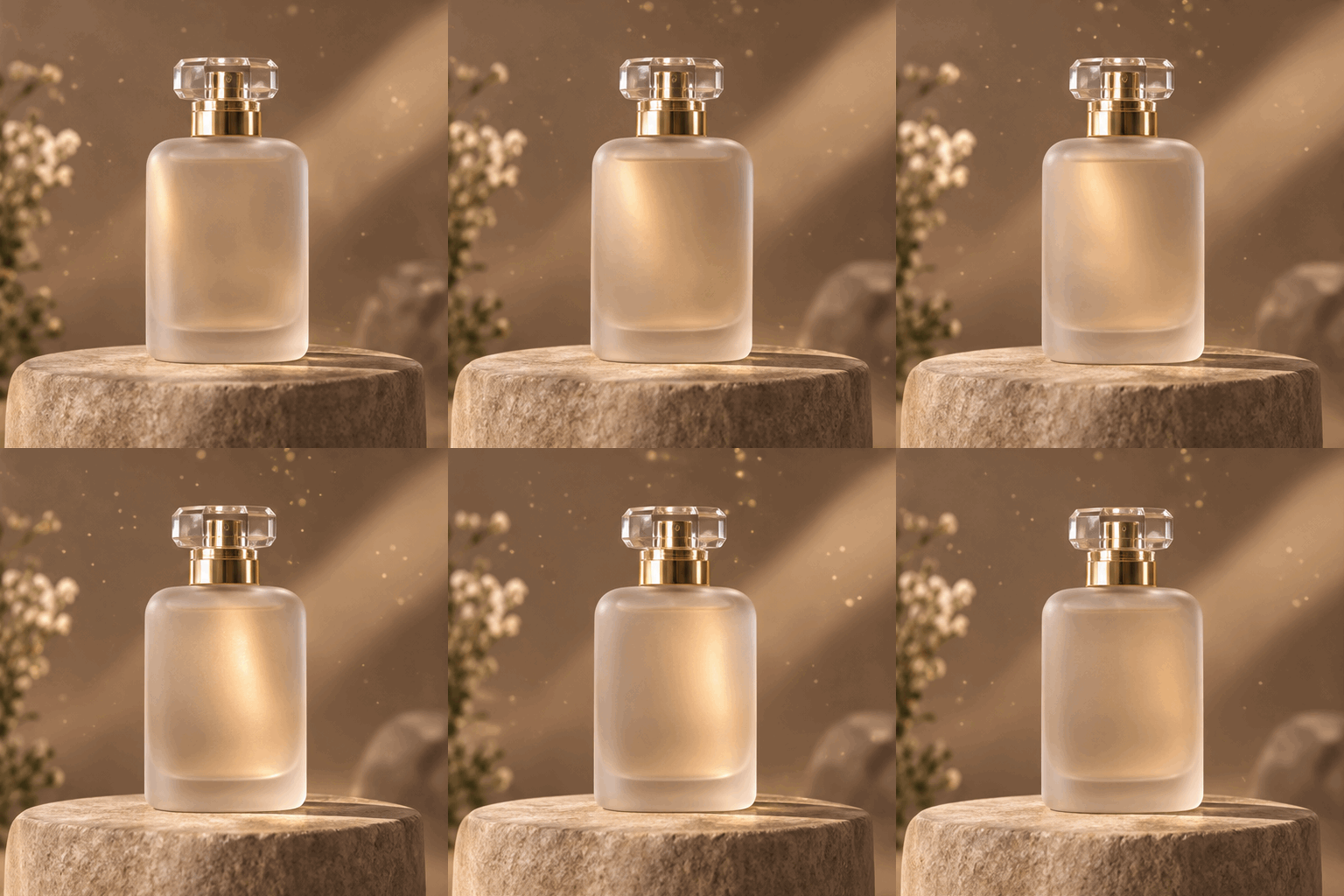
Small motion is the trick here. A full turn of the bottle would have to fit into 9 frames, while a moving highlight only has to shift a little from one frame to the next.
When a storyboard GIF works and you want the real shot, the next step is a video model. Image to video takes a still and gives you seconds of motion instead of a 9-frame loop.
When the Loop Doesn't Come Out Right
- The loop jumps at the end. Pick a motion that returns to where it started (a wave, a blink, a sway) and say so: "the last frame transitions smoothly back to the first."
- The character changes between frames. Add "same character, same outfit, fixed camera." For photo GIFs, try Sunburst.
- Too much is happening. Cut the sequence down to one action. Nine frames at 200 ms can't hold a plot.
- Lines, borders or text show up. Add "no captions, no words, no borders, no gutters."
- A detail is wrong (color, prop, background). Say it once, clearly, and re-run. If it keeps slipping, mention it again in the consistency line: "same pastel peach background."
- You need a large or high-resolution GIF. Not available: GIFs top out at about 512×512 worth of pixels per frame (for example 768×432 at 16:9). A transparent background is available, but GIF edges are hard, with no soft fade.
Quick Reference
- Set Output to GIF animation in the Advanced settings on GPT Image 2.6
- 512×512 by default (also 16:9, 9:16, 4:3, 3:4), 9 frames, 200 ms per frame, about 1.8 seconds per loop
- Works from a text prompt or an uploaded image ("Animate this: ...")
- Write one subject, one motion, and how the loop closes
- Open with "Create a single animation sprite sheet for a seamless looping GIF" when you want more control, and skip the frame count
- End with "no captions, no words, no borders, no gutters"
- Draft on Flare, finish on Sunburst if the subject drifts
Try It
Every example on the GPT Image 2.6 page has a Try this button that drops the same prompt into the generator, so you can start from one that already loops.
Sources
- OpenAI - Introducing Images 2.6 - release date, the 50% speed figure, Flare's six-second figure at low quality, Sunburst's consistency at medium and high quality, the GIF use cases and the sprite sheet prompt structure
Checked on 2026-11-05. The GIF format, the timings and every example above come from our own runs of GPT Image 2.6 on Veevid, and reflect how it behaves on the site today.