
AI Video Editor
Edit your videos using natural language. Describe what you want to change — swap styles, modify objects, adjust lighting — and AI will do the rest.
Sample Results
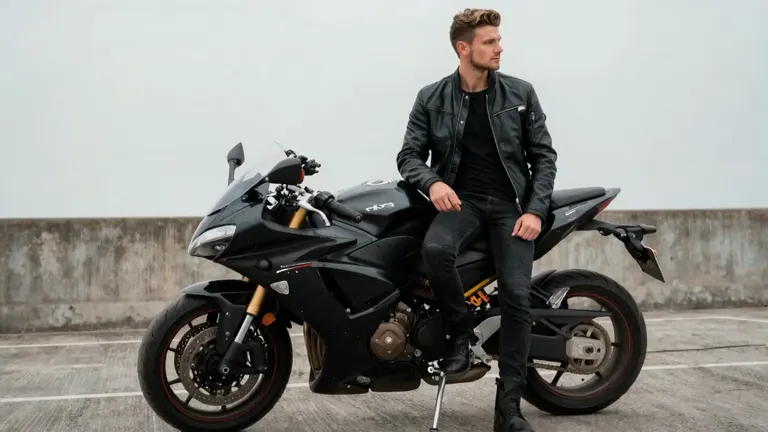
Before
After
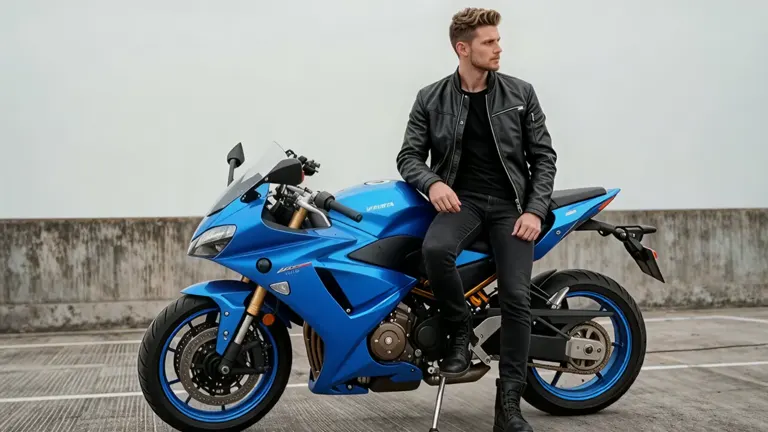
Made with Wan 2.7 Edit"Change the motorcycle's color to blue."
 Recolor the bikeWan 2.7 Edit
 Swap the driverWan 2.7 Edit
 Summer to snowKling 4.0
 Remove the riderKling 4.0
 Rain to snowGemini Omni Flash 1.2
See AI Video Editing in Action
Real before and after examples showing what AI video editing can do
Cyberpunk Style Transfer
Transform the dancer into a cyberpunk robot in a neon-lit city street.
Character Insert
Insert the guitarist into a full band performance scene.
Background Replace
Replace the park background with a futuristic sci-fi corridor.
Golden Hour Lighting
Apply warm golden hour lighting with rich amber tones and soft lens flare.
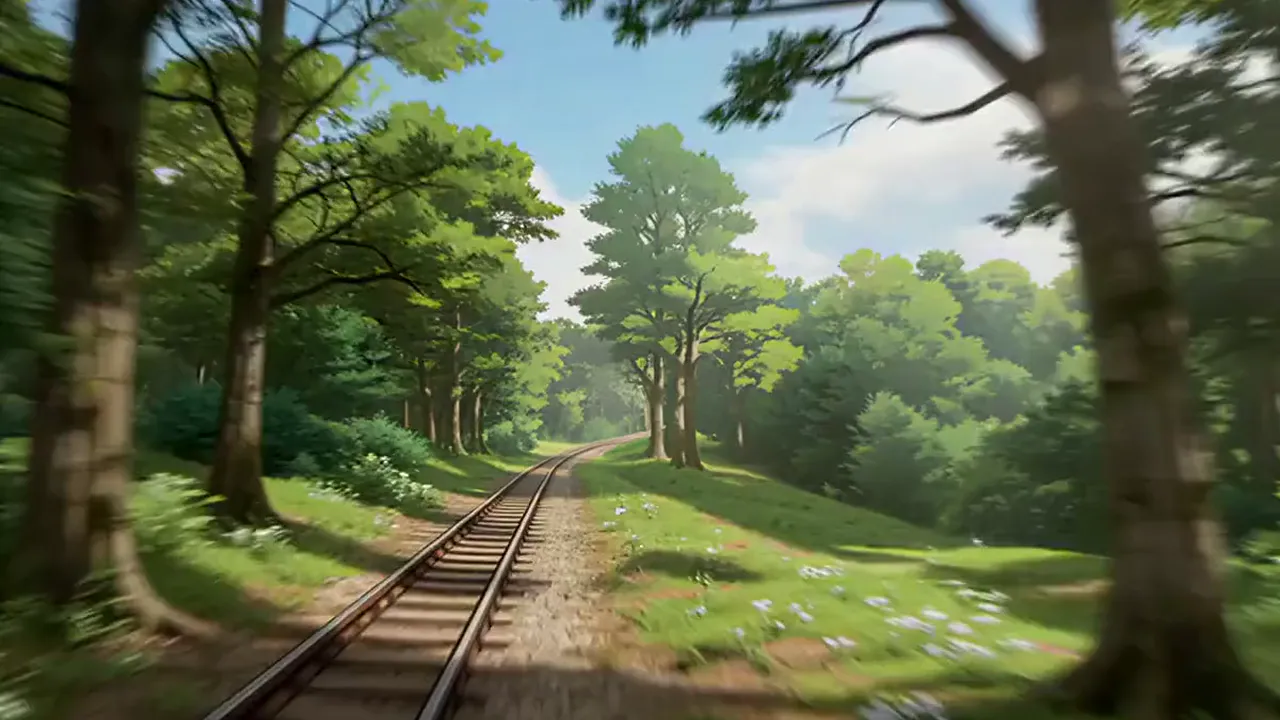

Summer to Snowy Night
Turn the summer forest railway into a snowy winter evening with falling snow and warm lantern light, keeping the camera move identical.
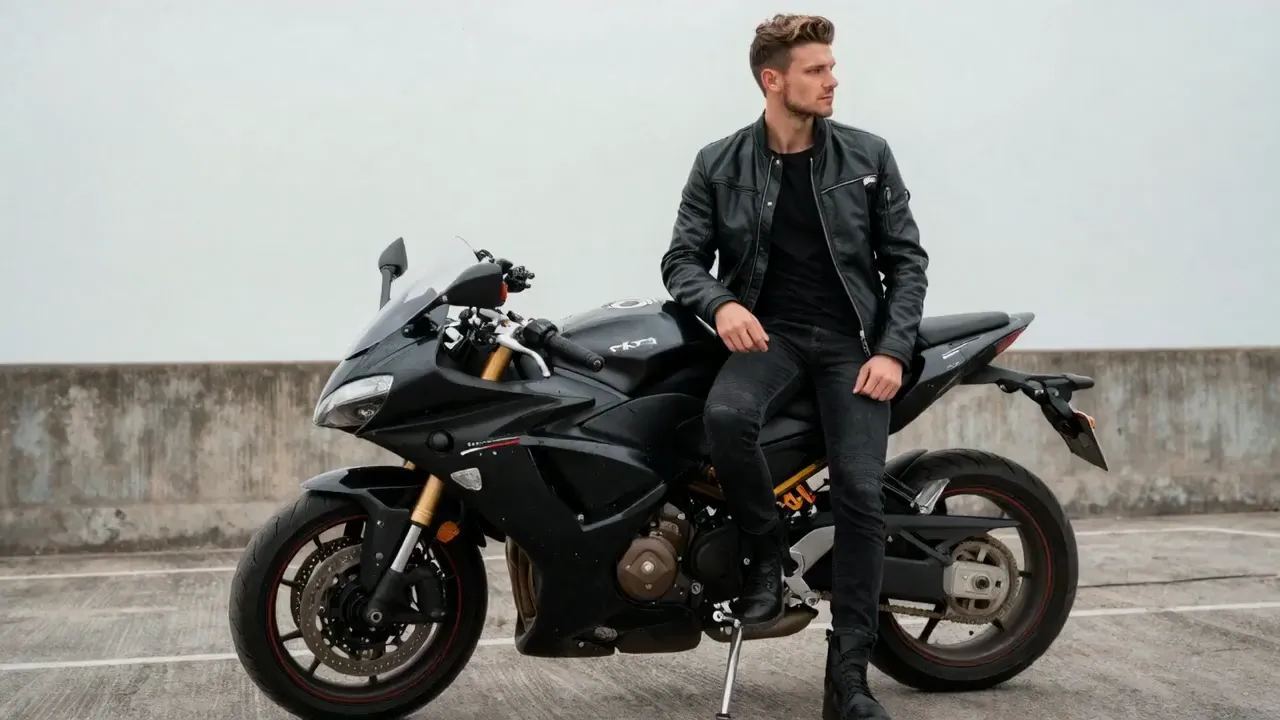
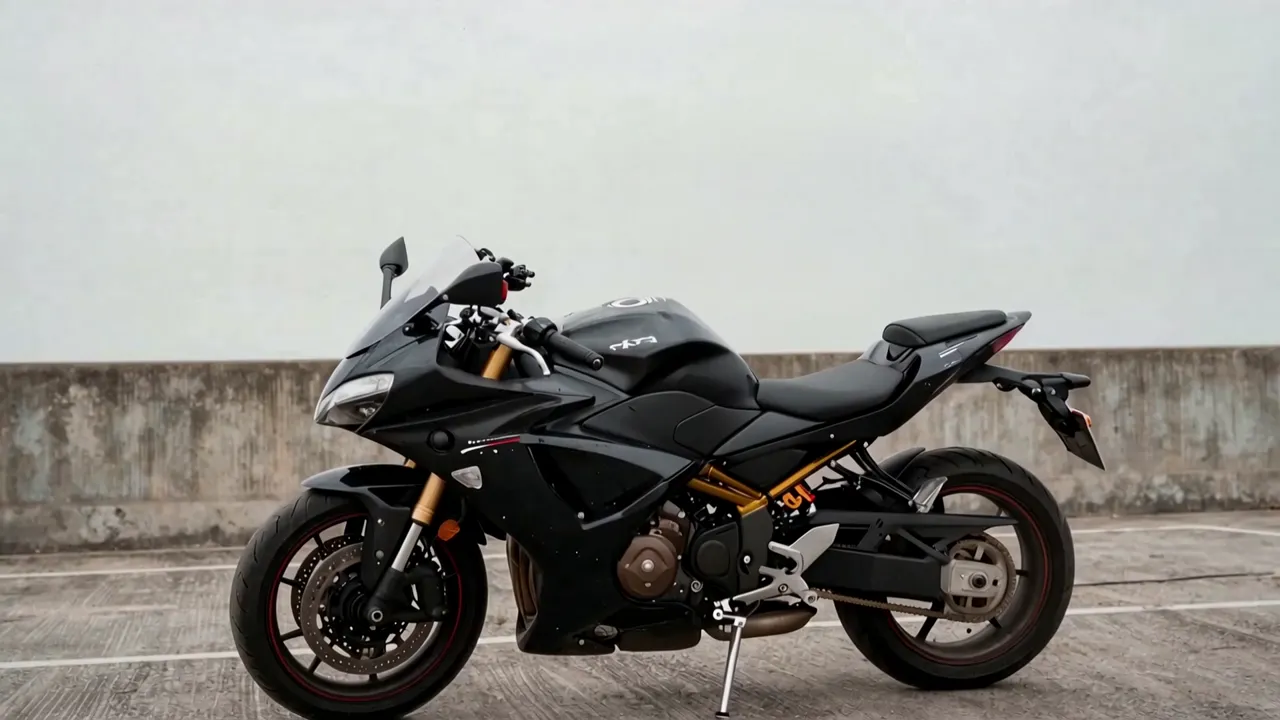
Remove a Person
Remove the man in the leather jacket from the clip. The motorcycle stays where it is and the wall, ground and sky behind him are filled in.
AI Video Editor Features
Powerful video editing capabilities powered by the latest AI models
Natural Language Editing
Describe your edits in plain text. No timeline, no keyframes - just type what you want to change and AI handles the rest.
Video Style Transfer
Transform your video into watercolor, anime, cinematic, oil painting, or any artistic style. The AI preserves motion while completely restyling the visuals.
Reference Image Guided
Upload a reference image to guide the edit. Show the AI exactly what style, look, or appearance you want applied to your video.
1080p Output
Edit and export videos in up to 1080p resolution. Choose between 720p for faster processing or 1080p for maximum quality.
Smart Audio Handling
Keep your original audio track intact or let AI regenerate audio that matches the edited visuals. Full control over the soundtrack.
Multiple Aspect Ratios
Output in 16:9, 9:16, 1:1, 4:3, or 3:4. Edit once and export for YouTube, TikTok, Instagram, or any platform.
How to Edit Videos with AI
Three simple steps to transform your videos
Step 1: Upload Your Video
Pick an editing model from the dropdown, then upload an MP4 or MOV clip. Length and size limits depend on the model you pick: 2-10 seconds for Wan 2.7 Edit, up to 30 seconds for Seedance 2.5, and 3-30 seconds (at least 700×700) for Kling 4.0.
Step 2: Describe Your Edit
Type what you want to change. Swap styles, modify objects, adjust lighting, change backgrounds - be as specific as you like.
Step 3: Download the Result
Preview your edited video and download it in up to 1080p. Not perfect? Refine your prompt and try again.
Frequently Asked Questions
Everything you need to know about AI video editing
An AI video editor lets you modify existing videos using text instructions instead of traditional editing software. Upload a video, describe the changes you want, and AI applies them automatically - no timeline editing or technical skills needed.
You can change visual styles (watercolor, anime, cinematic), swap or modify objects and characters, adjust backgrounds and environments, change lighting and color grading, modify clothing and appearance, and apply artistic transformations. The AI understands natural language instructions.
Pick a model from the dropdown in the editor. Wan 2.7 Edit handles precise edits of 2-10 second clips. Wan 3.0 edits with reference images and audio and lets you choose the output length. Seedance 2.5 and Seedance 2.0 edit with multimodal references (images and audio). Kling 4.0 swaps people, restyles scenes and removes objects while keeping your clip's length and camera motion, with up to 4 reference videos and 10 reference images.
The editor accepts MP4 and MOV files. The size limit depends on the model: 100MB for Wan 2.7 Edit and Wan 3.0, 200MB for Seedance and Kling 4.0. Output is always an MP4 file.
It depends on the model: 2-10 seconds for Wan 2.7 Edit, 1-15 seconds for Wan 3.0, up to 15 seconds for Seedance 2.0, up to 30 seconds for Seedance 2.5, and 3-30 seconds for Kling 4.0 (which also needs at least 700×700 pixels). For longer videos, trim them to the section you want to edit before uploading.
Yes. Seedance 2.5 and Kling 4.0 both edit clips of up to 30 seconds (for Kling 4.0 the source plus any reference videos must add up to 30 seconds or less). Wan 2.7 Edit takes 2-10 seconds and Wan 3.0 and Seedance 2.0 up to 15 seconds, so trim longer videos to the part you want to change first.
Each model is priced per second, and the exact credit cost is shown on the Generate button before you start. Wan 2.7 Edit costs 40 credits per second of output, so a 5-second edit costs 200 credits. Kling 4.0 bills the length of your source video and any reference videos plus the edited output, and Wan 3.0 bills your source video plus the output. Failed edits are refunded automatically.
Yes. Upload a reference image alongside your prompt to show the AI exactly what style or appearance you want. This is especially useful for style transfers and character redesigns.
Yes. Upload your clip and describe what to remove, for example "Remove the man in the black jacket and keep the motorcycle and background unchanged". The AI removes it in every frame and fills in the background behind it, while the rest of the scene and the camera motion stay the same.
Explore More AI Video Tools
Discover our full suite of AI-powered video creation and editing tools
Start Editing Your Videos with AI
Upload a video, describe your edit, and let AI transform it. No editing skills needed.
Edit Video Now