
MiniMax H3 Image Edit: How to Use Multiple Reference Images (with Prompts)
How to use MiniMax H3 Image Edit with multiple reference images: number them in the prompt, lock faces and labels, edit text, and copy the prompts we used.

MiniMax released H3 Image on November 10, 2026. It makes images from text and edits existing ones, and a single edit can take up to 16 reference images, with output at 1K, 2K or 4K. This guide walks through the multi-reference editing workflow in MiniMax H3 Image on Veevid, using three real edits with the exact prompts, then the cases that went wrong and what to do about them.
MiniMax H3 Image Edit Workflow
- Open MiniMax H3 Image and switch to Image to Image.
- Upload your reference images. Order matters: the first upload is image 1, the second is image 2, and so on.
- Write the prompt, pick an aspect ratio and a resolution (1K, 2K or 4K), and generate. The result takes the aspect ratio you pick, not the shape of your first upload.
The prompt does most of the work. Four habits made the difference in our edits:
- Point at each image by number. "The woman from image 1", "the denim jacket from image 2". The numbers follow upload order, and you can mention them in any order in the sentence.
- Say what each image contributes. A person, an outfit, a location, a product. Name the thing as well as the number ("the NOVA perfume bottle from image 2"), so the model knows which part of that image you mean.
- Name what must not change. "Keep her face and hair exactly as in image 1." "Keep the bottle label exactly as in the references." Whatever you don't protect, the model is free to redraw.
- Put text in quotes. To change text, quote the old and the new wording. To add text, quote exactly what should appear.
Every example below was generated at 2K on November 11, 2026, and each image is the first result of its prompt.
Example 1: Change the Text on a Sign
One reference image, a bakery storefront. The prompt quotes the old and the new sign text, adds one new element and protects the rest:
Change the sign text from 'BAKERY' to 'SUNRISE BAKERY' in the same gold lettering style, and add a small white 'OPEN' sign hanging inside the window. Keep everything else in the photo unchanged.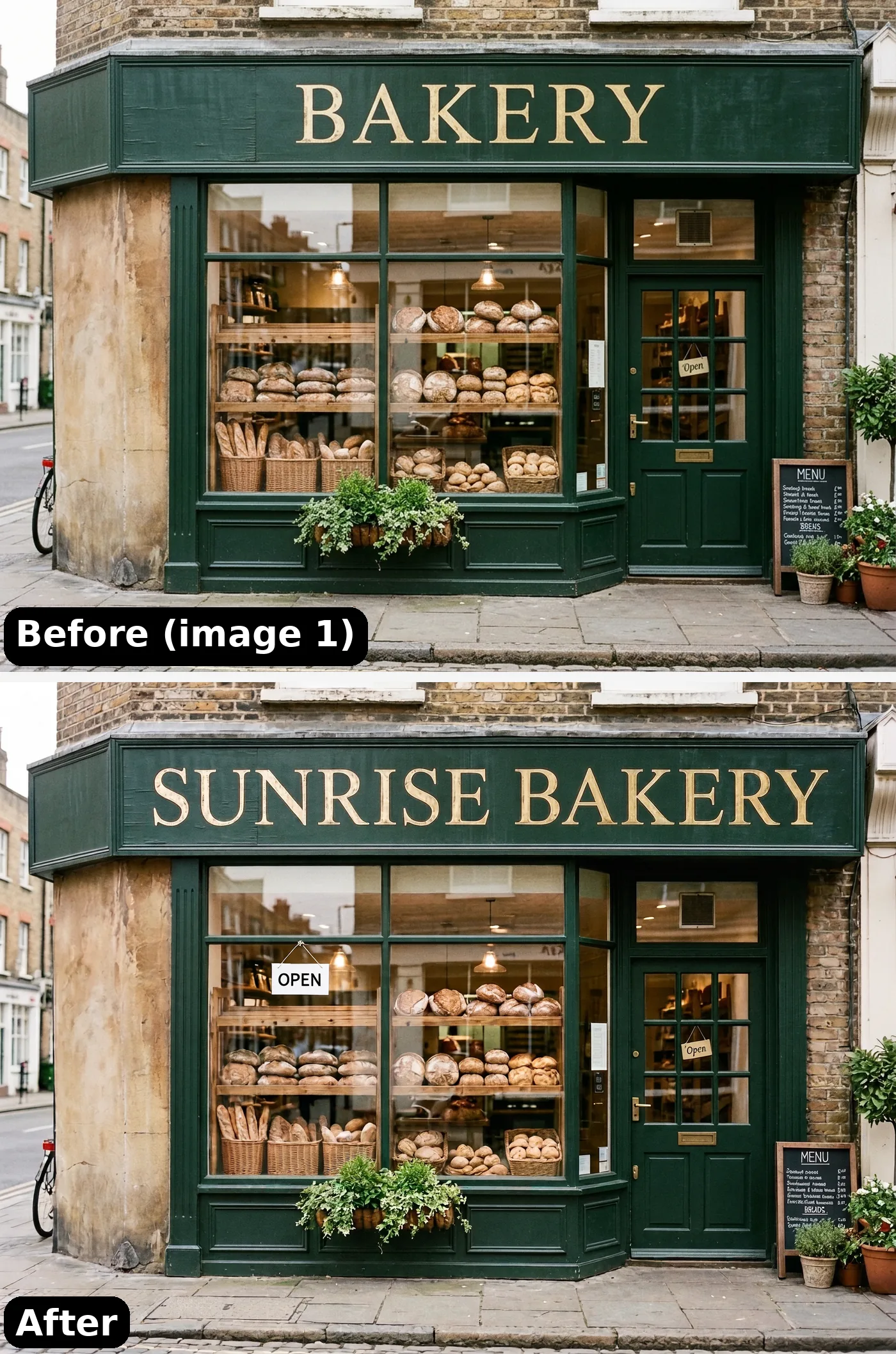
The sign now reads SUNRISE BAKERY, spelled correctly, in the same gold serif letters on the same green board, and a white OPEN sign hangs in the left window. The rest is the same storefront: the green frontage, the door with its small "Open" tag, the planter and the chalk menu board. The loaves in the window were redrawn and shuffled a little, which you only notice side by side.
Example 2: Put an Outfit on a Person (3 Reference Images)
Image 1 is the person, image 2 a denim jacket, image 3 a pair of sneakers. The prompt says what comes from each image and fills in the rest (jeans, background, pose) with plain description:
Full-body fashion photo of the woman from image 1 wearing the denim jacket from image 2 over her white t-shirt, black slim jeans, and the white sneakers with green heel tabs from image 3. Keep her face and hair exactly as in image 1. Plain light grey studio background, standing pose.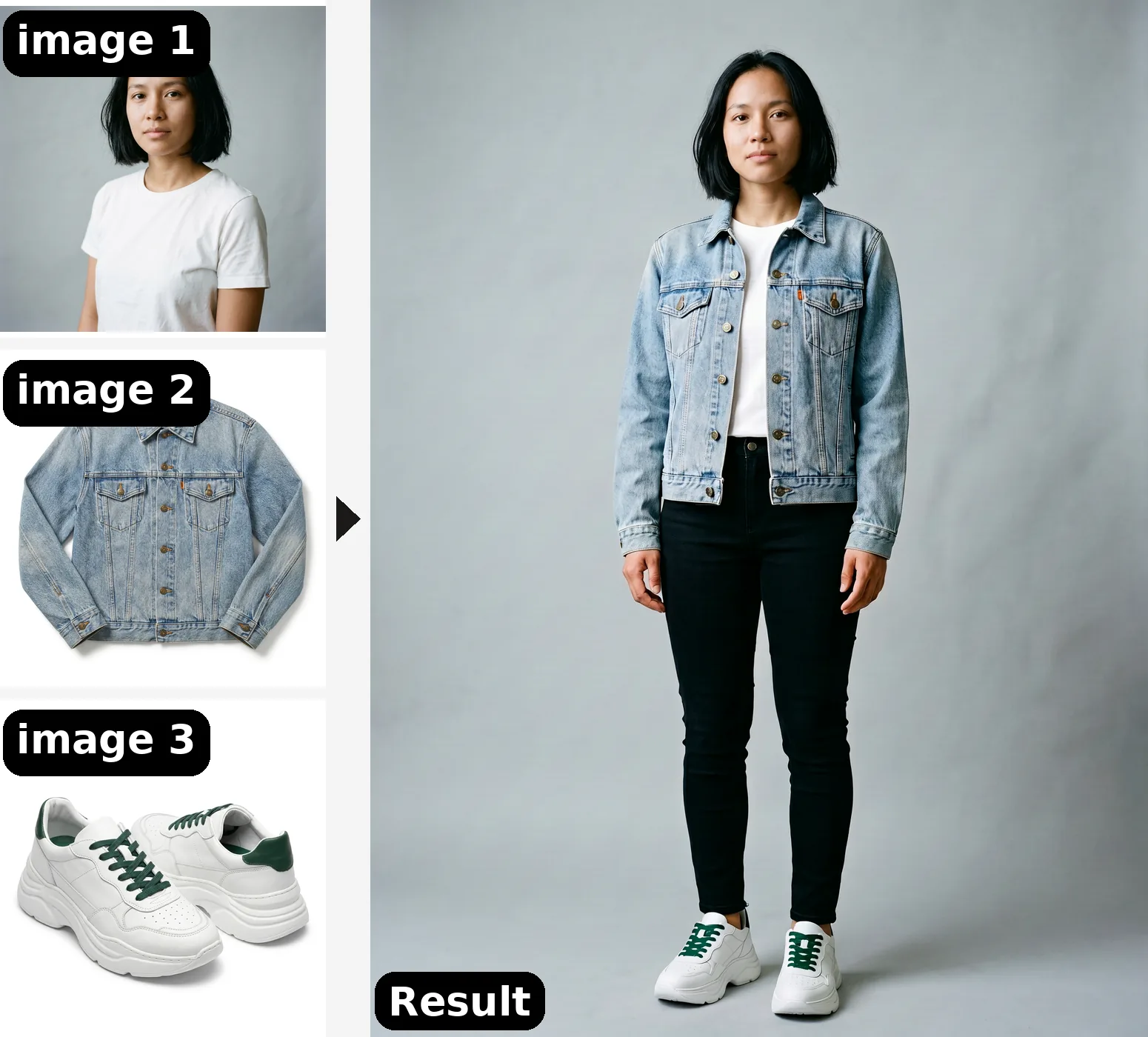
Her face and bob haircut match image 1. The jacket keeps its light wash, brass buttons and the small orange tab on the chest pocket, and the sneakers keep their chunky white soles and green laces. The green heel tabs are at the back, out of view in this front-on pose.
Example 3: Make an Ad Poster with Text (3 Reference Images)
Image 1 is the person, image 2 the perfume, image 3 a beach. The prompt mentions them in the order 1, 3, 2, which works fine, and quotes both lines of poster text:
Summer perfume ad poster: the woman from image 1 on the golden hour beach from image 3, holding the NOVA perfume bottle from image 2 near her face, wearing a light linen shirt. Large elegant headline at the top reading 'SUMMER IN A BOTTLE', and the small text 'NOVA EAU DE PARFUM' at the bottom. Keep her face and the bottle label exactly as in the references.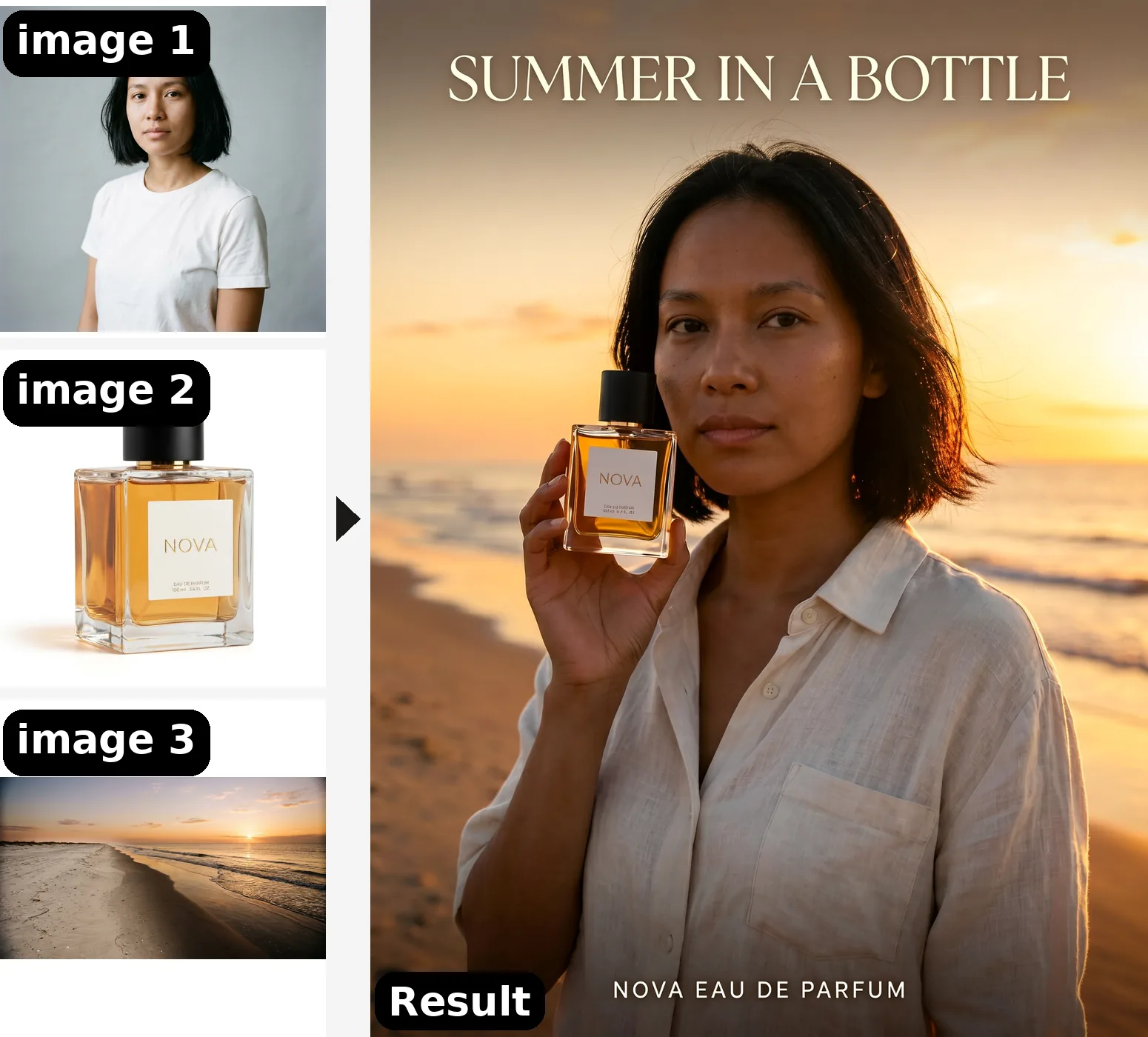
Both lines of text are spelled correctly: SUMMER IN A BOTTLE at the top, NOVA EAU DE PARFUM at the bottom. The NOVA label on the bottle is clear, and she is recognizably the woman from image 1. Two things to notice: the tiny print under NOVA on the label isn't real text (more on that below), and the beach takes the light and mood of image 3 rather than its exact shoreline.
What to Watch Out For
These are the edits that didn't come out right, and what we'd do differently.
Six products in one scene: right items, wrong sizes
We gave it six close-up references (perfume, serum, mug, sneakers, jacket, person) and asked for a concept store:
Bright minimal concept store interior. On a light oak shelf on the left: the NOVA perfume from image 1, the LUMA serum from image 2 and the BREW CO. mug from image 3. On a low pedestal in the center: the white sneakers from image 4. On a hanger on the right: the denim jacket from image 5. The woman from image 6 stands behind the counter smiling. Keep all labels readable and every product true to its reference.All six things made it in, each where the prompt put it, and NOVA, LUMA and BREW CO. are readable. The sizes are off, though: the products on the shelf are far too big next to her, with the perfume bottle almost as tall as her head.
So we ran it twice more with real-world sizes written into the prompt:
Bright minimal concept store interior, wide shot, everything at true real-world scale. On a light oak wall shelf on the left at chest height: the NOVA perfume from image 1 (about 10 cm tall), the LUMA serum from image 2 (about 12 cm tall) and the BREW CO. mug from image 3 (an ordinary 10 cm coffee mug). On a low white pedestal in the center: the pair of white sneakers from image 4, normal adult shoe size (about 27 cm long). On a clothes rack on the right: the denim jacket from image 5, normal adult size. The woman from image 6 (about 165 cm tall) stands behind the counter smiling; compared with her, the mug is smaller than her hand and the perfume bottle is about the size of her palm. Keep all labels readable and every product true to its reference.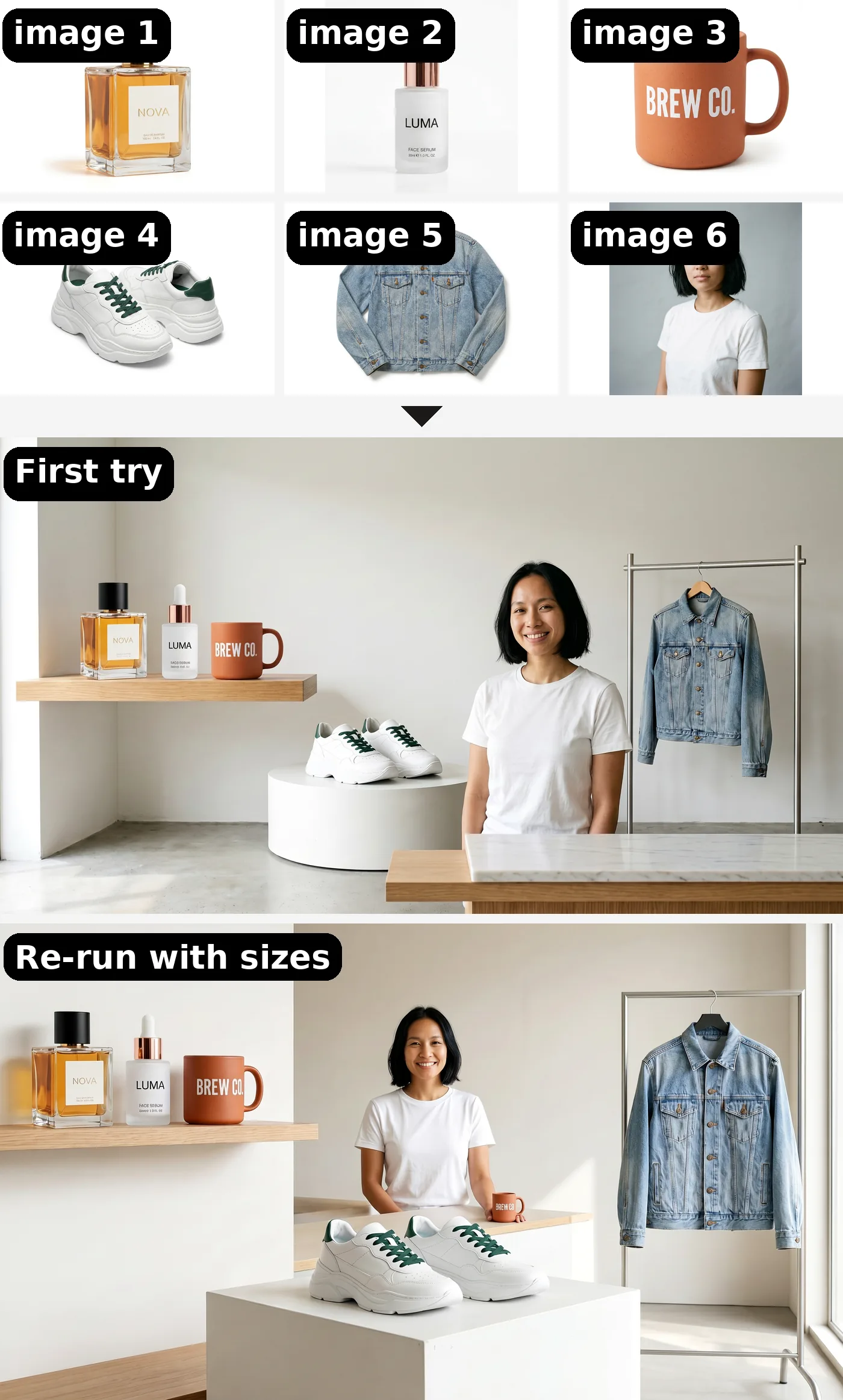
Neither re-run fixed it. In the one shown, the products still look too big next to her, and the same BREW CO. mug now appears twice: a big one on the shelf and a small one under her hand on the counter. The other re-run also had the sizes wrong.
Our best guess at the cause: every reference is a close-up that fills its frame, so the model has no way to tell how big anything really is. What we'd try instead:
- Use references that show scale. A product held in a hand, a shoe being worn, a mug on a table next to other things.
- Put fewer products in one edit. Build a busy scene in two steps: compose part of it, then upload that result as image 1 of the next edit and add the rest.
Strong lighting can change the face
Image 1 is the person, image 2 a rainy Tokyo street at night:
Place the woman from image 1 standing in the middle of the rainy Tokyo street from image 2 at night, looking at the camera. Keep her face, hair and white t-shirt the same as image 1. Match the neon lighting and reflections of image 2 on her skin and clothes. Cinematic, 35mm.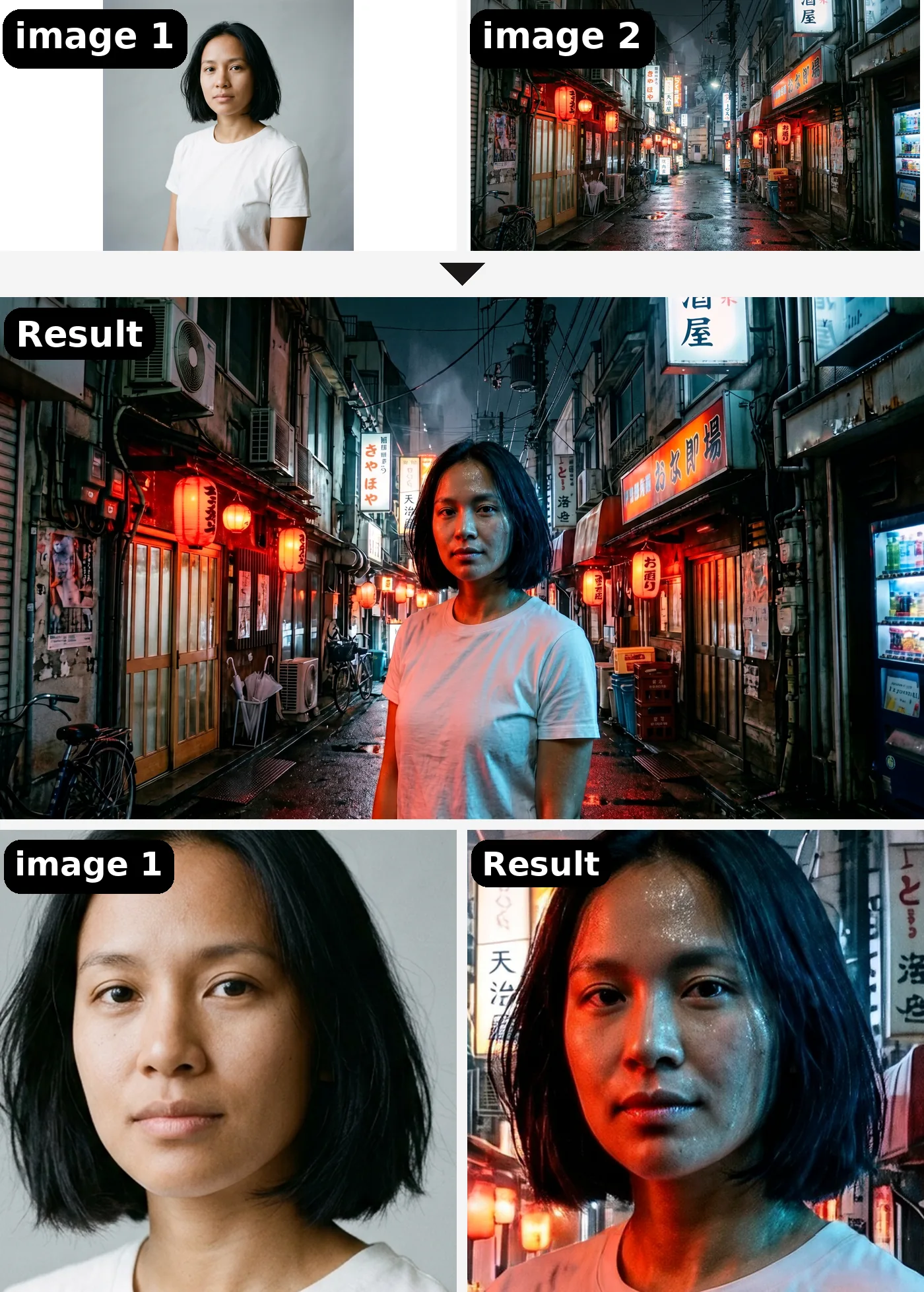
The scene works: she stands in the street from image 2, and the red lantern light falls on one side of her face and shirt the way it would in a real photo. The face is weaker. Her skin came out shiny and wet-looking, she looks older, and the likeness is only fair (compare the close-ups).
"Match the neon lighting on her skin" probably pushed it too far. When you move a person into harsh or colored light, be explicit about the face, for example "keep her facial features, skin texture and age exactly as in image 1", and expect to run it a few times and pick the best one.
Small print turns into fake text
Three product shots on a marble table:
Flat-lay product photo on a white marble table: the NOVA perfume bottle from image 1, the LUMA serum bottle from image 2 and the BREW CO. mug from image 3, arranged left to right with a few eucalyptus leaves. Keep every label and its text exactly as in the reference images. Soft morning window light, top-down.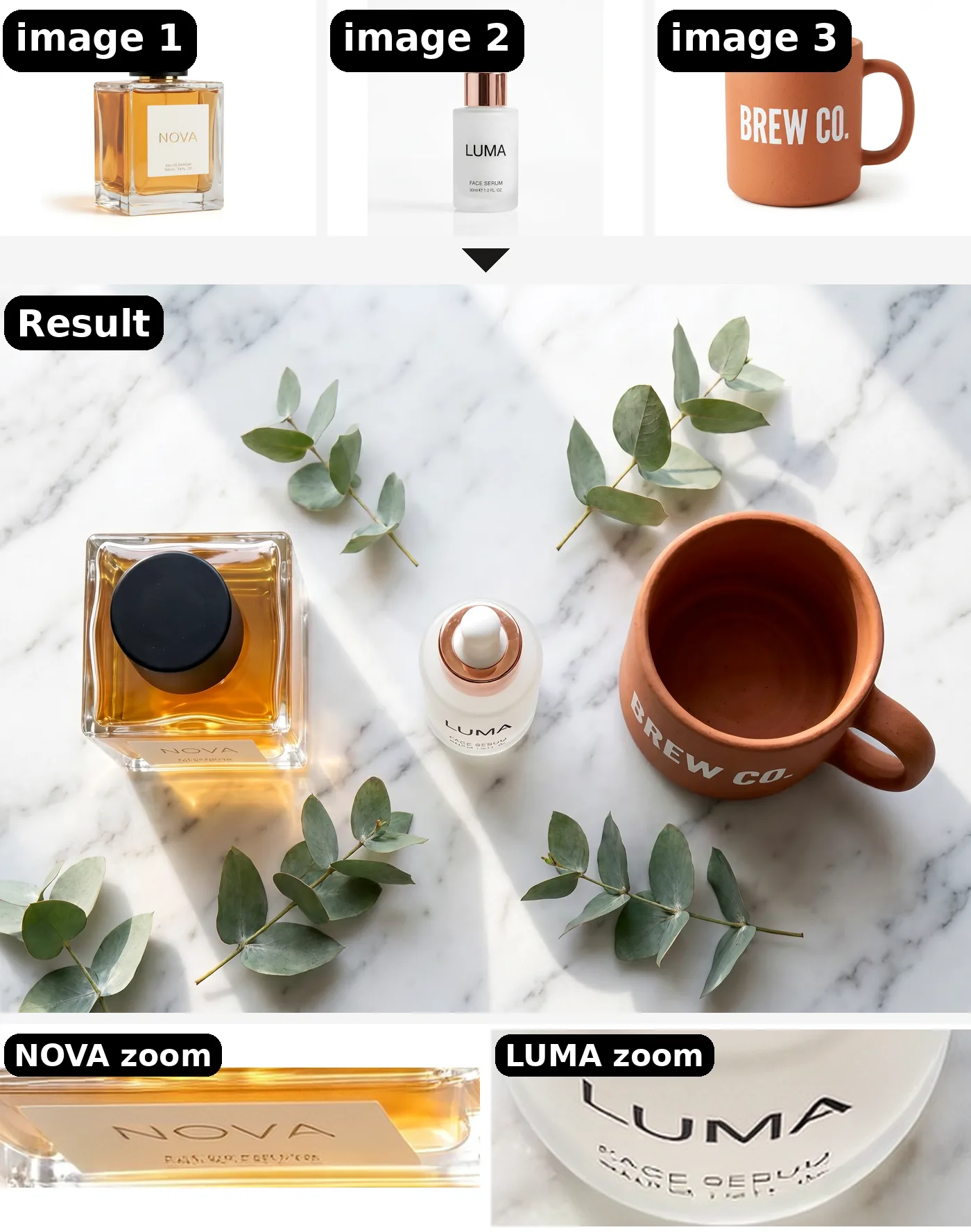
The big words came through: LUMA and BREW CO. are clean, and NOVA is readable though faint. The small print under them (the product type and size lines) turned into letter-like shapes. The poster in example 3 had the same problem on the bottle.
This was 2K, with three products sharing the frame, so each label is small. If the small text matters, use 4K and let the product take up more of the picture, or put one product per image.
No masks, no transparent background
The H3 Image editor on Veevid has no brush or mask, so you can't paint over the area to change. Describe it in words instead ("the sign above the window", "the mug on the left"), as in example 1. Output is JPEG, PNG or WebP, and there is no transparent background option.
MiniMax H3 Image to Video: Animate Your Edit
The H3 Image result makes a good first frame for a video. We took the Tokyo street image from above and animated it with MiniMax H3 image to video, at 768P for 5 seconds:
She slowly turns her head and smiles, then starts walking toward the camera; rain drips from the lanterns, neon reflections ripple on the wet street. Handheld cinematic camera slowly pushes in. Ambient city rain sound.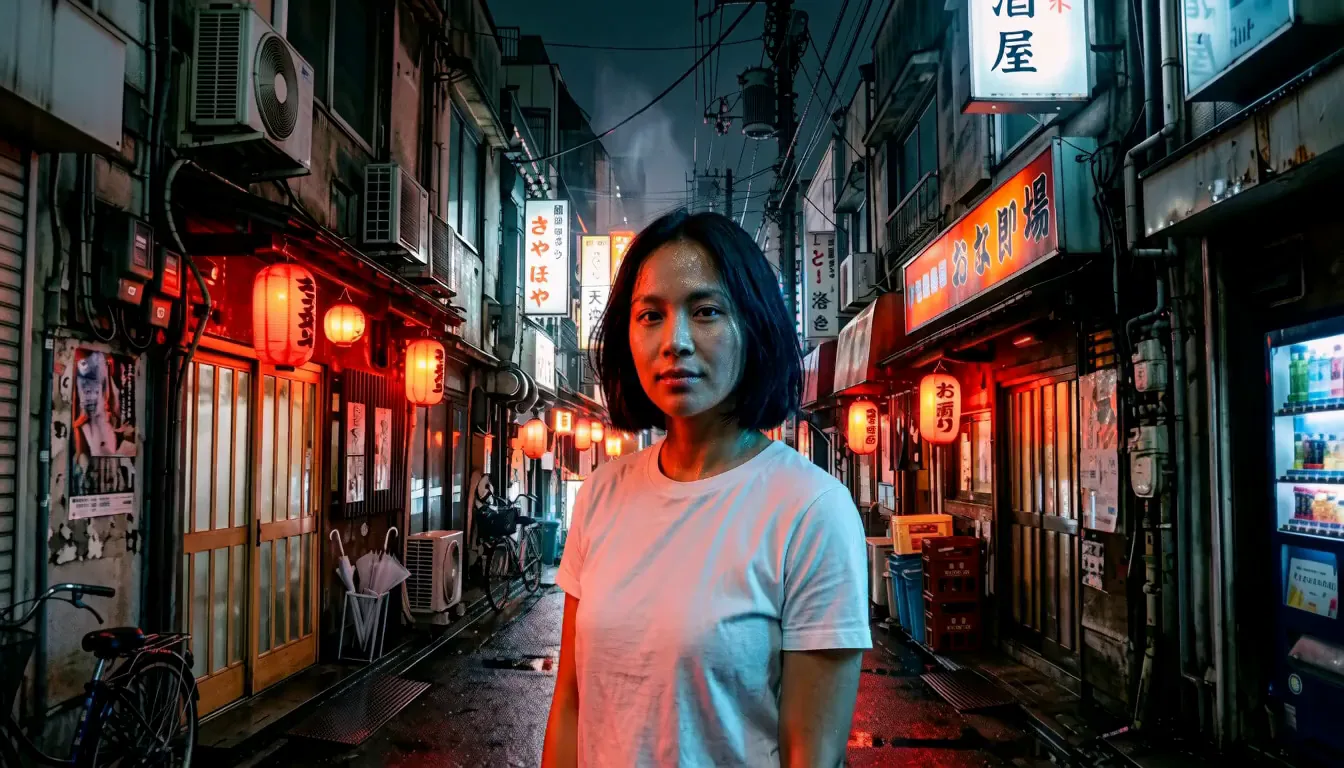
She stays the same person from the first frame to the last, and the head movement and smile happen. The walk toward the camera didn't: she stays where she is, and the camera pulls back noticeably instead of pushing in. The clip comes with a quiet ambient soundtrack generated in the same pass.
Making the frame first is the point of this workflow: the look, the person and the scene are settled in the image before you generate the video. For the motion, keep to one or two simple actions in a 5-second clip.
Prompt Templates
Copy one, swap the brackets for your own details, and keep the "keep" sentence.
Outfit swap
Full-body photo of the person from image 1 wearing the [garment] from image 2 and the [shoes] from image 3. Keep their face and hair exactly as in image 1. [Background], [pose].Change the scene
Place the person from image 1 in the [location] from image 2, [pose]. Keep their facial features, skin texture, age and clothing exactly as in image 1. Match the lighting of image 2.Product composite
[Shot type] on [surface]: the [product] from image 1, the [product] from image 2 and the [product] from image 3, arranged [layout]. Keep every label and its text exactly as in the reference images. [Lighting].Change text
Change the text '[old text]' on the [where it is] to '[new text]' in the same font, color and size. Keep everything else in the photo unchanged.FAQ
How many reference images can MiniMax H3 Image Edit use?
Up to 16 in one edit. In our tests, one to three references gave the cleanest results. With six, every item showed up but their sizes drifted.
How do I tell the model which reference image is which?
By position: image 1, image 2, image 3, in the order you uploaded them. Add what the thing is as well ("the denim jacket from image 2"), so the model knows which part of the image to take.
Can MiniMax H3 Image change text in a photo?
Yes. Quote the old and the new text, and ask for the same lettering style. Large text like signs and headlines came out right every time in our edits; very small print on labels didn't.
Can I turn a MiniMax H3 Image result into a video?
Yes. Download the image and use it as the first frame in MiniMax H3 image to video. Describe the motion, not the scene, since the scene is already in the frame.
Try It
Upload your own references and start with one of the templates above: MiniMax H3 Image on Veevid.